Updated October 2026: added the video walkthrough, when a Stripe payment link is enough on its own, what your buyer sees at checkout, and check-in at the door.
When you sell tickets through TixFox, the money goes into your own Stripe account, not ours. That one detail affects the things organizers care about first: when you can spend the ticket money, who handles refunds, and which fees come off each order.
Below are the setup screens, one real order with every fee on it, and the payout timing from Stripe's own documentation, so you know what to check before you promise a venue deposit.
The short answer: to sell tickets with Stripe on TixFox:
- Go to Settings, then Payment Method, and click Add Payment Method.
- Choose Stripe Connect and sign in to Stripe, or create an account with the same email.
- Create a ticket type and choose whether the buyer pays the fees or you absorb them.
- Publish your event and share the link.
- Each sale lands in your Stripe balance, and Stripe pays it out to your bank on its usual schedule.
- On the night, scan tickets with the free TixFox check-in app.
The whole setup in under four minutes, on one real event: connecting Stripe, the ticket, the buyer's checkout, where the money goes, and the door.
For the full walkthrough of creating and sharing an event, see our guide to how to sell event tickets online.
Can you sell tickets with just a Stripe payment link?
You can take money for tickets that way. A Stripe payment link is a checkout page you make in a few clicks and share anywhere, and it does more than people expect: buyers can choose a quantity, you can add a discount code or a question at checkout, you can cap how many purchases the link accepts, and Stripe emails the buyer a receipt.
What it doesn't give you is a ticket. The buyer gets a receipt for a payment, not a ticket with its own QR code. There's no check-in app, so at the door you're reading names off a list of payments, and nothing marks a guest as already in. And a purchase cap counts payments, not tickets, so one order for four tickets uses up just one of them.
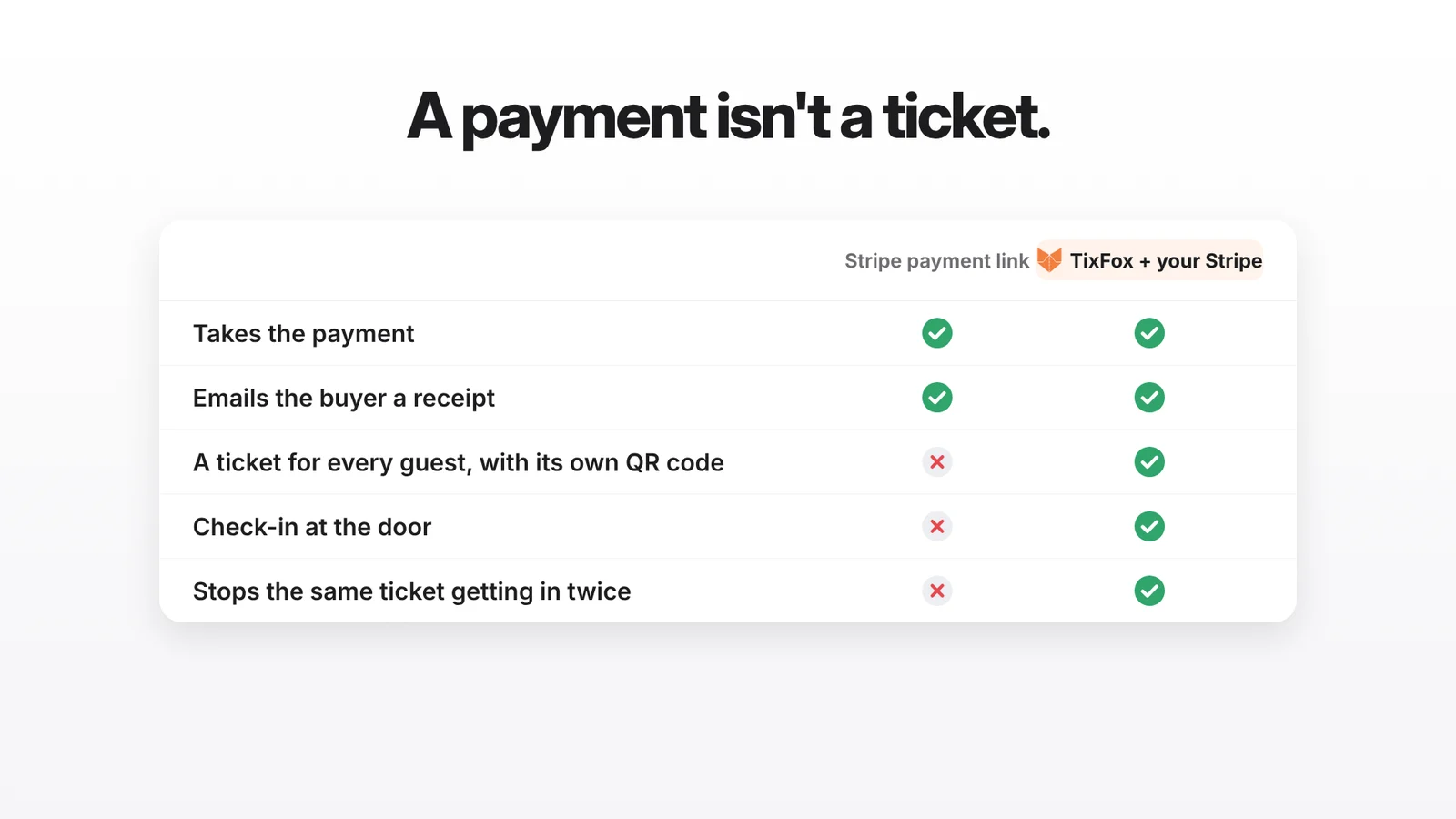
When a payment link is enough: one ticket type at one price, a small crowd you can check off a printed list, and no need to stop a ticket being used twice. A 20-person workshop fits. Add an early bird, a VIP tier, a door team or a few hundred buyers, and you'll want tickets on top of Stripe. That's what the rest of this guide sets up, with the money still landing in your own Stripe account.
Why your own Stripe account matters
With Stripe Connect, each ticket payment goes to a Stripe account that belongs to you. TixFox takes its fee from each order, and the rest shows up in your Stripe balance as orders come in. Stripe then pays it out to your bank on your payout schedule.
That matters if you're used to platforms that pay after the event. On Eventbrite's default schedule, according to its US help center, the payout is sent 3 business days after your event ends, and a US bank can take another 2 to 3 business days to post it. You can set up payouts before the event there too, but by default the money arrives after the night you needed it for.
If you pay a venue deposit, a band or a caterer before the doors open, getting paid while tickets sell makes those payments easier to cover.
Step 1: Connect Stripe in TixFox
Until a payment method is connected, the TixFox sidebar shows a Connect Stripe card. Click it, or go to Settings, open the Payment Method tab, and click Add Payment Method.
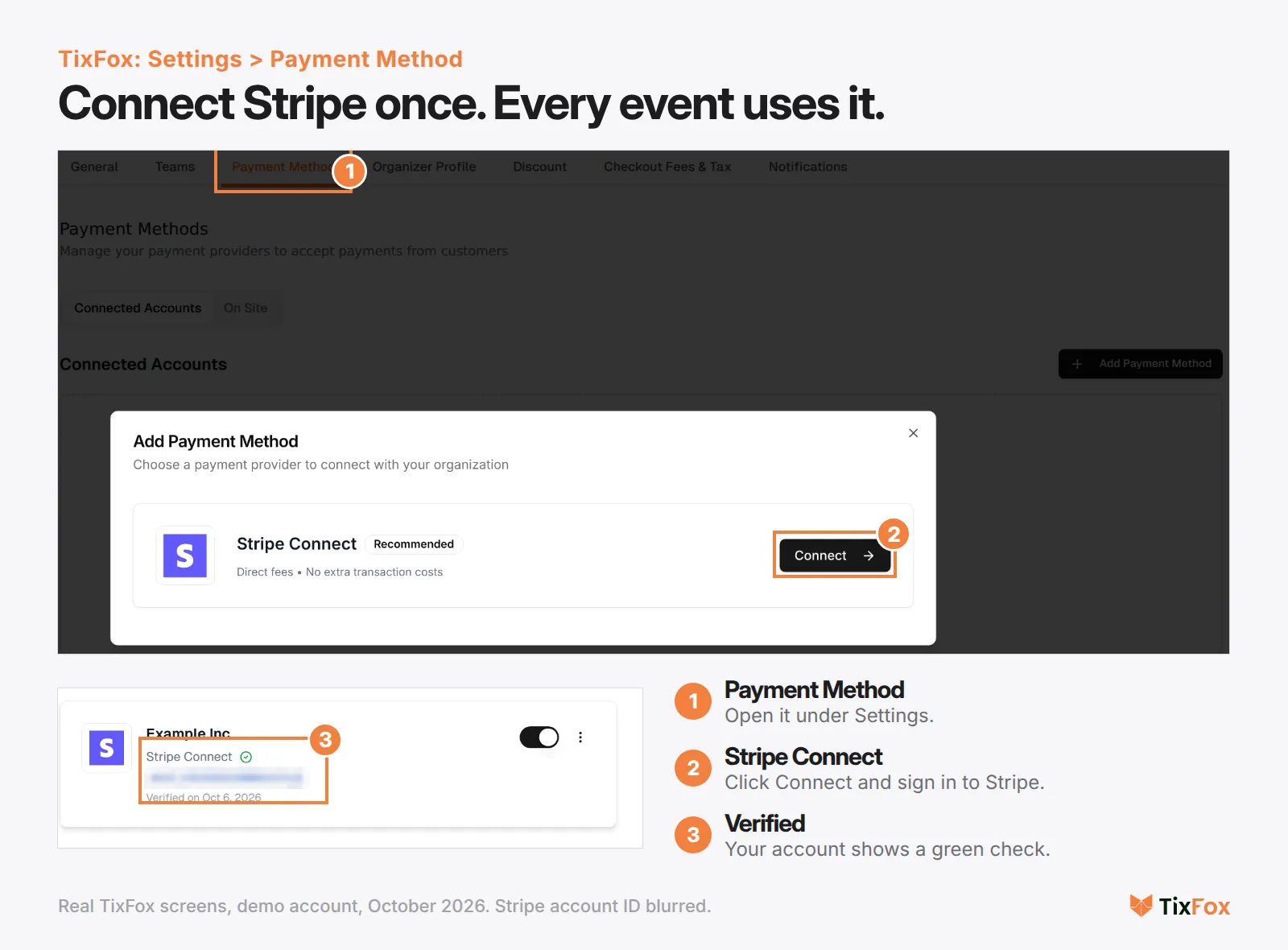
Choose Stripe Connect and click Connect. You're taken to Stripe, which asks for an email address. If you already have a Stripe account, use the same email and sign in. If not, Stripe walks you through creating one, including the business details and the bank account it pays out to.
When you finish, Stripe sends you back to TixFox and the account shows up under Connected Accounts with a green check and the date it was verified. Every event you create after that sells through the same Stripe account.
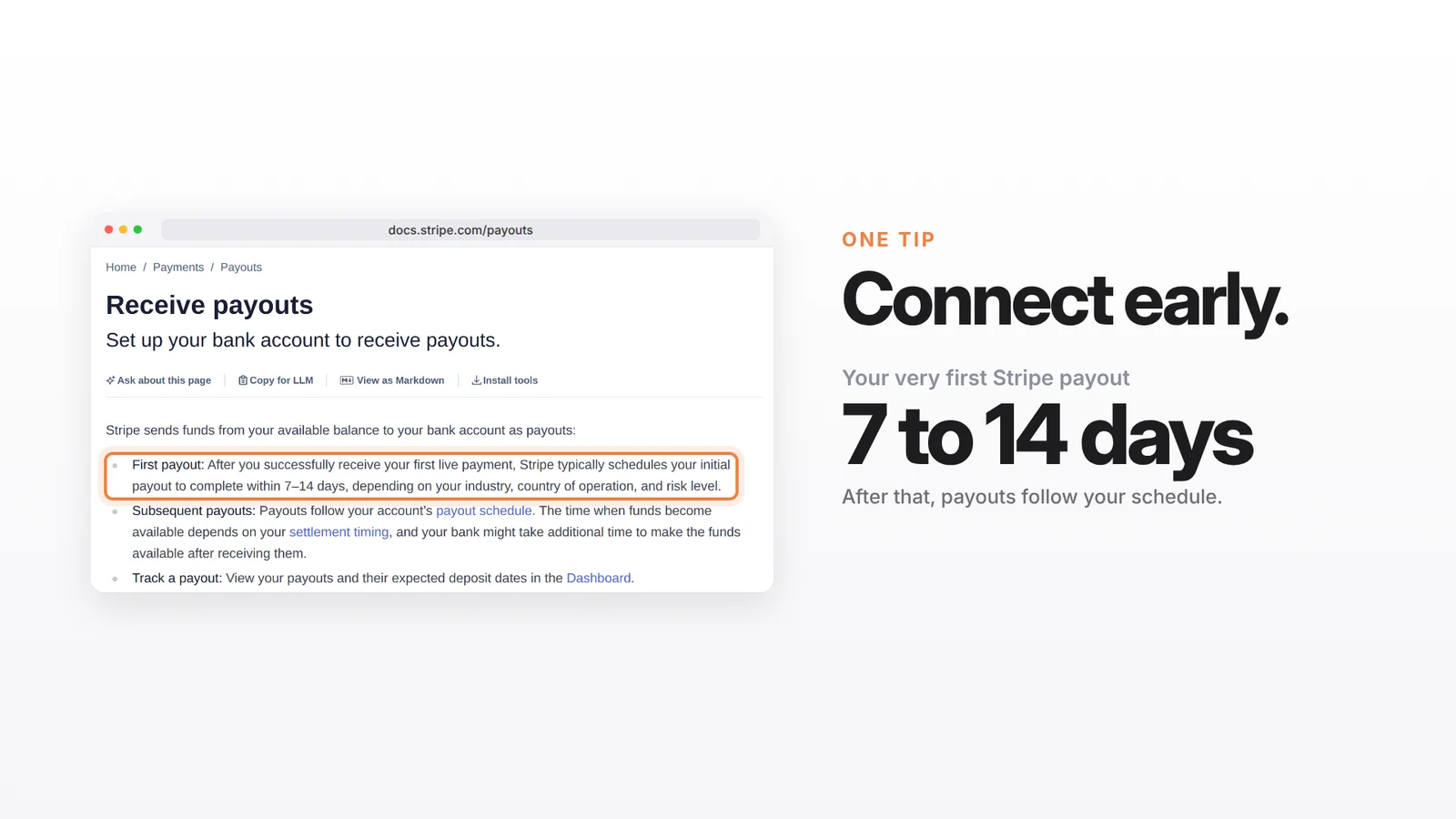
Connect Stripe before you start depending on the money. Stripe says your first payout is typically scheduled to arrive 7 to 14 days after your first live payment, depending on your industry, country and risk level. After that, payouts follow the normal schedule below.
Step 2: Decide who pays the fees
Two fees come off a paid order on TixFox:
- The TixFox fee: $0.39 per paid ticket ($0.30 for tickets under $5). Free tickets have no TixFox fee.
- Stripe's card processing: 2.9% + 30¢ per successful card payment in the US, according to Stripe's pricing page. International cards add 1.5%, and currency conversion adds 1%.
When you create a ticket type, the Pricing Summary shows both fees before you save. Under Show Advanced Settings, Handle Fees lets you pass the fees to the buyer or absorb them yourself.
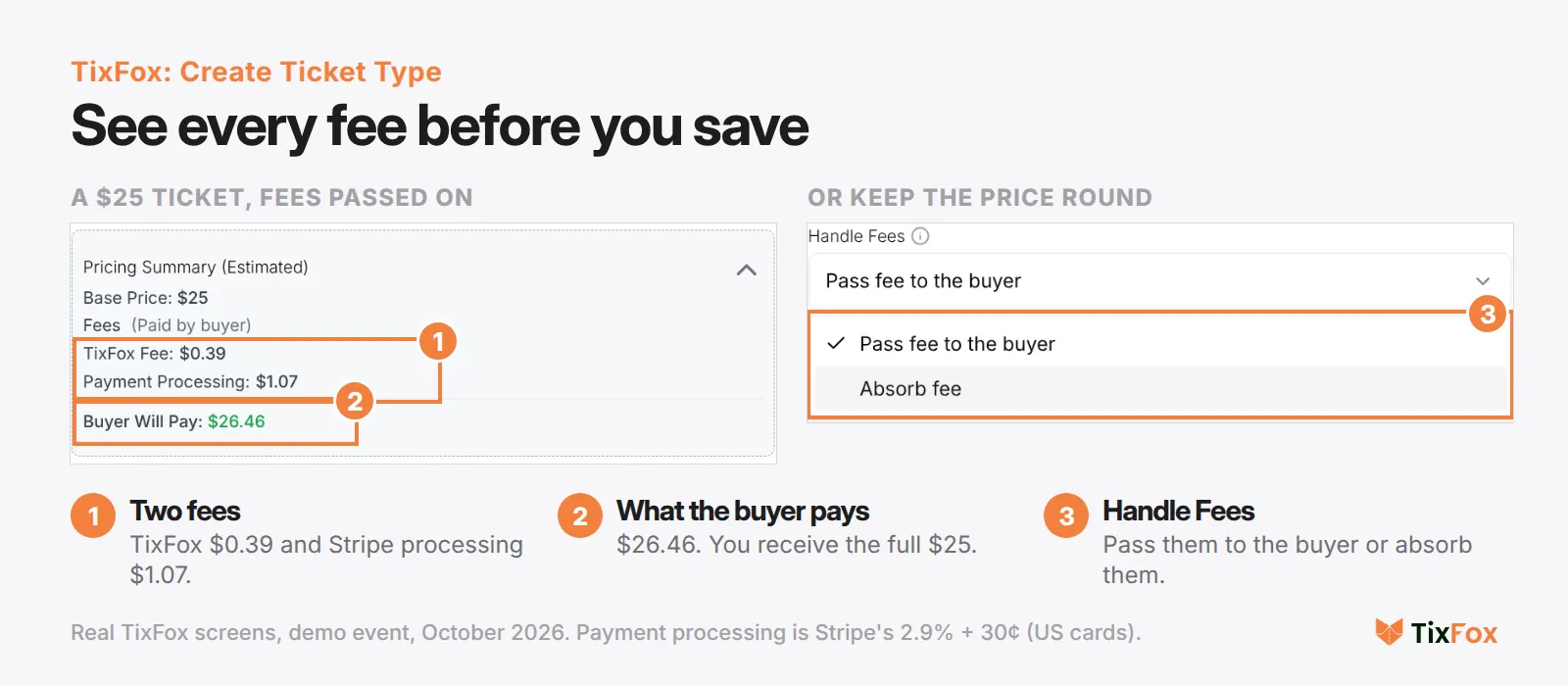
With fees passed on, a $25 ticket costs the buyer $26.46 and you receive the full $25. If you absorb them, the buyer pays $25 and the fees come out of your share. Ticketing fee control has more on choosing between the two. If you're still setting the price itself, our guide on how to price event tickets covers that first.
Stripe's 30¢ is charged per payment, not per ticket. A buyer who orders four tickets at once pays it once.
Step 3: Share the link, and here's what your buyer sees
Publish the event and copy its link. Share it anywhere, or put the checkout on your own website. Your buyer picks their tickets, adds their name and email, and pays on Stripe's own payment form, right inside the TixFox checkout. The order summary next to it shows every line before they pay.
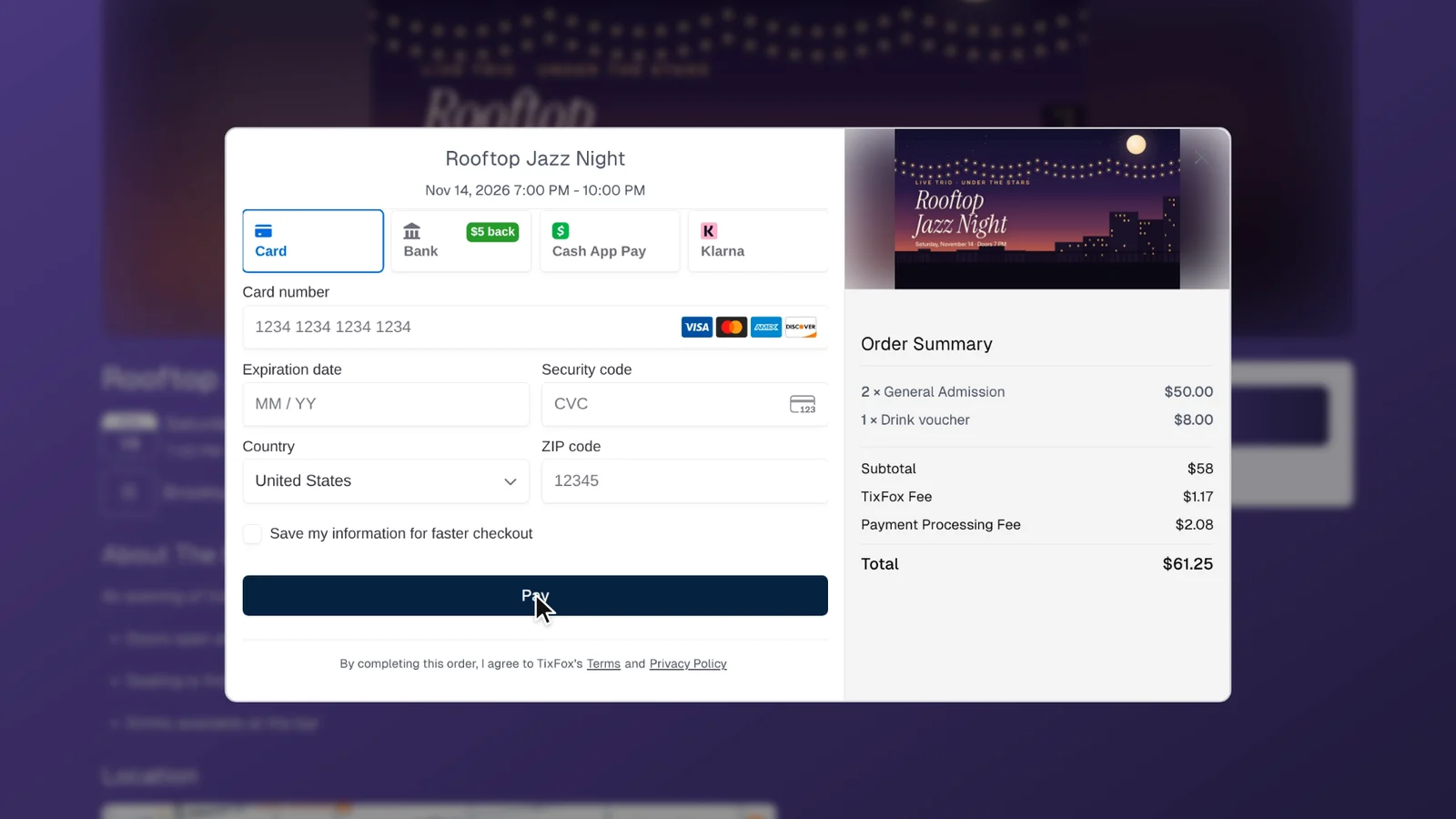
Card details go straight into Stripe's form. On this demo event the form also offered bank payments, Cash App Pay and Klarna, and the methods shown can vary by account and by where the buyer is. The moment the payment goes through, the buyer gets their ticket by email, with its own QR code, ready for Apple Wallet or Google Wallet.
Where the money goes on a real order
Here's what happens to one order from our demo event: two $25 tickets and an $8 drink voucher, with fees passed on to the buyer.
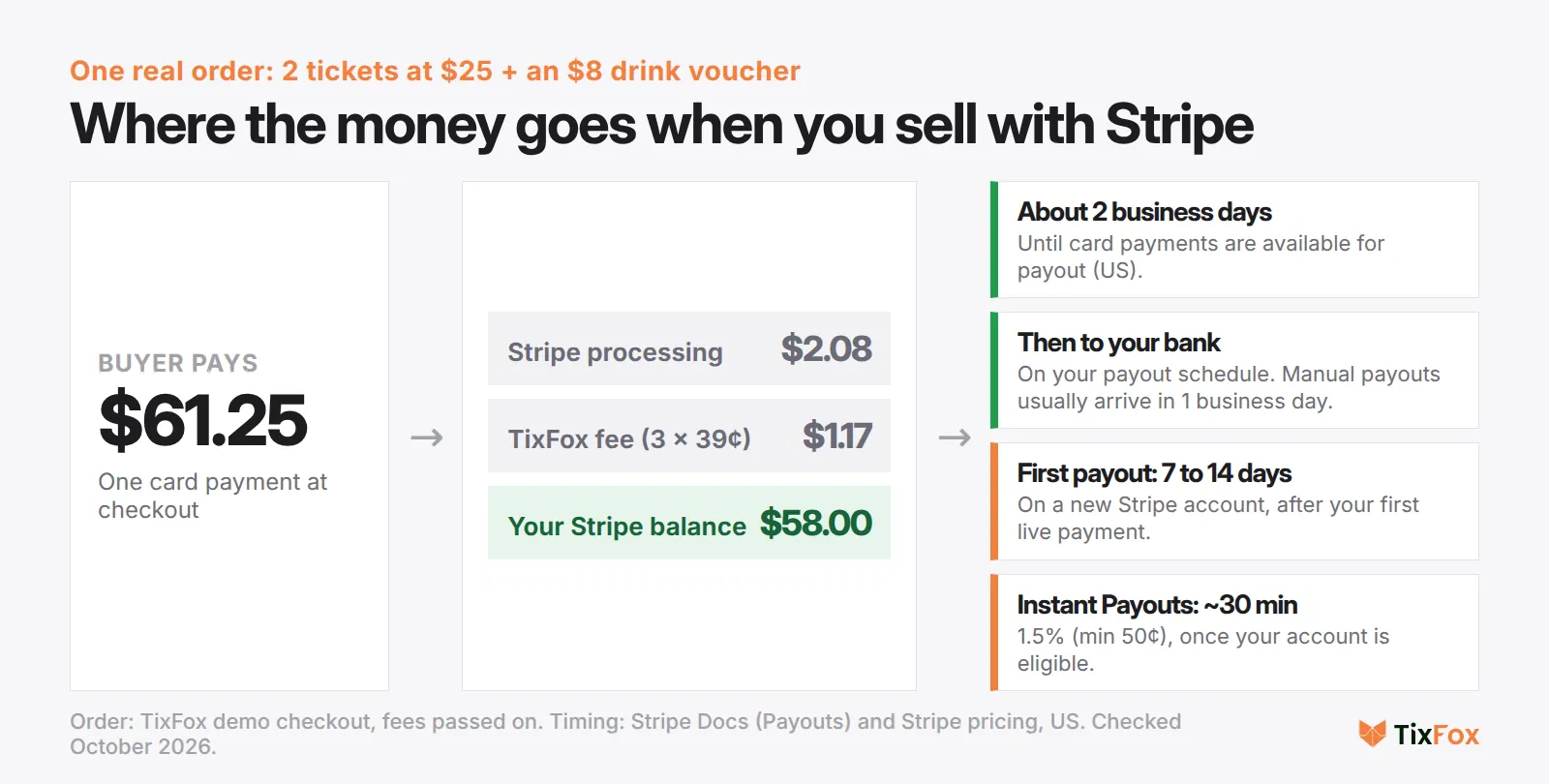
- The buyer pays $61.25.
- Stripe keeps $2.08 for processing (2.9% of $61.25, plus 30¢).
- TixFox keeps $1.17 (three items at 39¢ each).
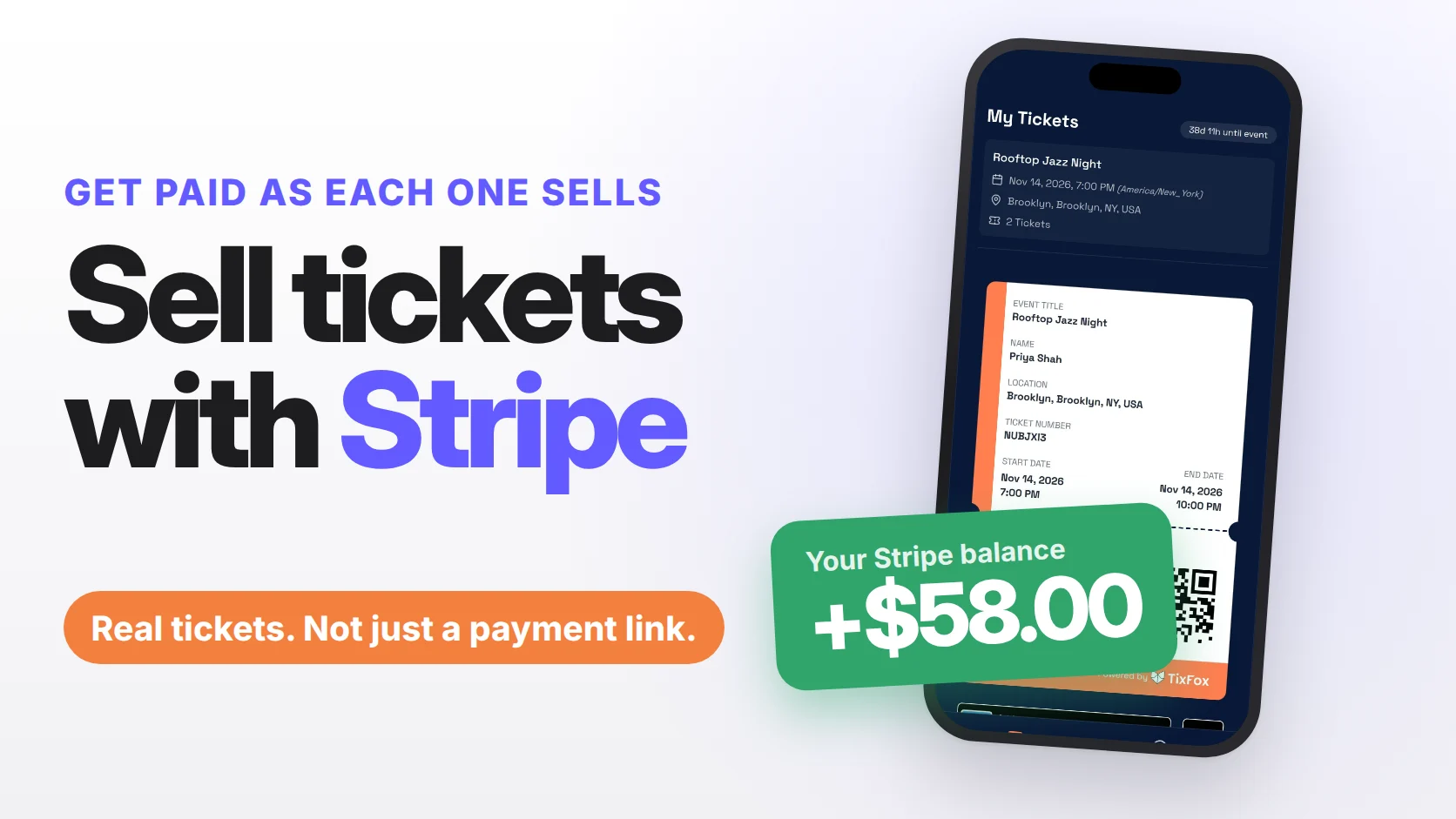
- $58 lands in your Stripe balance, which is exactly the ticket and add-on price.
When the money reaches your bank
Your ticket money is in your Stripe balance as soon as the order goes through. Getting it to your bank follows Stripe's rules, which Stripe's payouts documentation sets out:
- Your first payout is typically scheduled to arrive 7 to 14 days after your first live payment.
- After that, in the US, card payments become available for payout after 2 business days. Stripe then pays them out on your schedule (daily, weekly or monthly), or you can send a manual payout, which typically arrives within 1 business day.
- Instant Payouts send money to an eligible debit card or bank account, usually within 30 minutes, even on weekends. Stripe charges 1.5% of the amount (minimum 50¢), and new Stripe users aren't eligible right away.
For a Friday deposit, Monday's sales may be available in time, but check your payout schedule in Stripe first. Your very first sales on a new Stripe account take longer, which is why connecting early matters.
Refunds go through Stripe too
Because the money sits in your Stripe account, refunds come out of it as well. The TixFox FAQ says refunds are processed through your connected Stripe account and that TixFox platform fees aren't refundable once a ticket is sold. Stripe's refund documentation says the same about its own processing fees. It also notes that refunds come out of your available balance, so keep some money in Stripe if refunds are likely.
You can refund any amount up to the original payment, and buyers usually see it in 5 to 10 business days. Our guide to writing an event refund policy covers what to promise buyers, and what a refund costs you in fees.
Step 4: Check people in at the door
This is the part a payment link can't do. On the night, open the free TixFox check-in app on an iPhone or Android phone, pick your event and scan each ticket. Green means they're in. If someone shows the same ticket again, a screenshot or a forwarded email, the app says it's already been checked in.
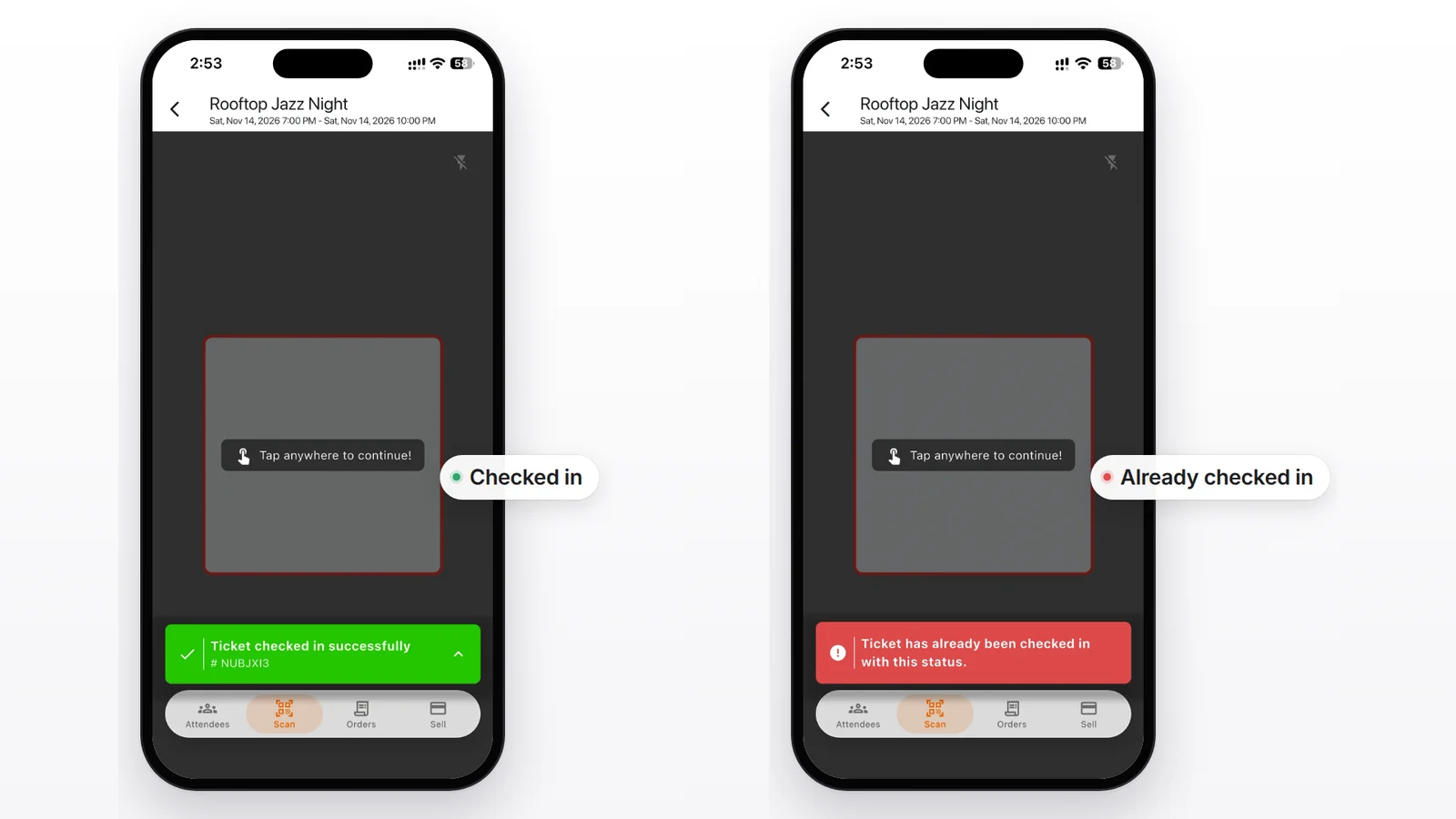
Got helpers on the door? Add them as check-in assistants so they can scan without seeing your sales. Our guide to QR code tickets covers how many scanners a bigger door needs.
Walk-up sales work too. With Tap to Pay in the same app, an iPhone or Android phone takes contactless card payments at the door, no card reader needed, and those sales show up next to your online orders.
Ready to connect? Create a free TixFox account, add Stripe under Settings, and start selling. Free events cost $0, and paid tickets are 39¢ each plus Stripe's card processing. See TixFox pricing.
FAQ
Can you sell tickets directly on Stripe?
You can take payments for tickets with a Stripe payment link, and cap how many purchases it accepts. Stripe doesn't issue tickets with QR codes or check guests in, so for an event you connect Stripe to a ticketing platform like TixFox. The money still goes into your own Stripe account.
Do I need a website to sell tickets with Stripe?
No. TixFox gives every event its own page with a checkout, and you share that link. If you do have a website, you can also put the checkout on it, whether it runs on Wix, Squarespace or WordPress.
Do I need a Stripe account to sell tickets on TixFox?
For paid tickets, yes, and you can create one while you connect. TixFox sends you to Stripe, and if you already have an account you can sign in with the same email. Free events don't need Stripe at all.
How much does Stripe charge for event tickets?
In the US, 2.9% + 30¢ per successful card payment, plus 1.5% for international cards and 1% if currency conversion is needed. The 30¢ applies once per order, not once per ticket. TixFox's 39¢ per ticket is separate.
How fast do I get paid when I sell tickets with Stripe?
The money is in your Stripe balance as each order comes in. In the US, it's available for payout after about 2 business days. Your first payout on a new Stripe account usually takes 7 to 14 days. Instant Payouts can be faster for 1.5%, once your account is eligible.
Can I pass Stripe's fees on to ticket buyers?
Yes. In each ticket type's advanced settings, set Handle Fees to Pass fee to the buyer, and the checkout adds both the TixFox fee and the processing fee to the ticket price. Choose Absorb fee to keep the price the buyer sees round.
Is it safe for buyers to pay through Stripe?
Card details are entered into Stripe's payment form, and Stripe is certified to PCI Service Provider Level 1, which it describes as "the most stringent level of certification available in the payments industry," according to Stripe's security documentation.
Do I have to wait until after my event to get paid?
No. On TixFox the money goes into your Stripe account as tickets sell, and Stripe pays it out on its normal schedule, whether your event is next week or in six months.
Selling your first event? Start with our step-by-step guide to selling event tickets online, or create your event free and connect Stripe now.
Sources
- Stripe: Pricing (US cards, international cards, currency conversion, Instant Payouts). stripe.com/pricing
- Stripe Docs: Payouts (first payout, settlement timing, manual payouts, Instant Payouts). docs.stripe.com/payouts
- Stripe Docs: Refund and cancel payments. docs.stripe.com/refunds
- Stripe Docs: Payment Links (receipts, quantities, promotion codes, limiting purchases). docs.stripe.com/payment-links. Checked October 12, 2026.
- Stripe Docs: Security at Stripe. docs.stripe.com/security
- Eventbrite Help Center (US): When do I get paid? eventbrite.com
- TixFox FAQ: refunds and fees. tixfox.co/faq. Checked October 2026.
- Screens: TixFox dashboard (Settings, Payment Method; Create Ticket Type), checkout with Stripe's payment form, and the TixFox check-in app, demo account (Rooftop Jazz Night), October 2026.
Keep more of every ticket sale.
- 39¢ per ticket, $0 on free events
- No monthly fee, no contract
- Get paid as each sale comes in