Updated October 2026: rewritten with a video walkthrough, Squarespace's current plan rules and fees, and real screens of the checkout, all checked on October 9, 2026.
To sell event tickets on Squarespace, copy an embed code from a ticketing platform and paste it into a Squarespace Code block. With TixFox, that code adds a Get Tickets button or a full ticket widget to your page. Visitors pick their tickets, enter their details and pay right on your site, and every ticket arrives by email with a QR code you scan at the door.
It takes a few minutes, and you don't need to know any code. This guide shows each step, which code works on which Squarespace plan, and what it costs.
Watch: sell tickets on Squarespace in three minutes
The video goes through the whole setup: copying your code at 0:33, pasting it into a Code block at 1:07, what your visitors see at 1:42, tickets right on the page at 2:11, and the Basic plan at 2:32.
Can you sell tickets on Squarespace?
Yes, in three ways. Squarespace has no ticketing system of its own, so its guide to selling event tickets suggests a service product for each ticket type, with a limit on how many you sell. That works for simple sign-ups. The other two use a ticketing platform, so buyers get tickets you can scan at the door.
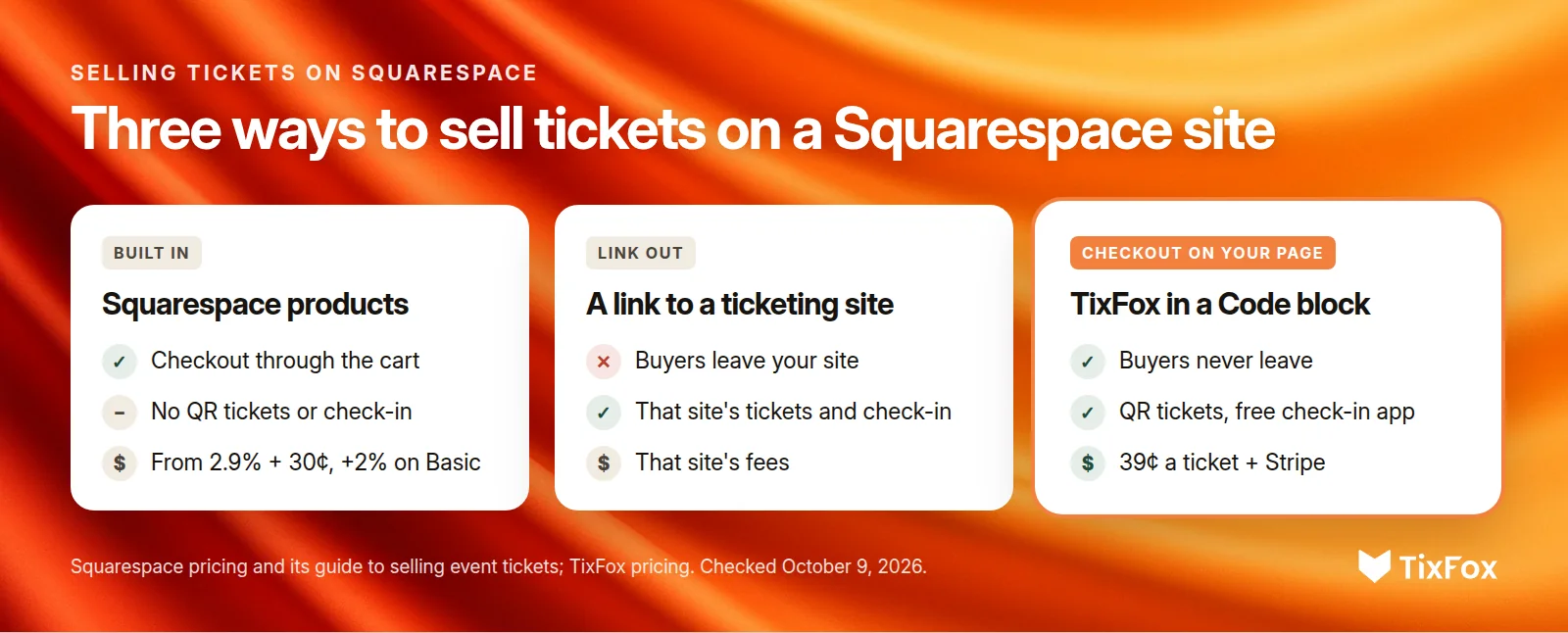
- Squarespace products: checkout stays on your site and you can cap sales, but each sale is a store order. Squarespace's guide doesn't mention QR tickets or a check-in app.
- A link to a ticketing site: buyers get tickets you can scan, but they leave your site to pay.
- An embedded checkout: buyers get tickets you can scan and never leave your page. This is what the rest of this guide sets up.
How to sell event tickets on Squarespace, step by step
You need a Squarespace site and a free TixFox account with your event set up. If you haven't created your event yet, our guide to selling event tickets online covers ticket types, prices and connecting Stripe.
Step 1: Copy your embed code in TixFox
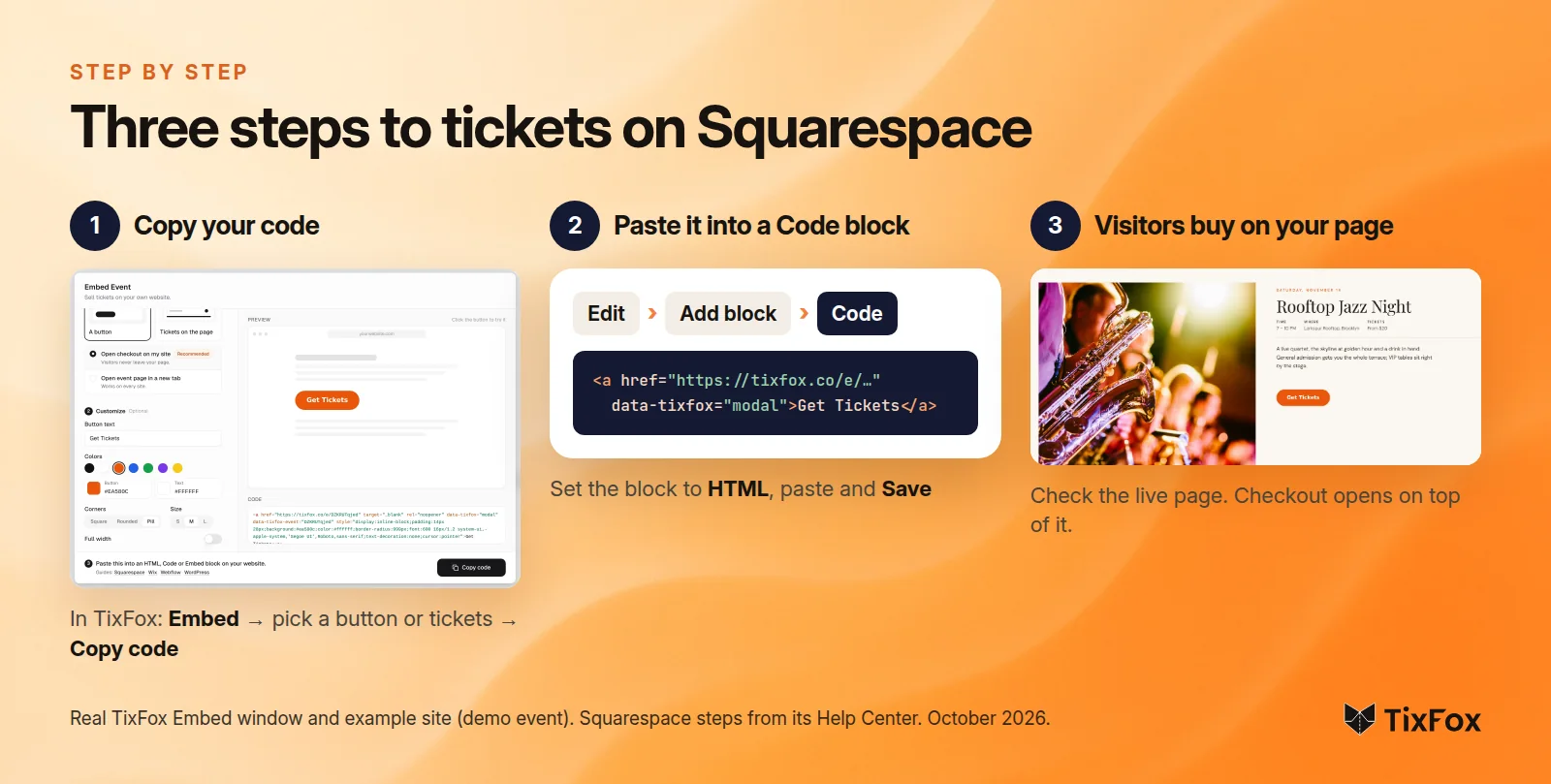
- In TixFox, open your event and click Embed.
- Under "What should visitors see?", choose A button or Tickets on the page.
- For a button, keep Open checkout on my site so visitors never leave your page. Then set the button text, color, corners and size.
- Click the button in the preview to try your checkout, then click Copy code.
The Embed window also has short guides for Squarespace, Wix, Webflow and WordPress.
Step 2: Paste it into a Squarespace Code block
- In Squarespace, open the Pages panel, choose your page and click Edit.
- Hover over the section where tickets should go, click Add block, then Code.
- Click the pencil icon on the block. Check that the type is set to HTML.
- Delete the sample code, paste yours and click Save, then Exit.
Step 3: Check your live page
While you're logged in and editing, Squarespace turns embedded scripts off, so the block shows "Script Disabled" instead of your button. That's normal. Open your live page in a private window, or use Squarespace's Preview in Safe Mode, and your button or ticket widget is there.
Which Squarespace plans support ticket embeds?
On Squarespace's Core, Plus and Advanced plans, and the older Business, Commerce Basic and Commerce Advanced plans, Code blocks run JavaScript, so every TixFox code works, including checkout on your page and the ticket widget. On the Basic plan, Code blocks run plain HTML only, so use TixFox's button set to "Open event page in a new tab."
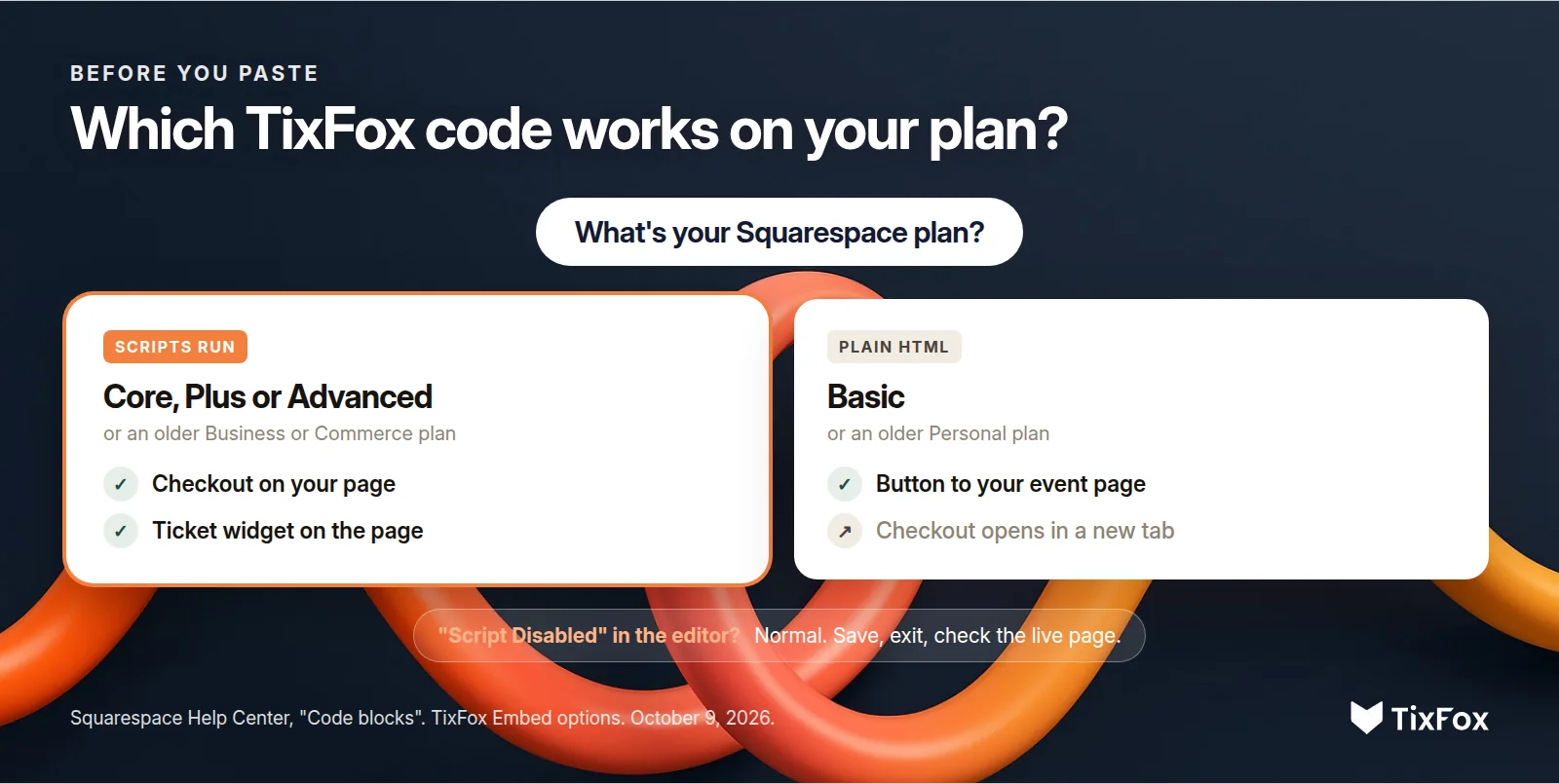
On Basic, the button still matches your site's colors. Checkout simply opens in a new tab instead of on top of your page. You don't need to upgrade your Squarespace plan to start selling.
What your visitors see
With the button, checkout opens over your page. Visitors choose their tickets and any add-ons, like a drink voucher or parking, enter their details and pay, all with your site still behind the checkout. With Tickets on the page, ticket types and add-ons sit right in your page and the widget grows to fit, so there's no box with its own scrollbar.
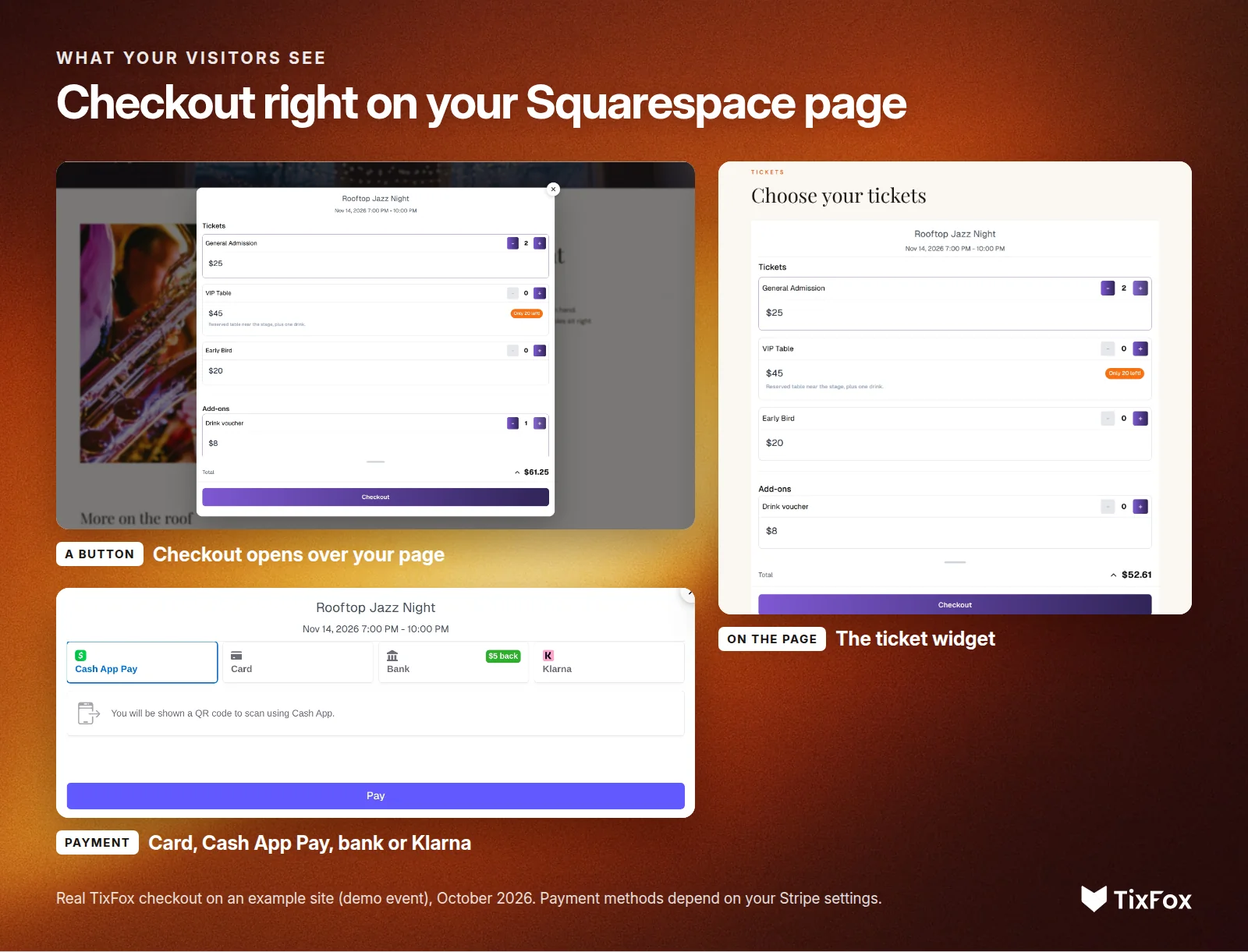
Payment runs through Stripe, so buyers can pay by card and, depending on your Stripe settings and their country, options like Cash App Pay, bank payment or Klarna. Each ticket arrives by email with its own QR code, and the order shows up in your TixFox dashboard as it happens.
The Richmond Tattoo & Arts Convention, which has run since 1988, embeds TixFox on its own website. "TixFox's checkout is much cleaner, simpler, and more user-friendly," Sam Dakart, who handles its marketing, said in the convention's customer story. "This is the first year our ticketing experience has matched what we expect from ourselves."
What it costs to sell tickets on Squarespace
Squarespace doesn't charge anything to embed a ticketing checkout. You pay your ticketing platform. TixFox charges 39¢ per ticket ($0.30 under $5) plus Stripe's card processing (2.9% + 30¢ in the US), and you choose whether buyers pay the fee or you absorb it. There's no monthly fee.
If you sell tickets as Squarespace products instead, you pay Squarespace's card fee, starting at 2.9% + 30¢ (2.7% on Plus and 2.5% on Advanced), plus a 2% transaction fee on the Basic plan. Core and the plans above it charge no transaction fee.
Fees depend on the platform you embed. Here's a 200-ticket show at $30 with you covering the fees, using US pricing and one ticket per order, on TixFox and on Eventbrite, which also offers an embedded checkout:
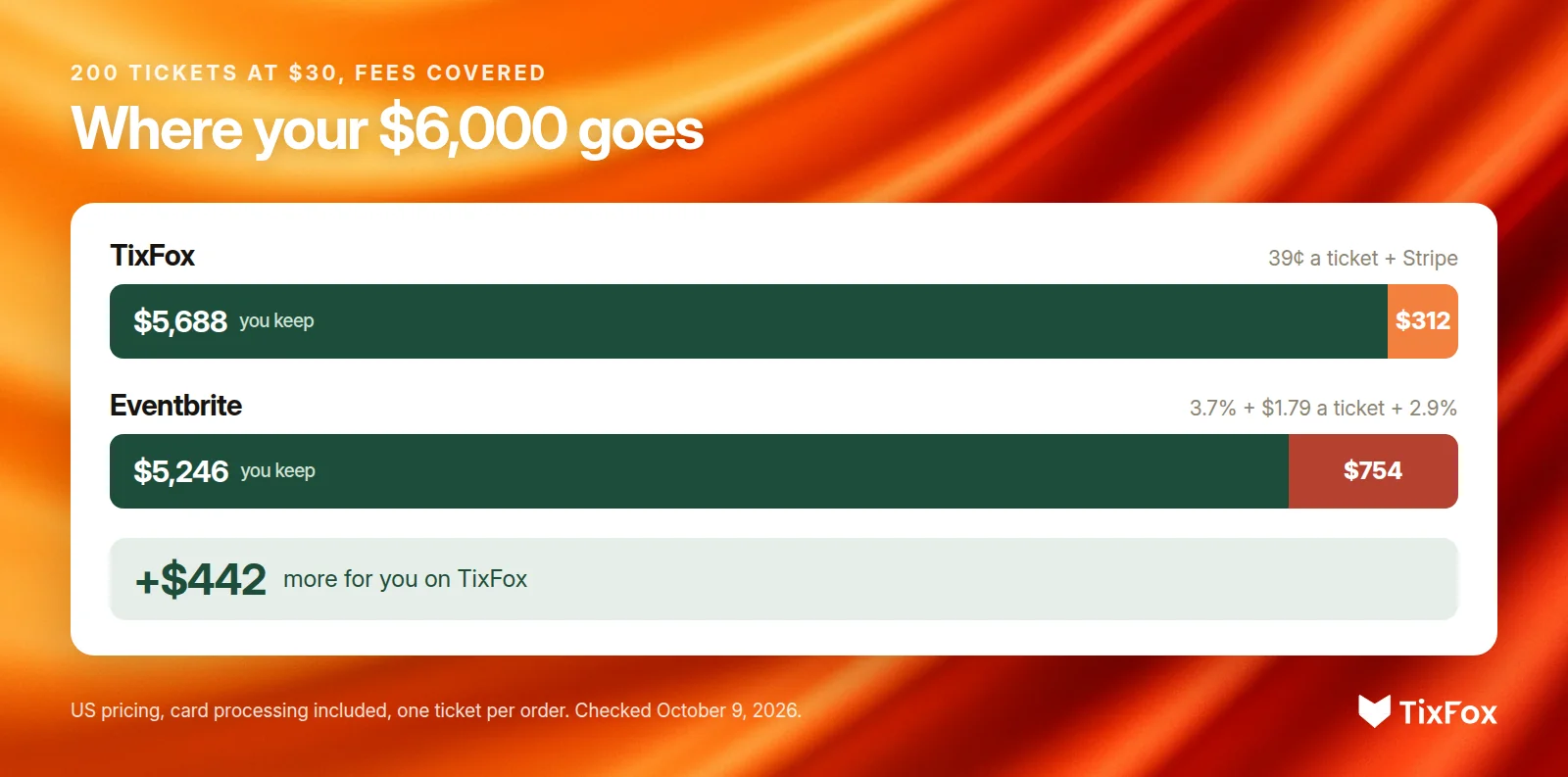
In that example, you keep $442 more on TixFox. If you pass the fees to your buyers instead, they pay $448 less on TixFox. Our Eventbrite reviews post has the full fee breakdown, and TixFox pricing has the details for other currencies.
If your ticket button doesn't show up
- You're logged in. Squarespace hides embedded scripts in the editor. Check your live page in a private window or with Preview in Safe Mode.
- You're on the Basic plan. Use the TixFox button set to "Open event page in a new tab." It's plain HTML, which works on every plan.
- The Code block is set to the wrong type. Open the block and set the type to HTML.
- The page sits inside an Index. Squarespace says code may not render there. Move the page out of the Index to test.
- Ajax loading is on. Squarespace says Ajax loading can affect custom code. Turn it off to test.
Make your Squarespace ticket page easy to buy from
- Give tickets their own page. Add a Tickets page to your navigation, and put the button near the top of your event page.
- Match your brand. Set the button's color, corners and size in TixFox so it looks like part of your site.
- Use ticket tiers. Early bird, general admission and VIP tiers, each with its own price and sale window, give people a reason to buy now.
- Sell add-ons. Parking, merchandise and drink vouchers sell right inside the same checkout.
- Track your links. TixFox's UTM tracking shows which campaigns sell tickets.
- Be ready at the door. Scan tickets with the free TixFox check-in app, and sell to walk-ups with Tap to Pay on your phone.
Your ticket money goes straight into your own Stripe account as each ticket sells, so you can pay your venue or suppliers before the event.
On WordPress or Wix instead? See how to sell event tickets on WordPress with the TixFox plugin, or how to sell event tickets on Wix.
Ready to sell tickets on your Squarespace site? Create a free TixFox account, set up your event and copy your embed code. No credit card is needed, there's no monthly fee, and free events cost nothing.
FAQ
Does Squarespace have built-in event ticketing?
No. Squarespace suggests selling tickets as service products, one per ticket type. For tickets with QR codes and check-in, embed a ticketing platform like TixFox in a Code block.
How do I add a ticket button to Squarespace?
In TixFox, open your event, click Embed and copy the code. In Squarespace, edit your page, click Add block, then Code, paste the code with the type set to HTML, and save.
Which Squarespace plan do I need to sell tickets?
Any plan. Core, Plus and Advanced (and the older Business and Commerce plans) run every TixFox code, including checkout on your page. On Basic, use the button that opens the event page in a new tab.
Why does my Squarespace Code block say "Script Disabled"?
Squarespace turns embedded scripts off while you're logged in and editing your site. Save, exit and check your live page, or use Preview in Safe Mode.
Can attendees buy tickets without leaving my Squarespace site?
Yes, on Core, Plus, Advanced and the older Business and Commerce plans. With TixFox's "Open checkout on my site" button or the ticket widget, buyers choose tickets, enter their details and pay on your page. On Basic, the button opens the event page in a new tab.
How much does it cost to sell tickets on Squarespace?
Embedding is free on Squarespace. TixFox charges 39¢ per ticket plus Stripe's 2.9% + 30¢, and nothing for free events. Selling tickets as Squarespace products costs Squarespace's card fee, plus 2% on the Basic plan.
Can I sell tickets for a recurring event on Squarespace?
Yes. Set the event up as a recurring event in TixFox, and buyers pick a date and time from a calendar when they buy.
Sources
- Squarespace: Code blocks (Help Center), Pricing and Sell tickets on Squarespace. Checked October 9, 2026.
- Eventbrite: Organizer pricing (US).
- TixFox: Pricing, FAQ and the Embed Event window in the TixFox dashboard. Checkout screens are real, shown on an example site with a demo event, October 2026.
Keep more of every ticket sale.
- 39¢ per ticket, $0 on free events
- No monthly fee, no contract
- Get paid as each sale comes in