How to create a discount code
Last updated at: Oct 20, 2026A discount code gives buyers money off when they type it at checkout, for early birds, groups, partners or your regulars. Create the code in Promote, under Discount Code, then use Assign to Tickets to choose which tickets it works on. Until you assign it, buyers won't see a box to enter it.
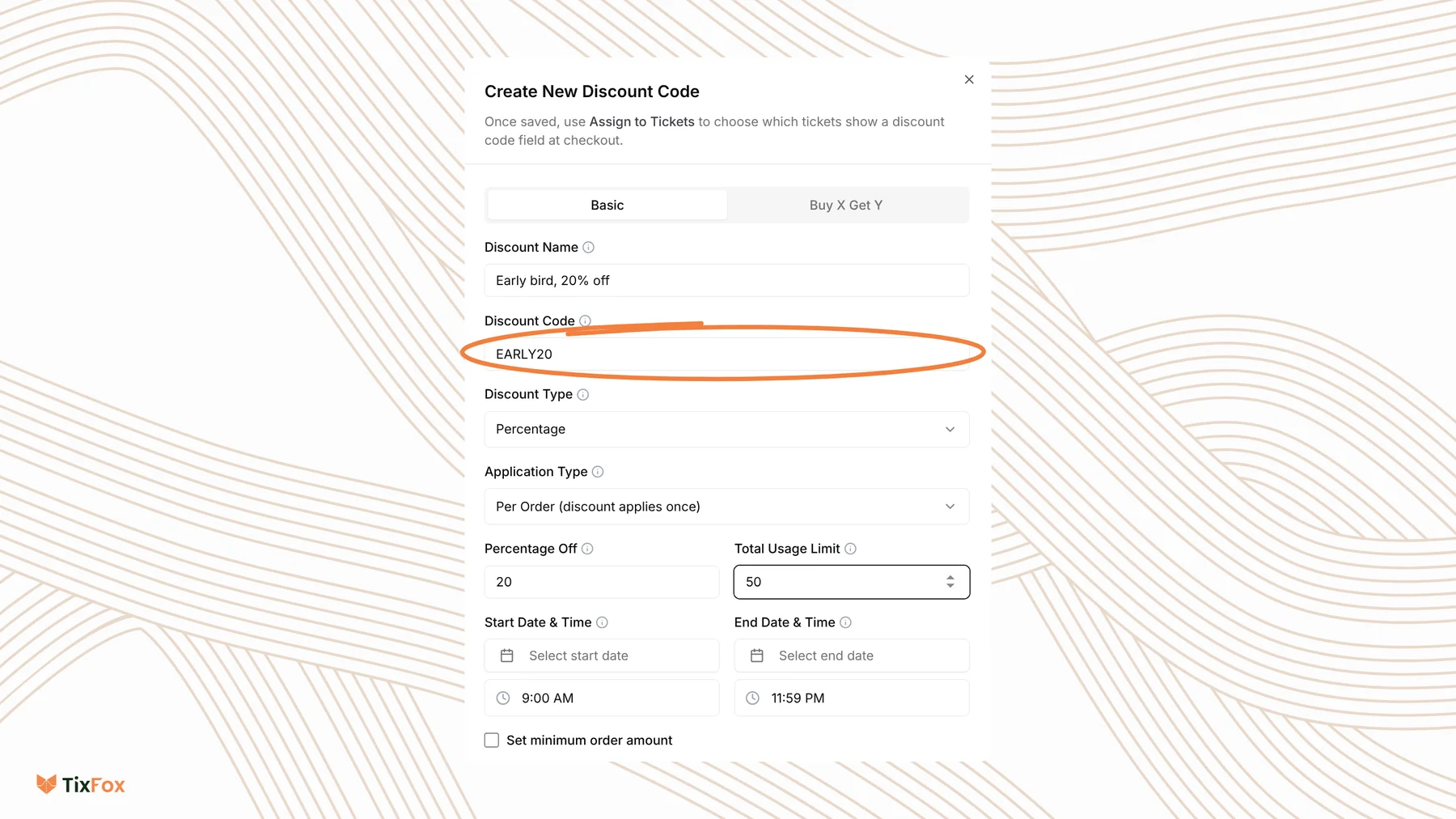
1. Create the code
- Go to Promote and open Discount Code.
- Click Create New Discount. Stay on the Basic tab.
- Give it a Discount Name, like "Early bird, 20% off". Buyers see this name in their order summary when the code is applied.
- Type the Discount Code buyers will enter, like EARLY20.
- Choose the Discount Type: Percentage or Fixed Amount, then enter how much off.
- Choose the Application Type:
- Per Order (discount applies once): the discount comes off the order one time.
- Per Ticket (discount per item): the discount comes off every ticket in the order.
- Set a Total Usage Limit if the code should only work a set number of times.
- Set the Start Date & Time and End Date & Time. After the end date, the code can no longer be used.
- Tick Set minimum order amount if the order must reach a certain total first.
- Click Create Discount.
2. Choose which tickets it works on
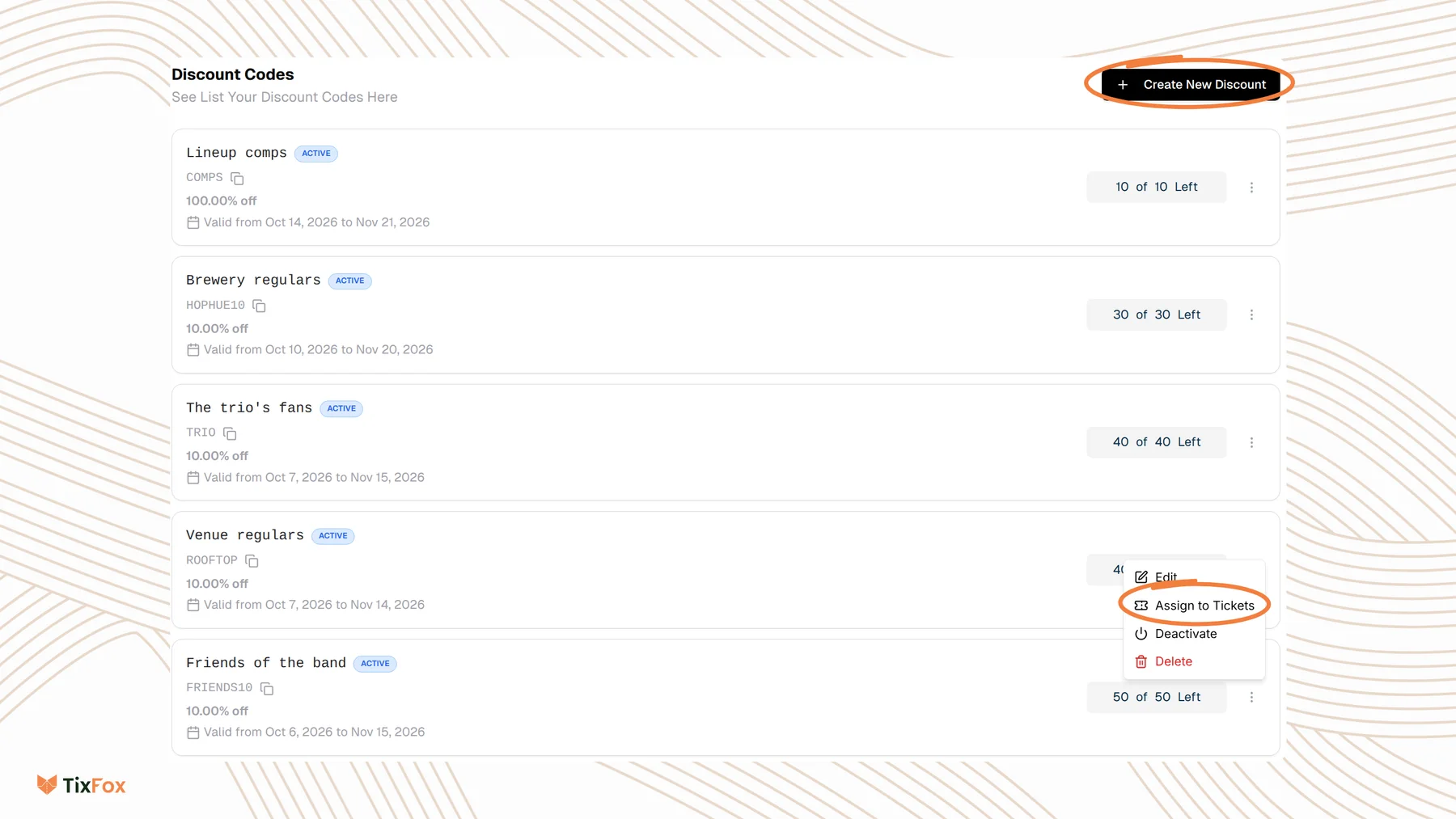
- In the Discount Codes list, click the three dots on your code.
- Choose Assign to Tickets.
- Tick the ticket types that can use the code. Your tickets are grouped by event.
- Click Save.
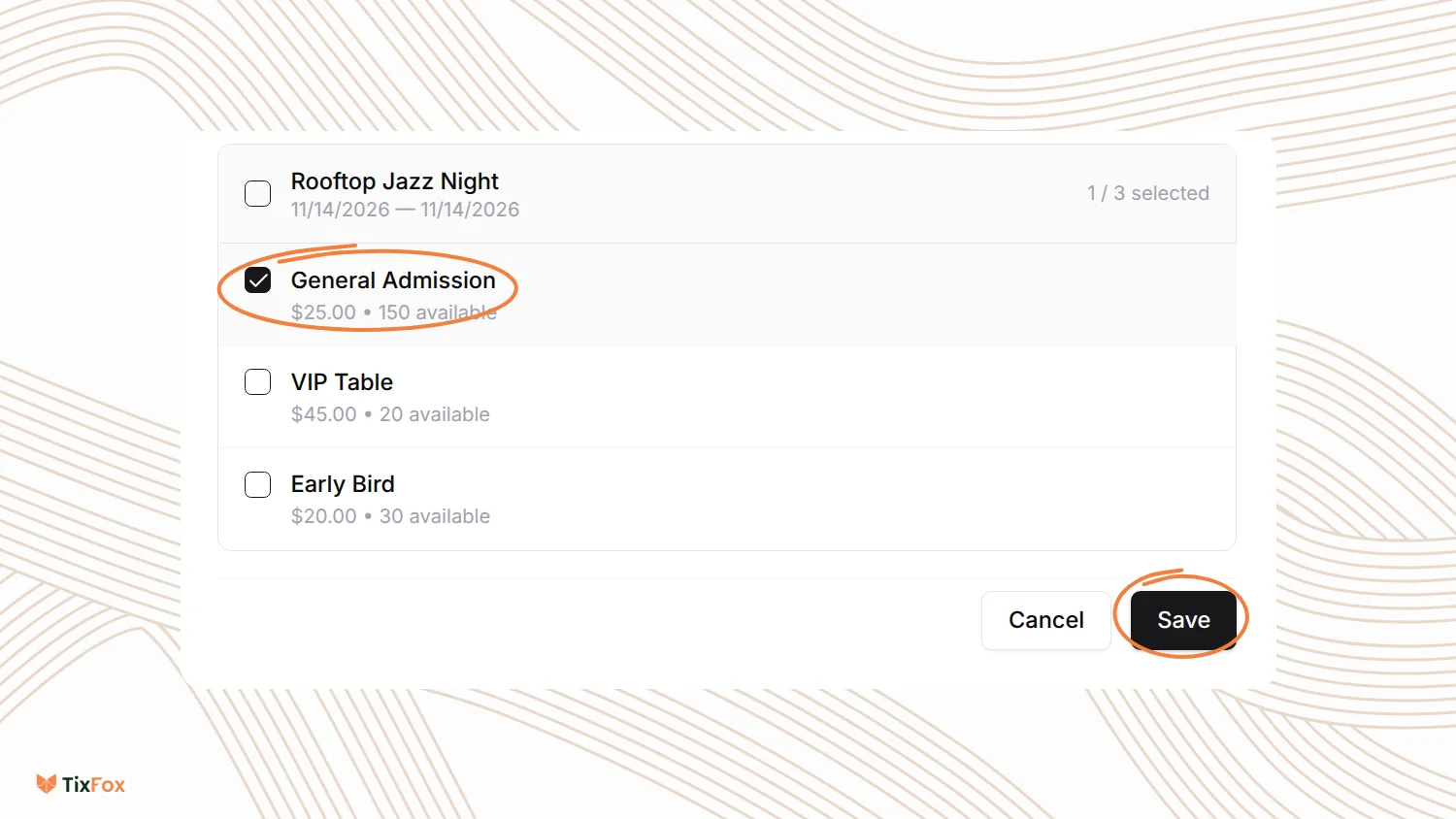
A discount code field appears at checkout for the tickets you ticked. You can use the same code on tickets from more than one event.
What buyers see
When buyers check out with an assigned ticket, they see Enter discount code. They type the code and tap Apply. The discount shows under Applied Discounts and in the order summary. For example, a 10% code on a $25 ticket takes $2.50 off.
Manage your codes
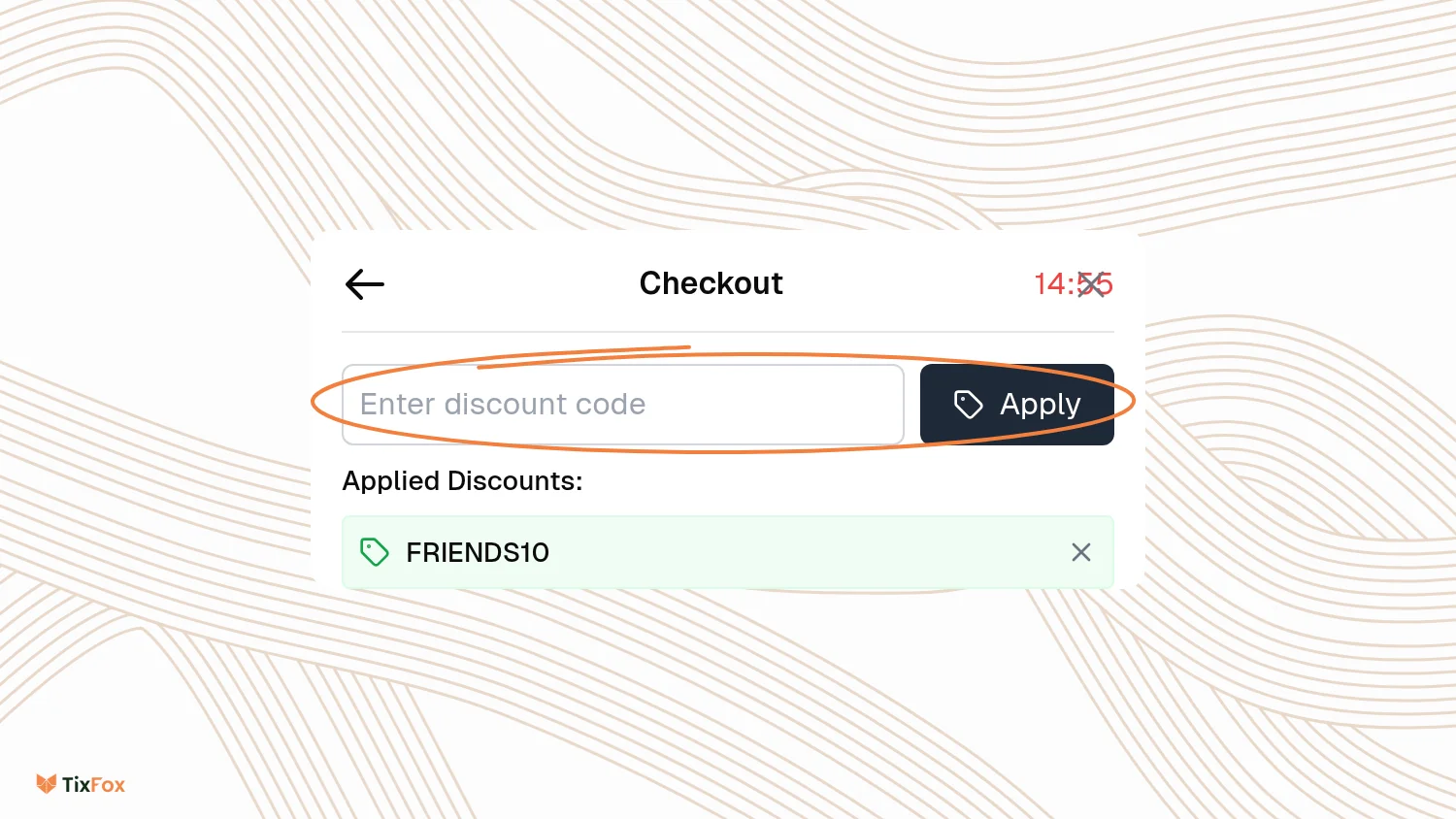
The Discount Codes list shows each code's dates and how many uses are left. Click the three dots on a code to Edit it, change its tickets with Assign to Tickets, Deactivate it to switch it off without deleting it, or Delete it.
Good to know
- Codes don't need a buyer account. Anyone with the code can use it until it ends or runs out.
- Test a new code yourself: add a ticket on your event page, go to checkout and apply it. Leave before paying.
- Want a deal that applies without a code, like buy 2, get 1 free? See How to set up a BOGO (buy one, get one) offer.
Common questions
Why can't buyers see a box for the code?
The code needs to be assigned to tickets first. Click the three dots on the code and choose Assign to Tickets.
What's the difference between Per Order and Per Ticket?
Per Order takes the discount off once. Per Ticket takes it off every ticket in the order.
Can one code work for several events?
Yes. In Assign to Tickets, tick tickets from more than one event.
How do I stop a code early?
Click the three dots on the code and choose Deactivate, or set an End Date & Time.