How to set up a BOGO (buy one, get one) offer
Last updated at: Oct 20, 2026A BOGO (buy one, get one) offer gives buyers a free or discounted ticket when they buy enough tickets, for example buy 2, get 1 free. You set it up in Promote, under Discount Code, on the Buy X Get Y tab. Leave the code empty and the offer applies by itself at checkout.
Set up a BOGO offer
- Go to Promote and open Discount Code.
- Click Create New Discount.
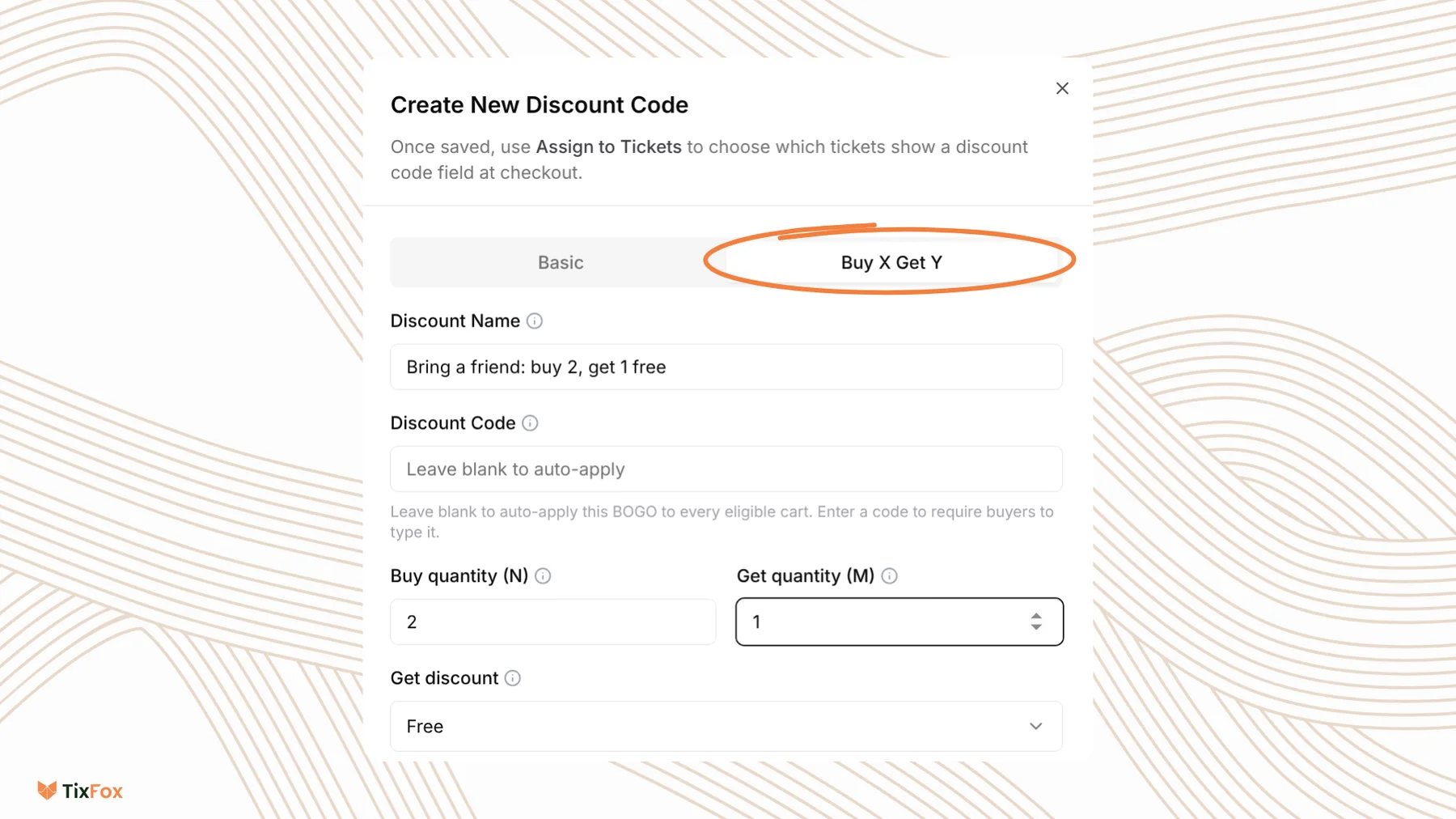
- Choose the Buy X Get Y tab.
- Give it a Discount Name you'll recognize, like "Bring a friend: buy 2, get 1 free". This is for you.
- Leave Discount Code empty to apply the offer automatically to every cart that qualifies. Or enter a code if buyers should type it to get the deal.
- Set Buy quantity (N) and Get quantity (M). Buy 2, get 1 is N = 2 and M = 1.
- Under Get discount, choose Free, Percentage off or Fixed amount off for the reward ticket.
Choose which tickets count
Every ticket type from all your events is listed, grouped by event.
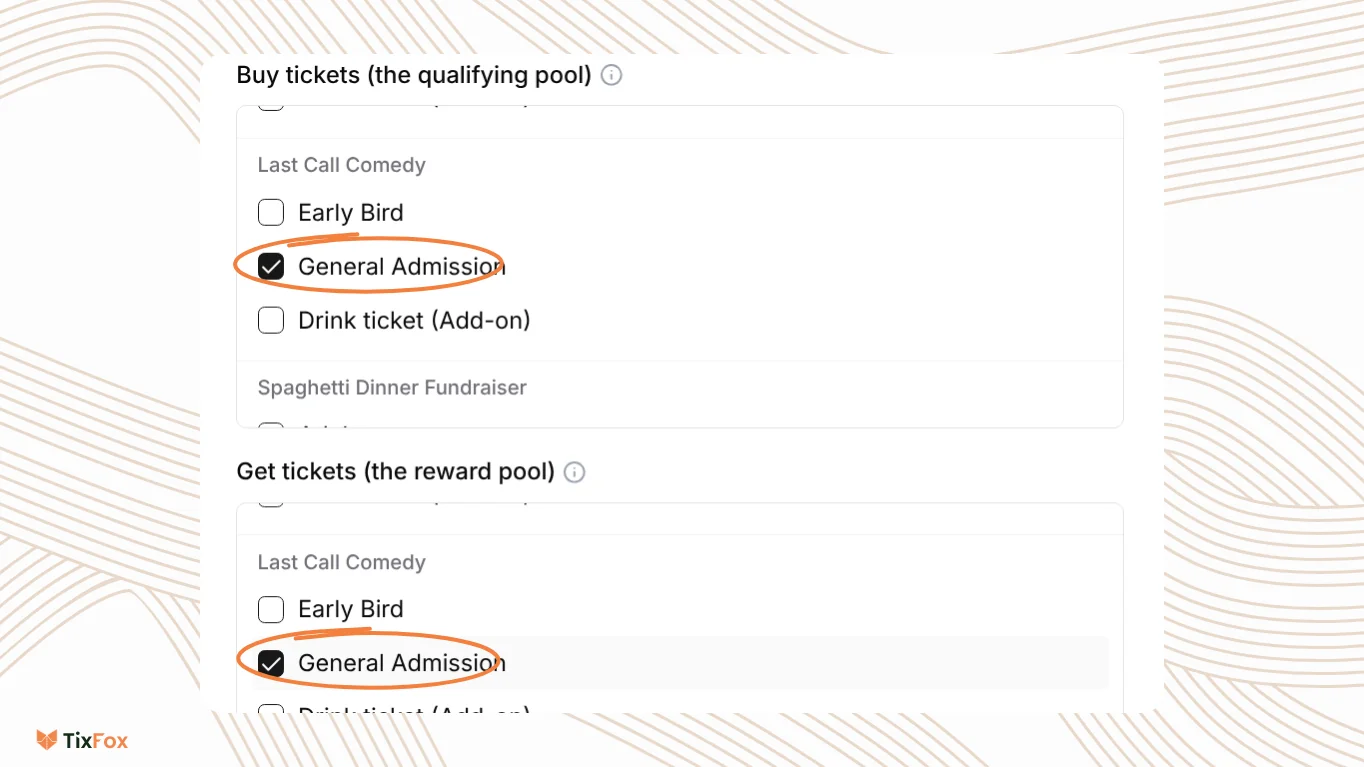
- Buy tickets (the qualifying pool): tick the tickets a buyer must buy to unlock the offer.
- Get tickets (the reward pool): tick the tickets the buyer can get free or discounted.
The two lists can be the same ticket, like buy 2 General Admission and get 1 General Admission free, or different ones, like buy a VIP ticket and get a General Admission ticket free.
Set the reward and the limits
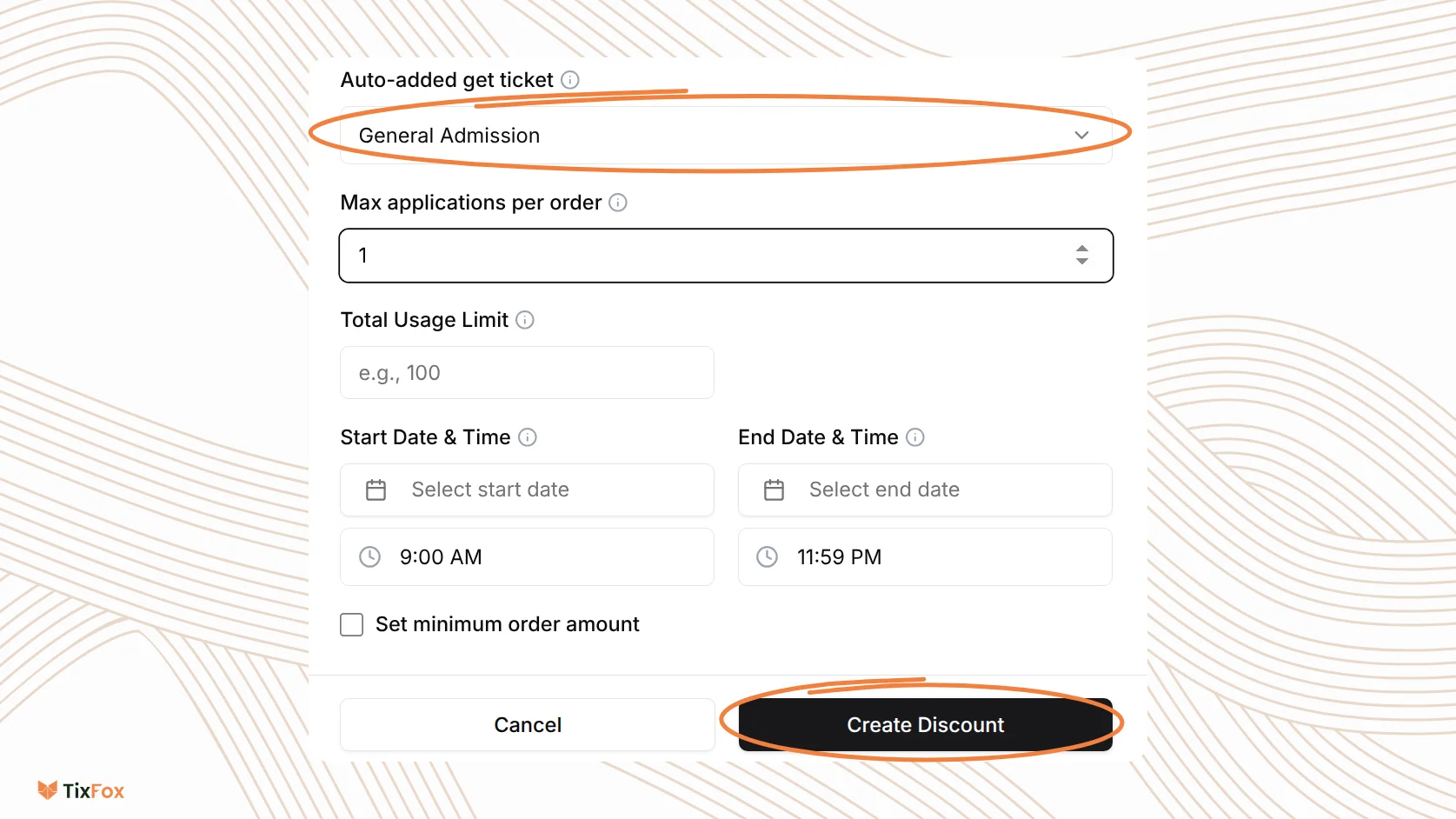
- Under Auto-added get ticket, choose the ticket TixFox adds to the cart when the order qualifies.
- Set Max applications per order to limit how many times the deal can apply in one order. Leave it empty for no limit.
- Set a Total Usage Limit if you only want to give the deal a set number of times.
- Set the Start Date & Time and End Date & Time. The offer starts and stops on its own.
- Tick Set minimum order amount if the order must reach a certain total first.
- Click Create Discount.
What buyers see
With no code, the offer applies on its own as soon as a cart qualifies, and the reward ticket is added to the order. Buyers don't need to find or type anything. If you added a code, buyers enter it at checkout.
Manage your offer
Your offers appear in the Discount Codes list under Promote, with their dates and how many uses are left. Click the three dots on an offer to:
- Edit the offer.
- Assign to Tickets, to choose which tickets show a discount code field at checkout. You need this if your offer uses a code.
- Deactivate it to stop it without deleting it.
- Delete it.
Good to know
- Test your offer by adding the qualifying tickets to a cart on your event page before you announce it.
- Want a simple percentage or dollar amount off instead? Use the Basic tab to create a regular discount code.
Common questions
Do buyers need a code?
Not if you leave Discount Code empty. The offer then applies by itself to every cart that qualifies.
Can the free ticket be a different ticket type?
Yes. Tick different tickets in the Buy tickets and Get tickets lists, like buy a VIP ticket and get a General Admission ticket free.
How do I stop people using the deal too many times?
Set Max applications per order and a Total Usage Limit.
Can I pause the offer?
Yes. Click the three dots on the offer and choose Deactivate.