How to sell add-ons like drinks, parking or merch
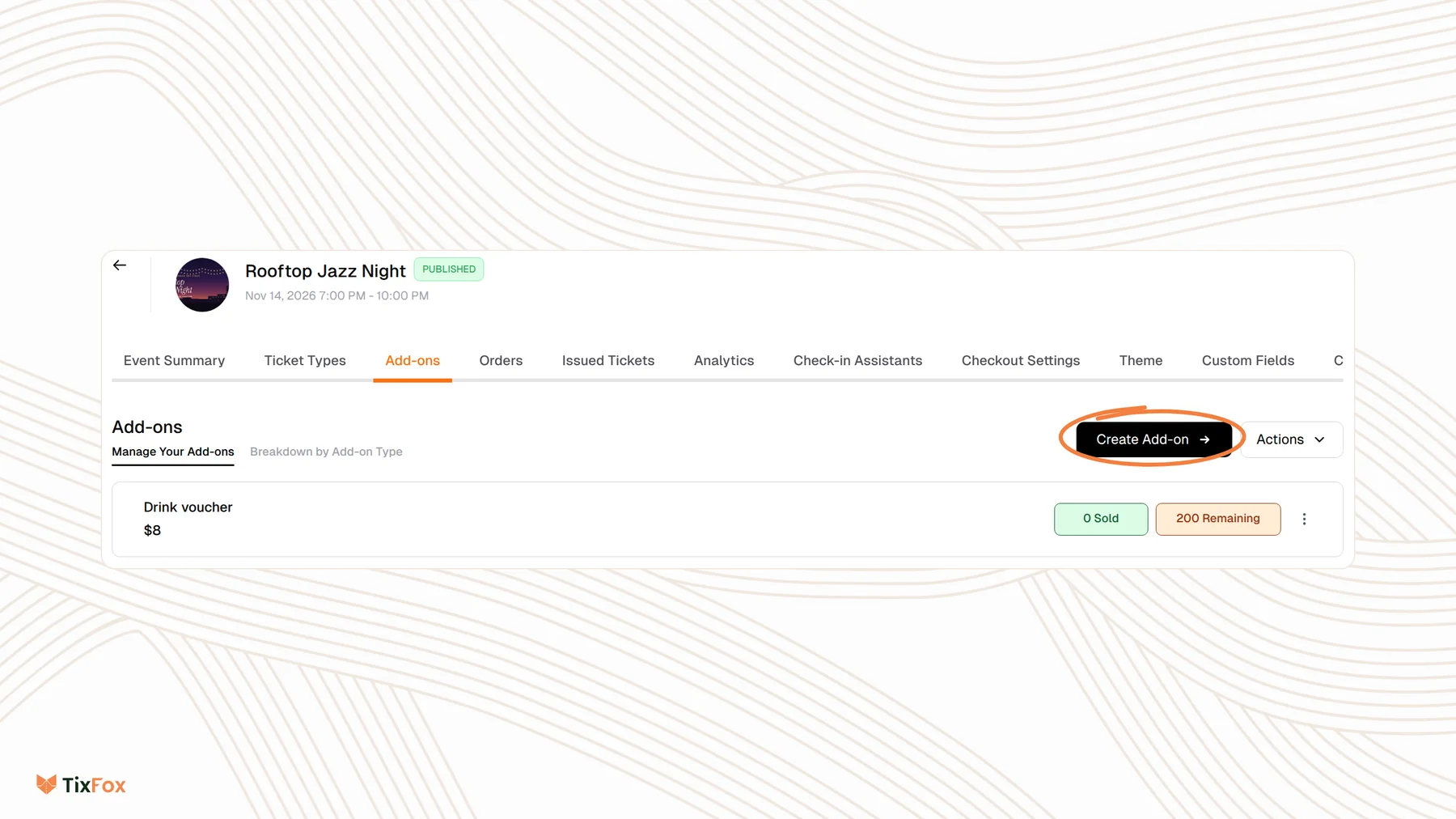
Last updated at: Oct 20, 2026Add-ons are extras people buy with their tickets, like a drink voucher, parking, a meal or a T-shirt. To create one, open your event, go to the Add-ons tab and click Create Add-on. Give it a name, a price and a quantity. Buyers see it under Add-ons when they choose their tickets.
Create an add-on
- Open your event and go to the Add-ons tab.
- Click Create Add-on.
- Under Item, type the name buyers will see at checkout, for example "Drink voucher".
- Choose a Pricing Type: Fixed for one price, or Pay what you can to let buyers choose an amount above a minimum.
- Set the Price, the Quantity you have, and Max Items Per Order.
- Leave Available for the full event duration ticked, or untick it to set your own sale dates.
- Click Create Add-on.
More settings
Click Show Advanced Settings in the form for these options:
- Hide Item: hides the add-on from the public event page.
- Hide When Sold Out and Hide Price When Sold Out: control what buyers see once it's gone.
- Show Remaining Count: shows how many are left, like "Only 8 left!".
- Handle Fees: pass the fees to the buyer or absorb them, just like tickets. See How to pass ticket fees to buyers or absorb them.
- Description: a short line about the add-on.
- Custom Deliverable Message: a message buyers get after they buy, with instructions or details.
- Discount Codes: choose which codes can be used on this add-on.
Show an add-on only with certain tickets
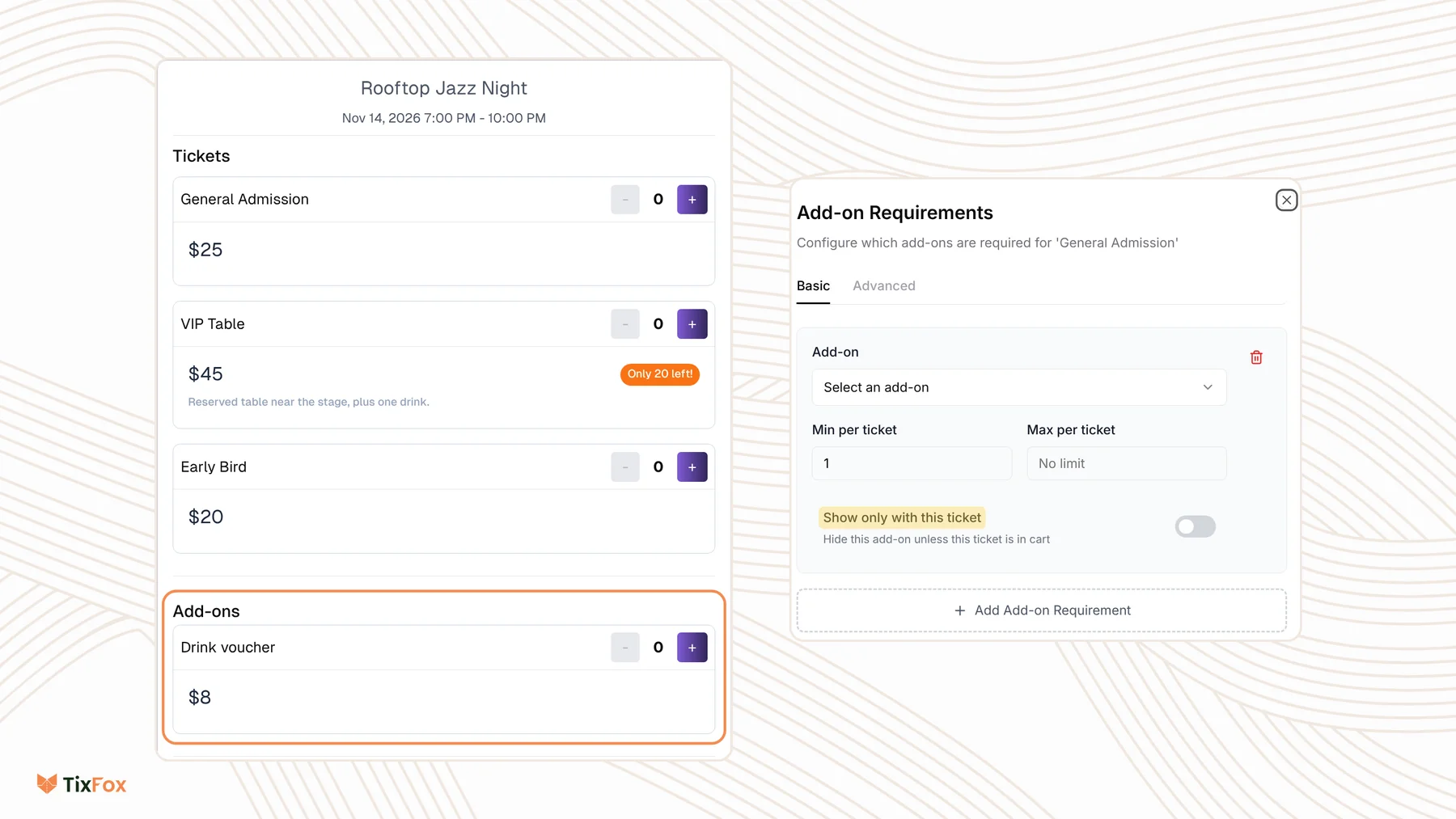
Some extras only make sense with one ticket, like a parking pass for VIP guests. To link them:
- Go to Ticket Types, open the menu next to the ticket and choose Configure Add-on.
- Under Add-on, pick the add-on.
- Set Min per ticket and Max per ticket. Leave Max per ticket empty for no limit.
- Turn on Show only with this ticket to hide the add-on unless that ticket is in the cart.
Click Add Add-on Requirement to link more than one add-on. On the Advanced tab, you can make buyers pick from a set of add-ons, for example choosing one session.
Make an add-on required
On the Add-ons tab, open the menu next to the add-on and choose Configure Mandatory. Turn on Make Mandatory, set a Minimum Quantity and click Save Settings. Every order then has to include it, and TixFox checks this at checkout before payment.
Common questions
Can I sell add-ons at the door?
Yes. In the TixFox app, the Sell tab lists your add-ons under your tickets. See How to sell tickets onsite.
How do I see how many have sold?
The Add-ons tab shows Sold and Remaining for each add-on. For more detail, open Breakdown by Add-on Type.
Can I change or remove an add-on later?
Yes. Open the menu next to it and choose Edit Add-on or Delete Add-on.