How to sell tickets onsite with Tap to Pay or cash
Last updated at: Oct 20, 2026You can sell tickets onsite with the TixFox app on your phone. Open your event, tap Sell, choose Tap to Pay or Cash, add the tickets and take the payment. With Tap to Pay, the buyer taps their card, phone or watch on the back of your phone. No card reader needed.
Sell a ticket at the door
- Open the TixFox app and choose your event.
- Tap Sell at the bottom of the screen.
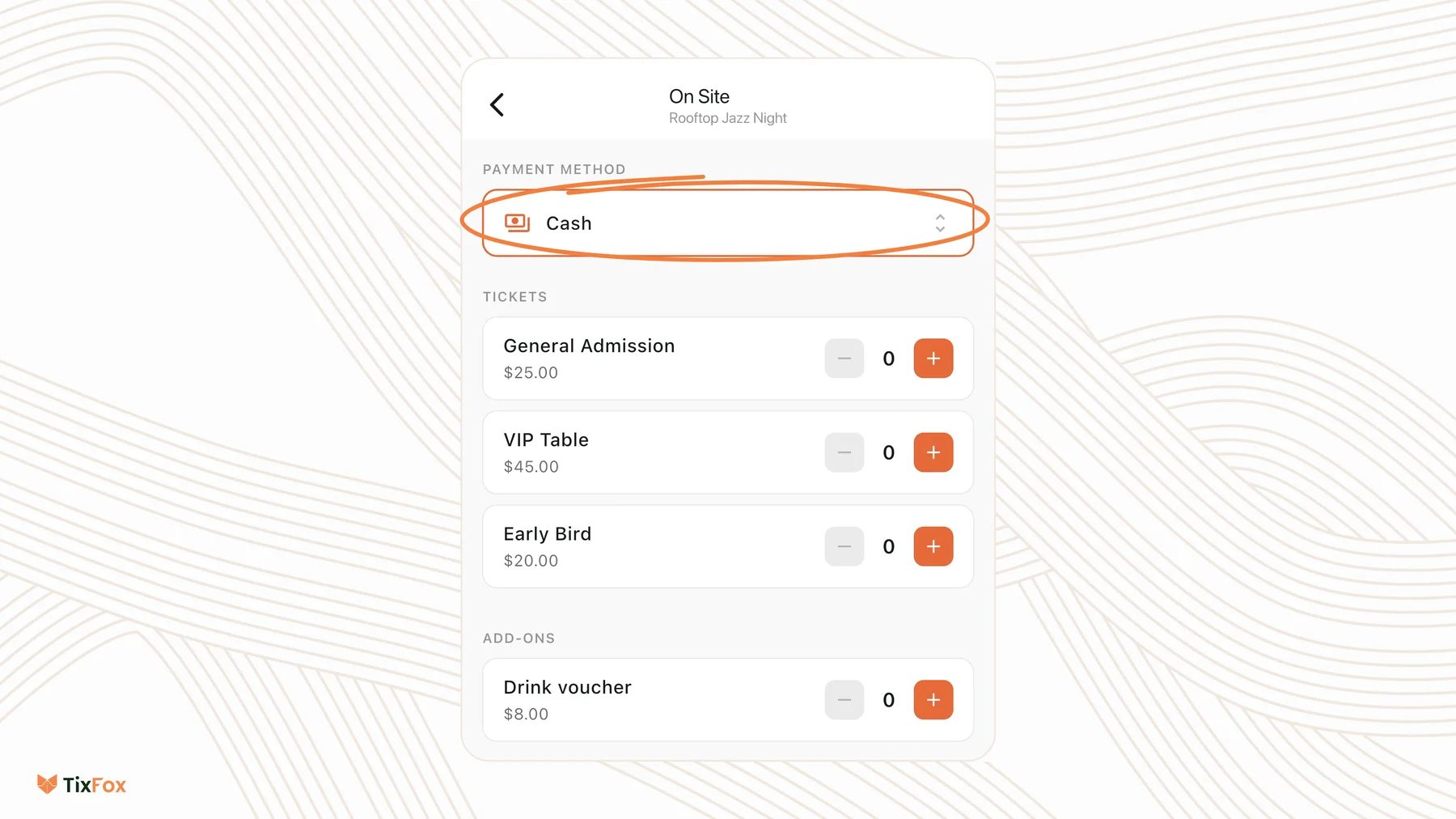
- Under Payment Method, choose how the buyer is paying.
- Tap + next to the tickets they want, and any add-ons.
- Tap Select tickets and follow the steps on screen.
Tap to Pay
- The buyer taps a contactless card, Apple Pay, Google Pay or a smartwatch on the back of your phone.
- It works on supported recent iPhone and Android phones. There's nothing to buy, rent or charge.
- Once the payment clears, the buyer gets the same e-ticket and QR code by email as online buyers, and their ticket is already in your app, so you can check them in straight away.
Cash
Choose Cash, take the money and record the sale in the app. The buyer's ticket is created like any other, so your attendee list and totals stay complete.
Paid cash sales use TixFox credits. If your balance is empty, the sale can't be recorded, so top up before the doors open. See How do TixFox credits work?
Set your onsite defaults
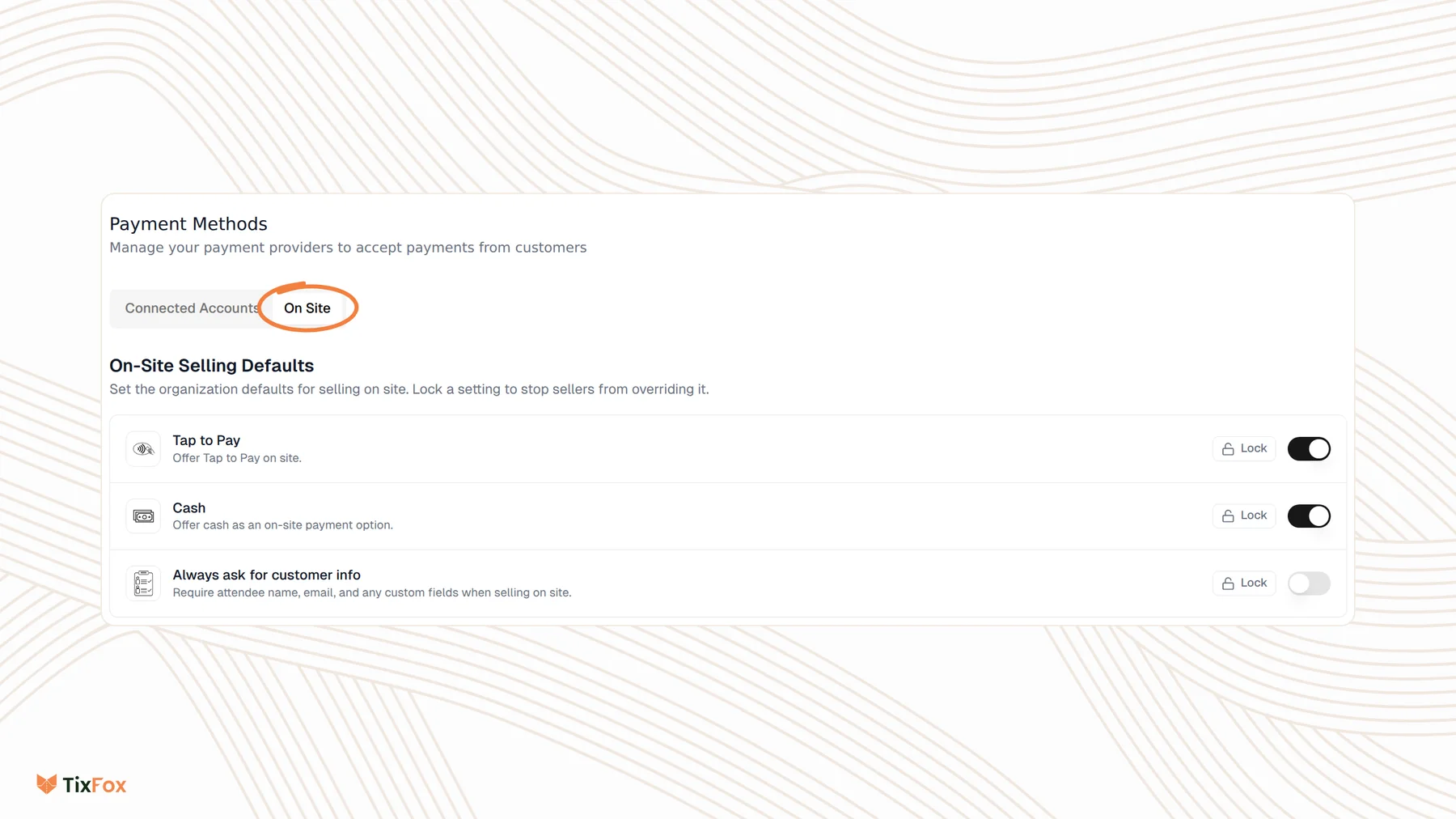
On the TixFox website, go to Settings, open Payment Method and choose the On Site tab:
- Tap to Pay: offer Tap to Pay onsite.
- Cash: offer cash as an onsite payment option.
- Always ask for customer info: require the attendee's name, email and any custom fields for onsite sales.
Click Lock next to a setting to stop the people selling for you from changing it.
Good to know
- Onsite sales show up with your online orders, in the same analytics and attendee list.
- You can sell and scan from the same app. Switch between Sell and Scan at the bottom of the screen. See How to scan tickets at the door.
- Staff can sell too. A check-in assistant with permission to sell onsite can take payments from their own phone, without access to your account or money. See How to add check-in assistants.
Common questions
Do I need a card reader?
No. With Tap to Pay, the buyer taps their card, phone or watch on the back of your phone.
Do cash sales use credits?
Yes. Paid cash sales use TixFox credits, so top up before the doors open. See How do TixFox credits work?
Can I sell add-ons at the door?
Yes. Add-ons are listed with your tickets on the Sell screen.
Can I refund a cash sale?
Yes. TixFox records the refund as settled, and you hand the money back in cash. See How to refund a ticket order.