How to add check-in assistants to scan tickets
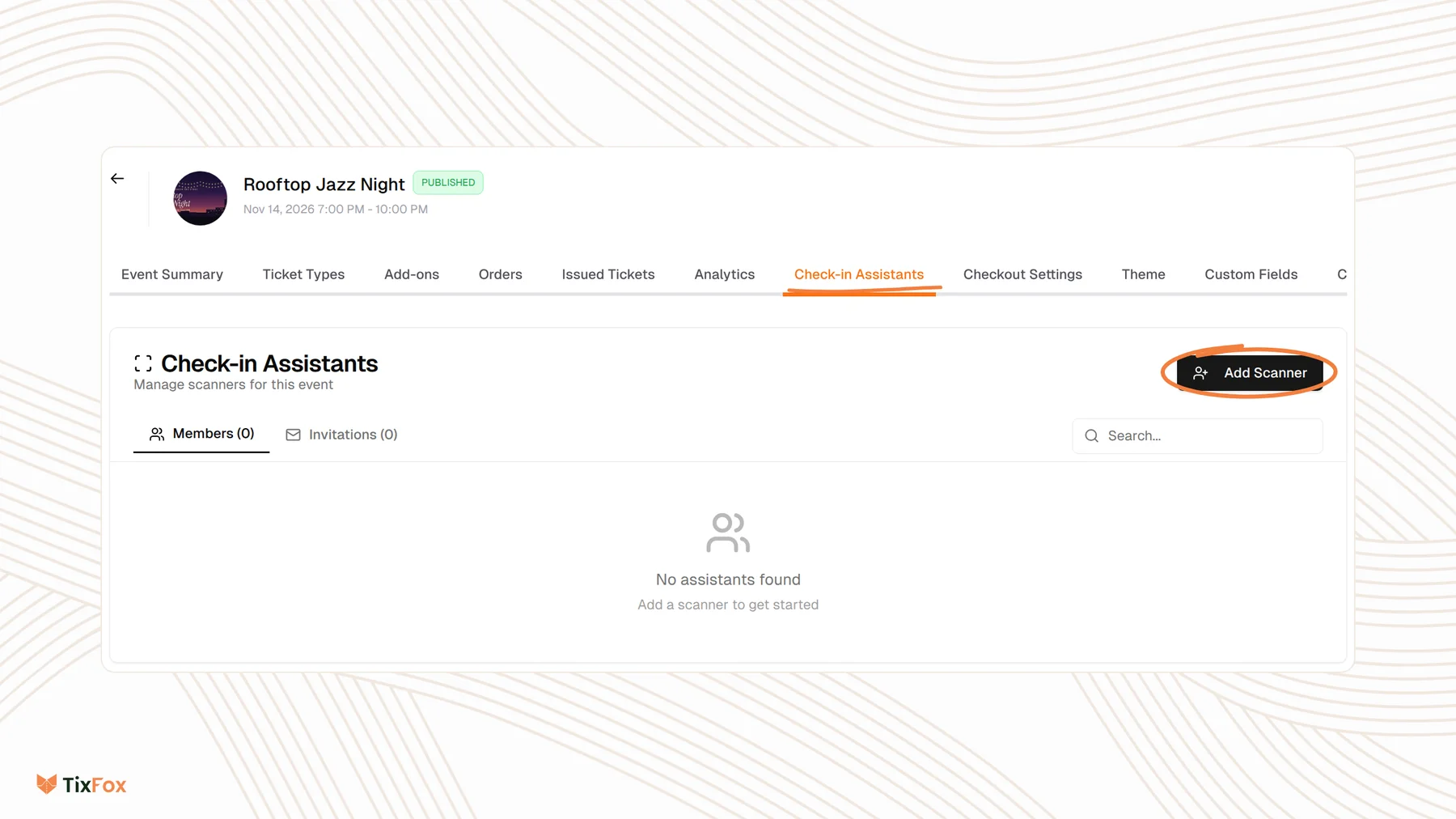
Last updated at: Oct 20, 2026Check-in assistants are staff or volunteers who scan tickets for one event without seeing your sales, revenue or account settings. Open the event, go to Check-in Assistants, click Add Scanner and send them an invitation by email. They scan with the free TixFox app.
Invite a check-in assistant
- Open your event and go to the Check-in Assistants tab.
- Click Add Scanner.
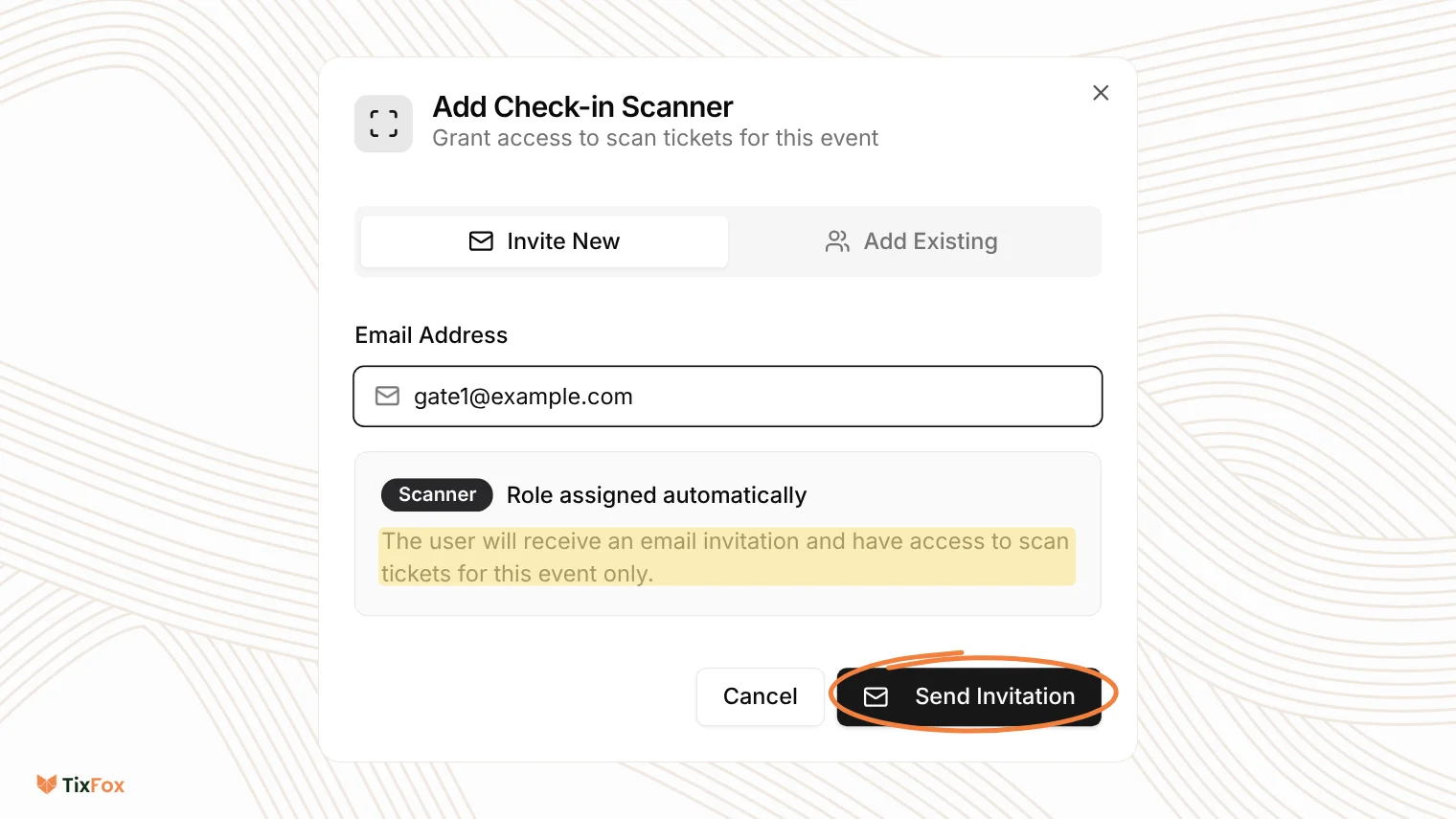
- On Invite New, type their Email Address.
- Click Send Invitation.
They get the Scanner role automatically. They'll receive an email invitation and can scan tickets for this event only.
Add someone from your team
If the person is already on your TixFox team, click Add Scanner, choose Add Existing, pick them under Select Team Member and click Add to Event.
See who's set up
On the Check-in Assistants tab, Members lists everyone who can scan for the event, and Invitations lists invites that haven't been accepted yet.
What assistants do on the day
Your assistants download the free TixFox app, sign in with the email you invited, open your event and tap Scan. Each one scans on their own phone, and every check-in shows up in your dashboard straight away. See How to scan tickets at the door with the TixFox app.
Good to know
- A busy door goes faster with one assistant per entrance or line.
- Invite them a day or two before the event, so they can install the app and sign in ahead of time.
- Assistants are added to one event at a time. For your next event, invite them again.
Common questions
Can check-in assistants see my sales?
No. They can scan tickets for the event without seeing your sales, revenue or account settings.
Do assistants need the app?
Yes. They download the free TixFox app and sign in with the email you invited.
Do I need to invite them again for my next event?
Yes. Assistants are added to one event at a time.
Can someone scan for all my events?
Yes. Invite them to your team with the Scanner role. See How to invite your team and choose their roles.