How to scan tickets at the door with the TixFox app
Last updated at: Oct 20, 2026To check people in, download the free TixFox app, sign in with your TixFox account, pick your event and tap Scan. Point your phone's camera at each ticket's QR code. The app tells you straight away if the ticket is good, already used or not valid. No extra scanner or hardware needed.
1. Get the app
The TixFox app is free on iPhone and Android:
Sign in with the same account you use on the TixFox website, then choose the event you're checking in.
2. Scan tickets
- Tap Scan at the bottom of the screen.
- Point the camera at the QR code on the buyer's phone or printed ticket.
- Read the result:
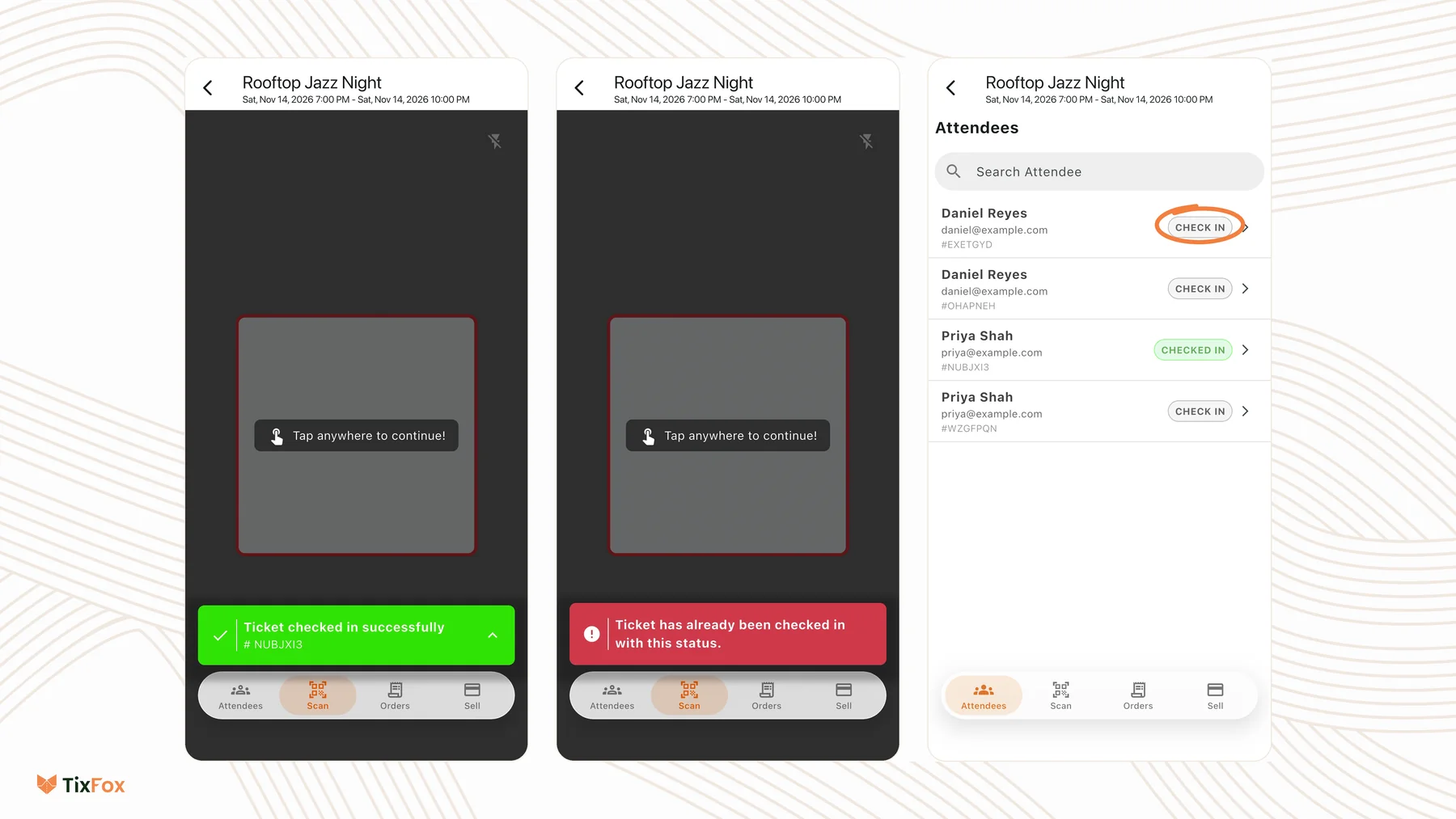
- Green, Ticket checked in successfully: let them in.
- Red, Ticket has already been checked in: this ticket was used before. The same QR code can't get in twice.
- Tap anywhere to scan the next ticket.
In a dark venue, tap the flashlight icon at the top right of the scan screen.
3. Check someone in without scanning
If a buyer can't find their ticket or the code won't scan, tap Attendees. Search by name or ticket number, then tap Check in next to their ticket. Tickets already used show Checked in.
4. Follow check-in from your dashboard
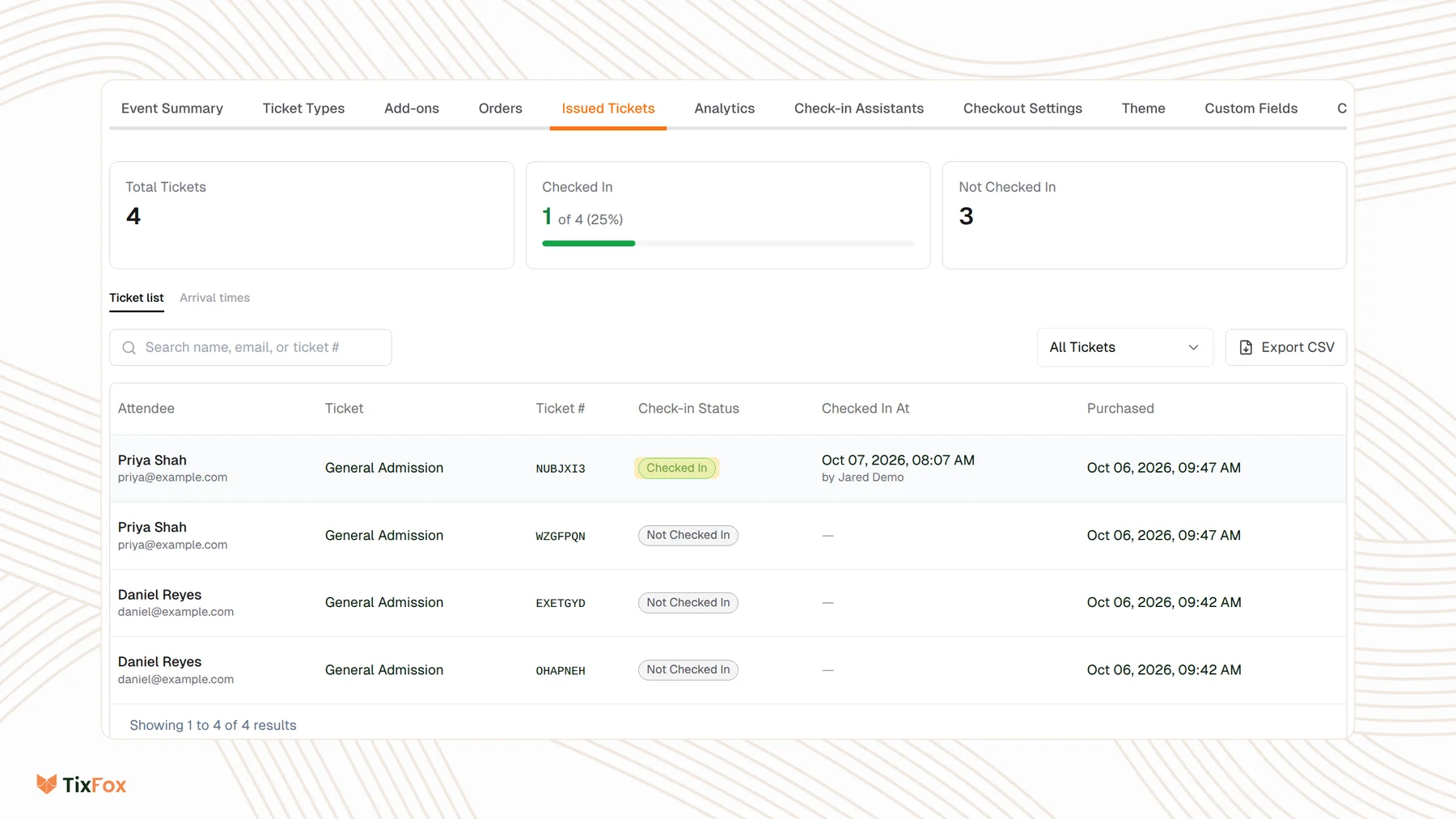
On the TixFox website, open your event and go to Issued Tickets. You'll see how many people have checked in so far, and each ticket's Check-in Status, with the time and who checked them in. Use Export CSV to download the list.
Good to know
- Scanning with more than one phone? Add your staff as check-in assistants, so they can scan without seeing your sales or settings.
- Selling at the door too? The Sell tab in the app lets you sell tickets onsite.
- Before doors open, scan one ticket yourself to make sure everything works.
Common questions
Do I need a ticket scanner?
No. The free TixFox app uses your phone's camera.
What happens if a ticket is scanned twice?
The app shows a red message that the ticket has already been checked in, so the same QR code can't get in twice.
What if a ticket won't scan?
Tap Attendees, search by name or ticket number, and tap Check in.
Can my staff scan without my login?
Yes. Add them as check-in assistants. See How to add check-in assistants.