How to export your attendee list and orders to CSV
Last updated at: Oct 20, 2026You can download your attendee list as a CSV file that opens in Excel, Google Sheets or Numbers. For one row per order, go to Orders and click Export. For one row per ticket, with check-in details, open your event, go to Issued Tickets and click Export CSV. In both, you choose the columns before you download.
Which export to use
| Export | One row per | Best for |
|---|---|---|
| Orders | Order | Sales, payments, refunds and checkout answers |
| Issued Tickets | Ticket | A guest list, name badges and who has checked in |
Export your orders
- Click Orders in the sidebar.
- Use Filter, Search or the date range to narrow the list, for example to one event. The export follows what's on screen.
- Click Export.
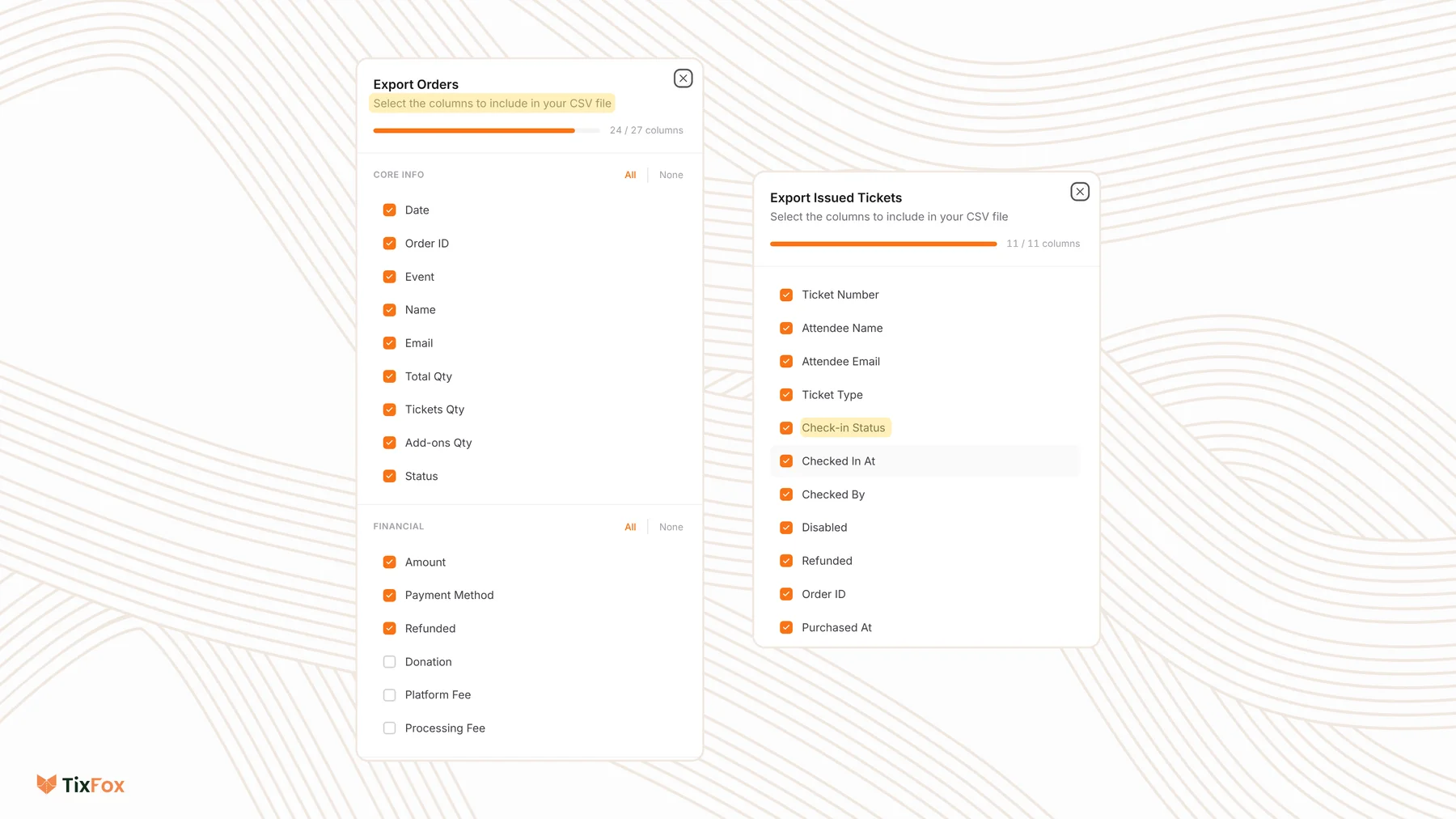
- Tick the columns you want. Use All or None for a whole group, or Select all and Clear all at the bottom.
- Click Export CSV.
The columns come in groups:
- Core info: Date, Order ID, Event, Name, Email, Total Qty, Tickets Qty, Add-ons Qty and Status.
- Financial: Amount, Payment Method, Refunded, Donation, Platform Fee and Processing Fee.
- Other: Ticket Details, Add-on Details and Access Code.
- Custom fields: one column for each question you ask at checkout.
Export issued tickets
- Open your event and go to the Issued Tickets tab.
- Click Export CSV.
- Choose from Ticket Number, Attendee Name, Attendee Email, Ticket Type, Check-in Status, Checked In At, Checked By, Disabled, Refunded, Order ID and Purchased At.
- Click Export CSV.
Common questions
How do I get one name per ticket for a group order?
Use the Issued Tickets export. It has a row for each ticket with its own Attendee Name and Attendee Email.
Where are the answers to my checkout questions?
In the Orders export, under Custom fields. Tick the questions you want as columns. See How to ask buyers questions at checkout.
Can I see who checked in after the event?
Yes. The Issued Tickets export includes Check-in Status, Checked In At and Checked By.
Why is my export empty?
If no orders match your filters, TixFox shows "No orders found to export." Clear the filters or widen the date range and try again.