How to ask buyers questions at checkout with custom fields
Last updated at: Oct 20, 2026Custom fields are questions buyers answer at checkout, like dietary needs, a T-shirt size or a phone number. To add one, open your event, go to the Custom Fields tab, click Add Your First Field (or Add Field), type the question, choose a field type and click Save Changes.
Every event already asks for First Name, Last Name and Email. These are listed under Default Fields and are always required.
Add a question
- Open your event and go to the Custom Fields tab.
- Under Additional Fields, click Add Your First Field, or Add Field if you already have some.
- Type your question under Field Label, for example "Dietary needs".
- Choose a Field Type.
- For a dropdown, checkbox or radio question, click Add Option for each answer.
- Tick Required field if every buyer must answer.
- Click Save Changes.
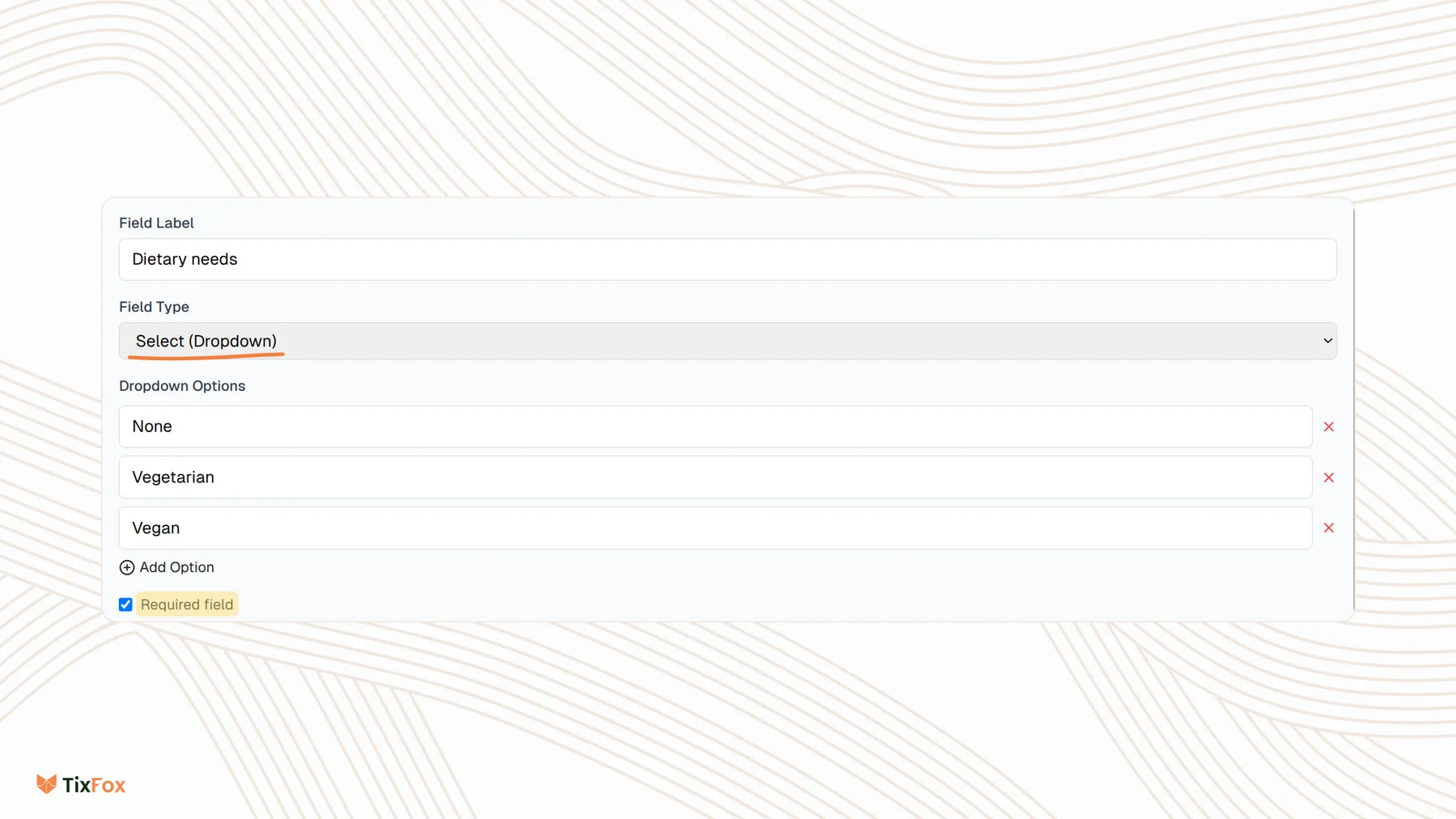
Field types
| Field Type | Good for |
|---|---|
| Text | Short answers, like a company name |
| Text Area | Longer answers, like accessibility needs |
| Number | Ages, years or counts |
| A second email address | |
| Phone | A phone number for day-of updates |
| Date | Birthdays or arrival dates |
| Select (Dropdown) | One answer from a list, like a T-shirt size |
| Radio Group | One answer, with every choice shown at once |
| Checkbox Group | Several answers, like the workshops someone wants to join |
Show a question only when it applies
Use Visibility Conditions so buyers only see questions that matter to them:
- Ticket condition: show the question when the buyer selects any of or all of the tickets you tick. Add-ons are listed too, so you can ask "Which size?" only to people who buy a T-shirt.
- Field condition: show the question only when another question has a certain answer.
Click Clear all to remove the conditions, and remember to click Save Changes.
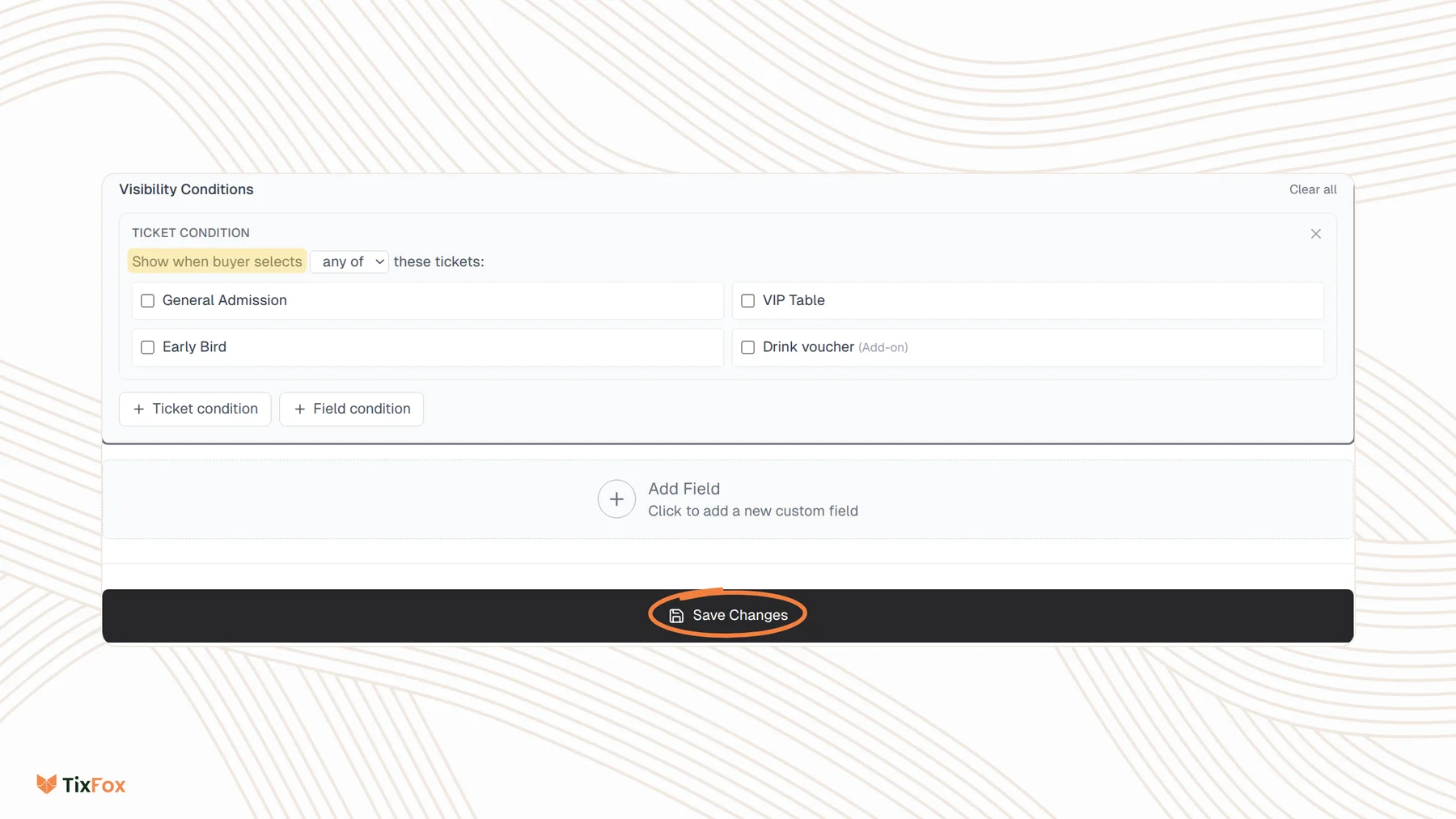
Where to find the answers
Go to Orders and open an order. The answers are under Customer Information, in Additional Information. To correct an answer, click the three dots next to Customer Information and choose Edit Info. See How to resend tickets or change attendee details.
Common questions
Do I need a custom field to get the buyer's name and email?
No. First Name, Last Name and Email are asked on every order automatically.
Are my questions asked for onsite and dashboard orders too?
When you add an order from your dashboard, required questions must be filled in. For sales at the door, turn on Always ask for customer info in your onsite settings to require the name, email and custom fields. See How to sell tickets onsite.
Can I ask a question only for VIP tickets?
Yes. Add a Ticket condition and tick only the VIP ticket.
How many questions should I ask?
Only what you'll use. Every extra question adds a step at checkout, so keep the list short and make questions required only when you really need the answer.