How to create your first event
Last updated at: Oct 20, 2026To create an event in TixFox, go to Events, click Create Event, fill in the details and click Create Event. Your event is saved as a draft. Add your tickets, check the page with Preview, then click Publish now to start selling.
1. Add the event details
- Go to Events and click Create Event.
- Check the Currency and Organizer at the top right.
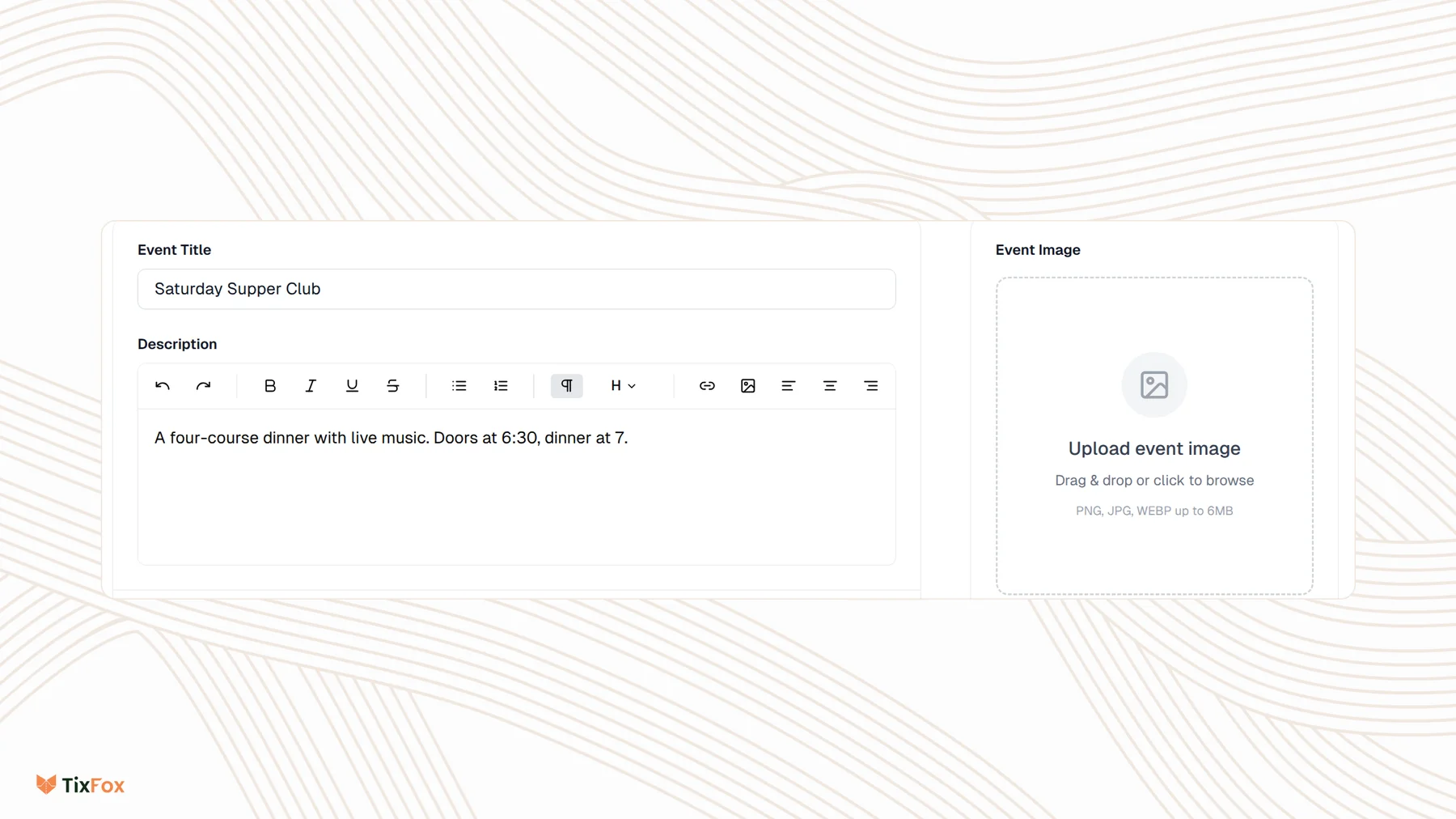
- Type your Event Title.
- Write a Description. You can add bold text, lists, links and images. Tell buyers what's included, the timings and anything they need to know.
- Under Event Image, upload a picture for your event page. PNG, JPG or WEBP, up to 6MB.
2. Set the date, payment and location
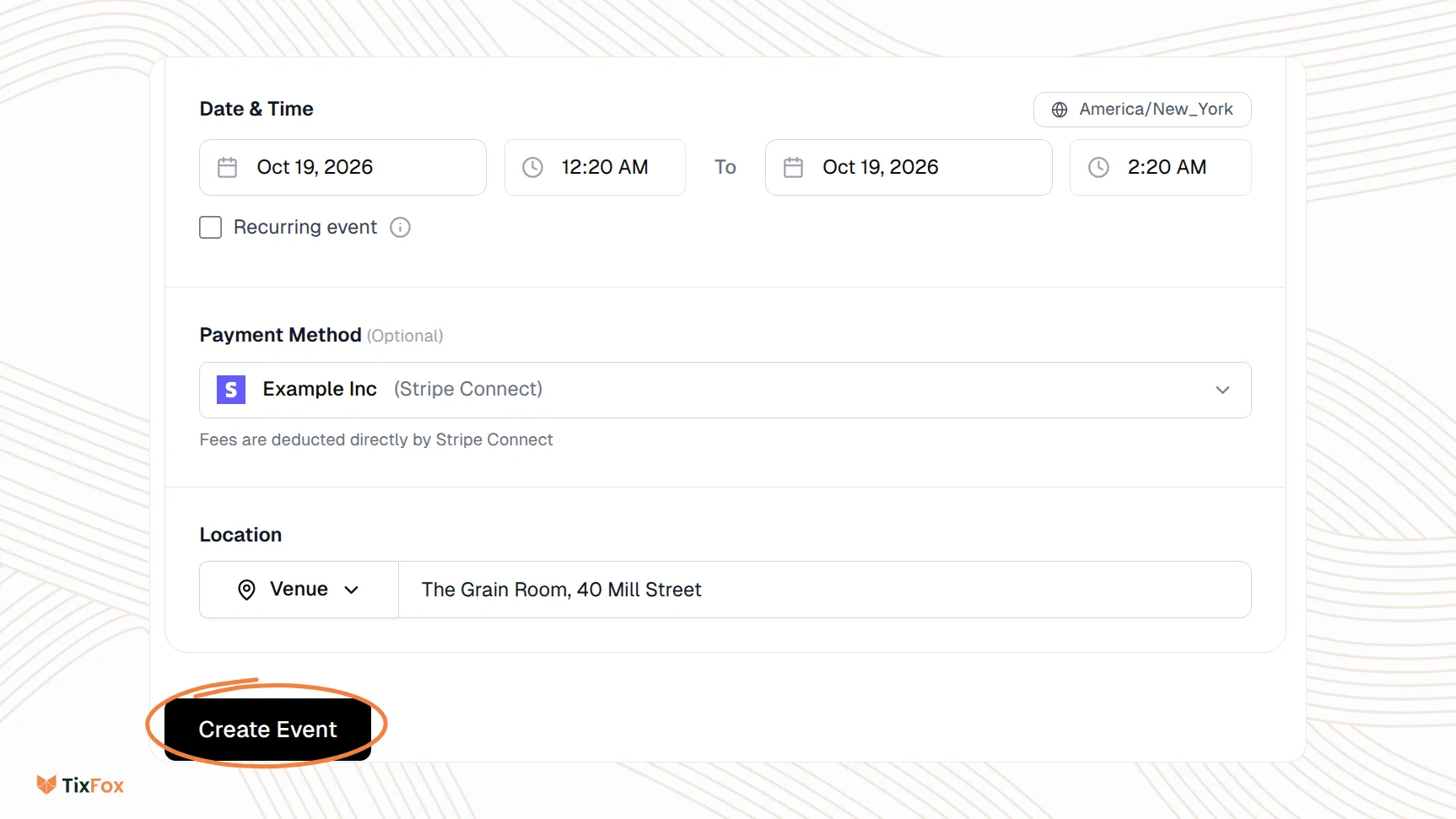
- Under Date & Time, set the start and end. To change the time zone, click it (for example America/New_York) and search for yours.
- Selling many dates from one event, like a weekly class? Tick Recurring event. See How to create a recurring event.
- Under Payment Method, choose the Stripe account that gets paid for this event. If you haven't connected Stripe yet, see How to connect Stripe to get paid.
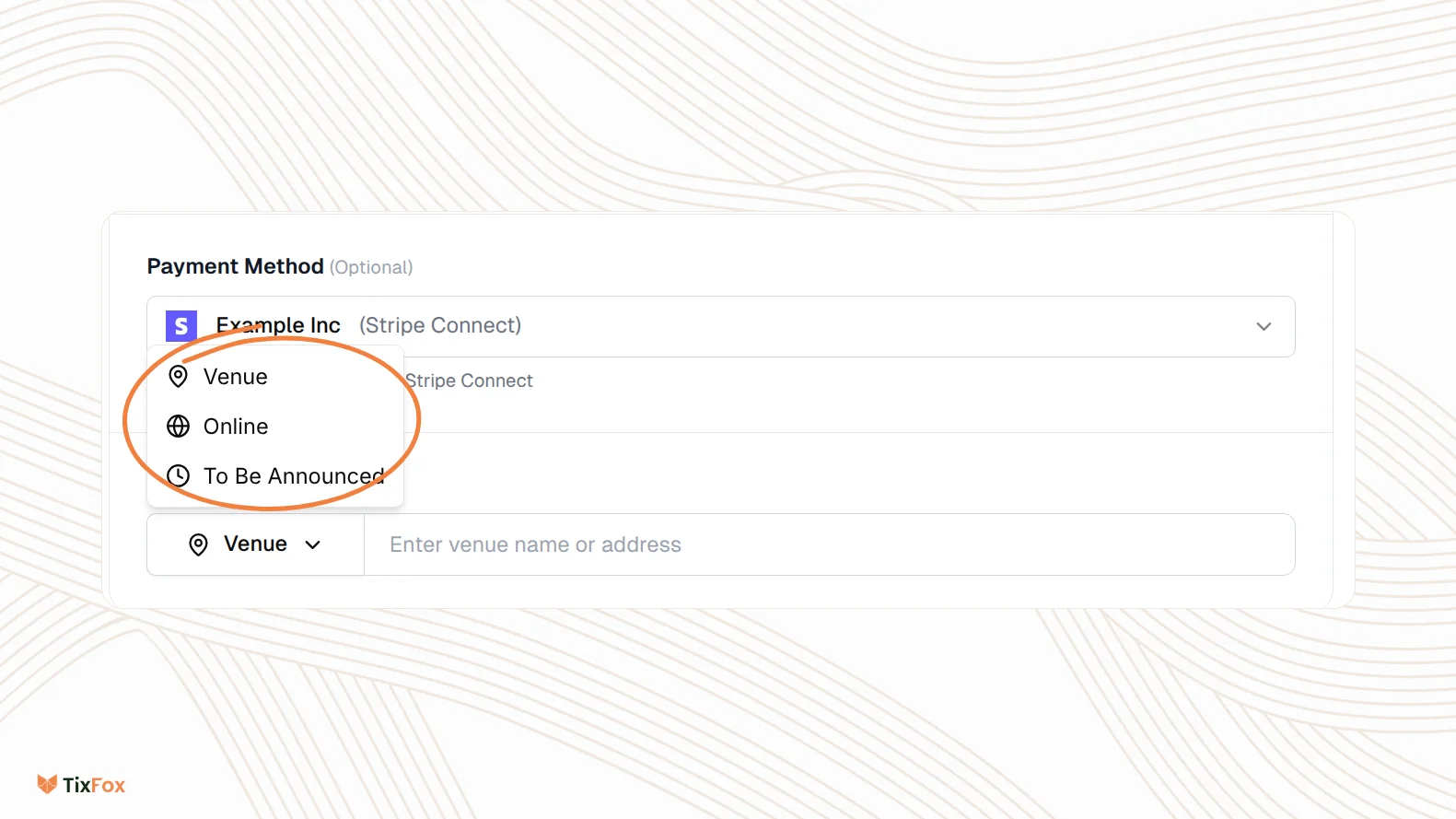
- Under Location, choose Venue and enter the venue name or address, or choose Online or To Be Announced.
- Click Create Event.
3. Add your tickets
Your event opens on its own page with tabs along the top. Go to Ticket Types to add your tickets, prices and quantities. See Adding Ticket Types to Your Event for the details.
The other tabs are there when you need them: Add-ons for extras, Custom Fields for questions at checkout, Checkout Settings, Theme for your page design, and Check-in Assistants for your door staff.
4. Preview and publish
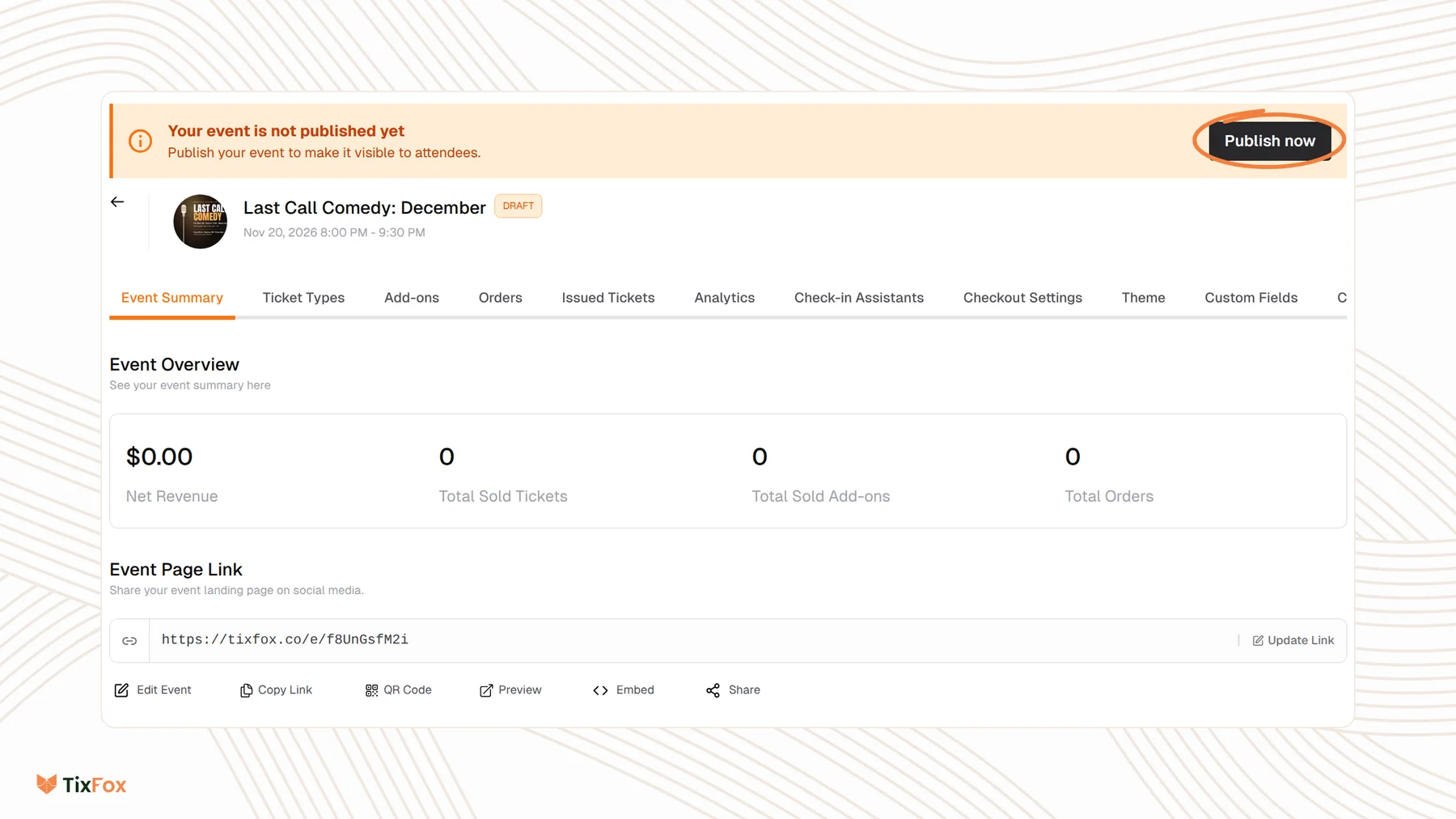
Until you publish, your event is a draft and buyers can't see it. Under Event Page Link, click Preview to see your page the way buyers will. It opens in a new tab, and while it's a draft, only you can see it.
When you're happy, click Publish now in the banner at the top.
5. Share your event
Once it's published, use the buttons under Event Page Link to share it: Copy Link, QR Code for posters and signs, Embed to sell tickets on your own website, or Share. To change the details later, click Edit Event.
Good to know
- You can create as many events as you like. TixFox only charges a fee on paid tickets. Free tickets are free.
- Running something similar again? Duplicate the event instead of starting over.
Common questions
Can people buy tickets before I publish?
No. Until you publish, your event is a draft and only you can see it with Preview.
Do I need Stripe for a free event?
No. You only need Stripe to get paid for paid tickets. See How to connect Stripe to get paid.
Can I change the details after publishing?
Yes. Under Event Page Link, click Edit Event.
Can one event have many dates?
Yes. Tick Recurring event under Date & Time. See How to create a recurring event.