How to duplicate an event
Last updated at: Oct 20, 2026You can copy any event you've already set up and only change what's different. Go to Events, open the menu on the event, and choose Duplicate Event. The copy is saved as a draft, so nobody can buy tickets until you publish it.
Duplicate an event
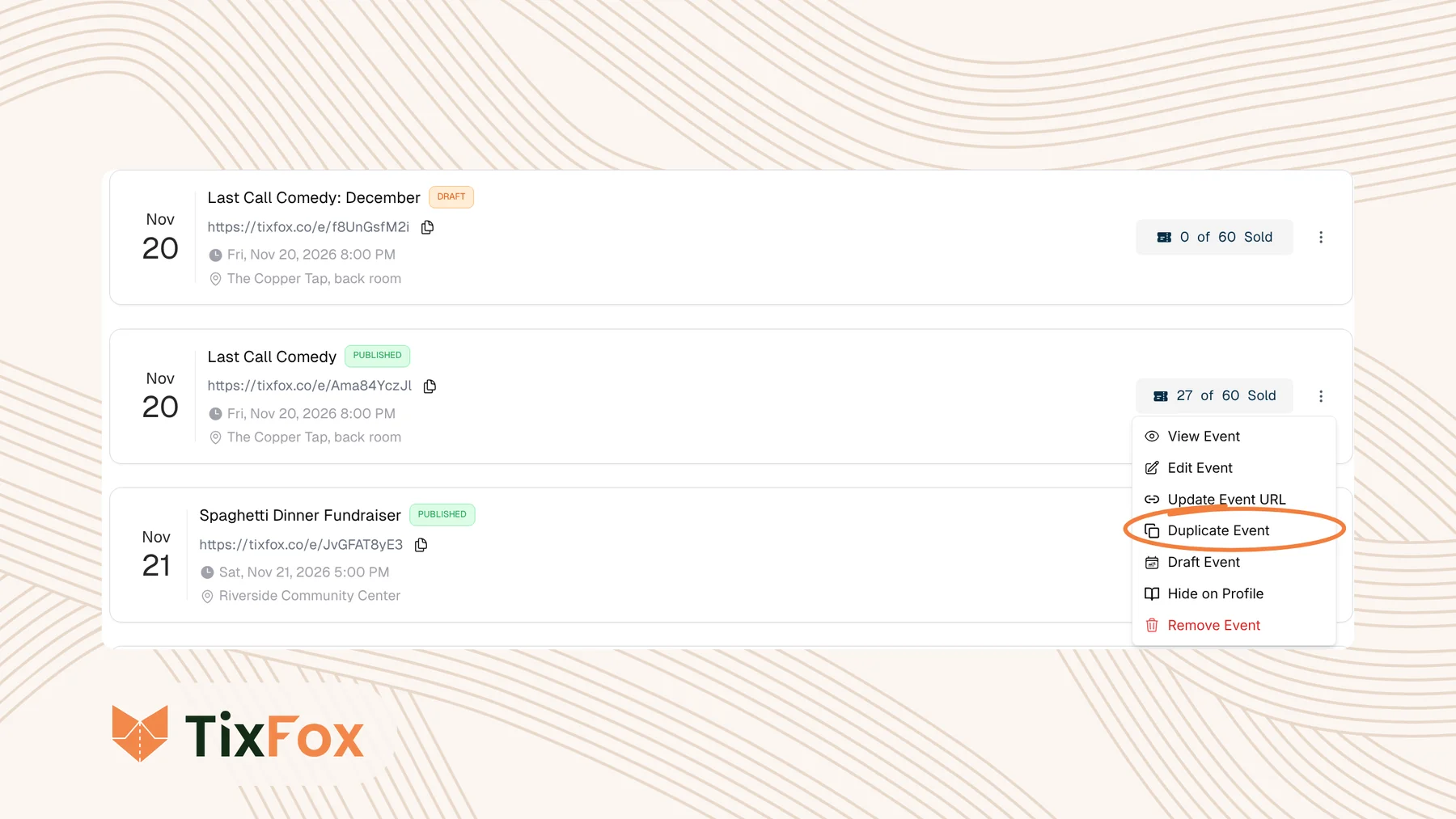
- Go to Events.
- Find the event you want to copy and click the three dots on the right of its card.
- Choose Duplicate Event.
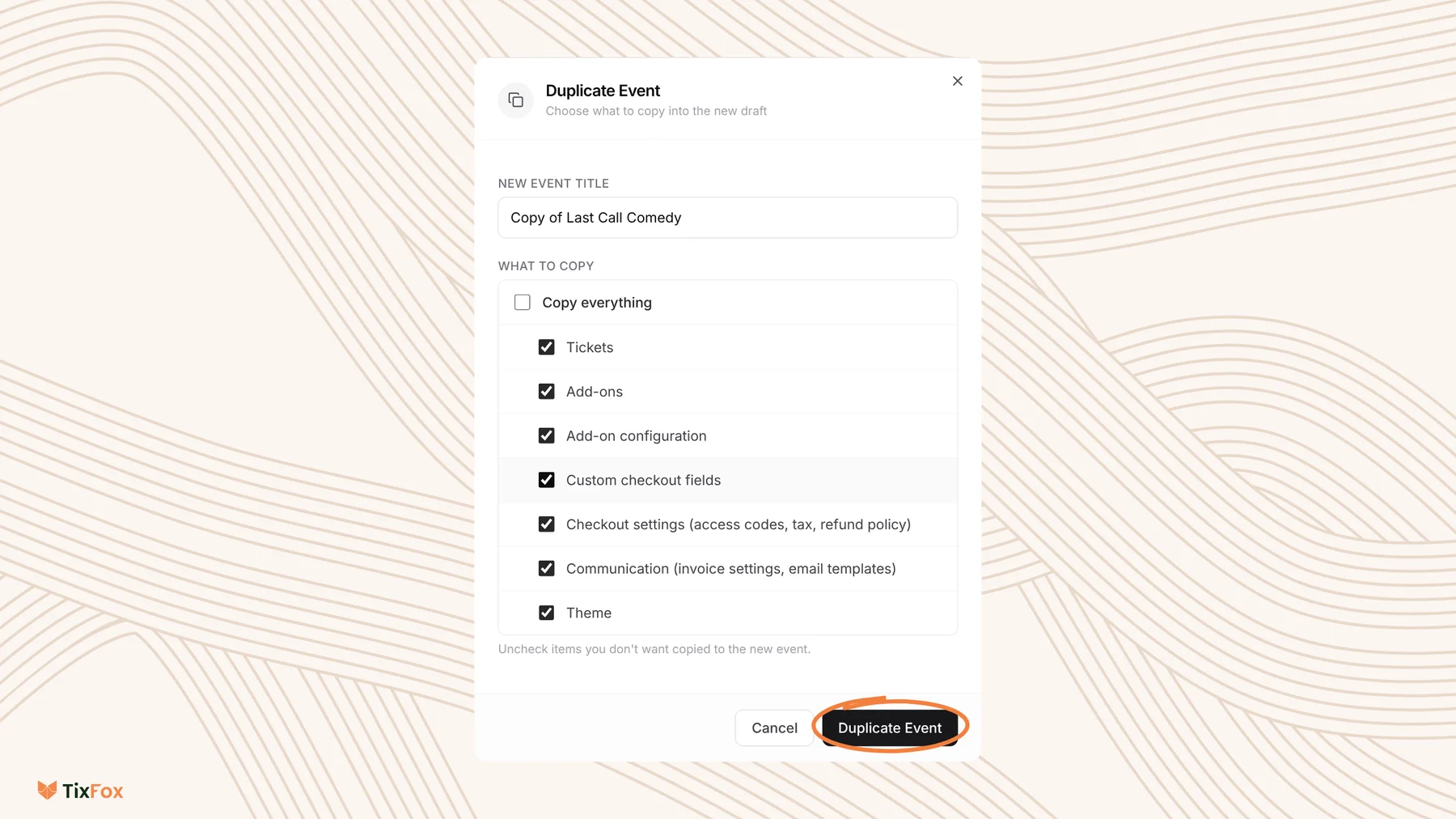
- Under New Event Title, type a name for the copy. TixFox suggests "Copy of" plus the original name.
- Under What to copy, keep Copy everything ticked, or untick it to choose (see below).
- Click Duplicate Event.
Choose what comes with the copy
Copy everything is ticked to begin with. Untick it to see each part, then untick anything you don't want:
- Tickets: your ticket types and prices.
- Add-ons and Add-on configuration: extras like merchandise or upgrades, set up the way you had them.
- Custom checkout fields: the questions you ask buyers at checkout.
- Checkout settings: access codes, tax and your refund policy.
- Communication: invoice settings and email templates.
- Theme: the design of your event page.
The event's details come with the copy too: the description, date and time, location and image. Orders and attendees don't. They stay with the original event, so the copy starts with nothing sold.
Change the date, then publish
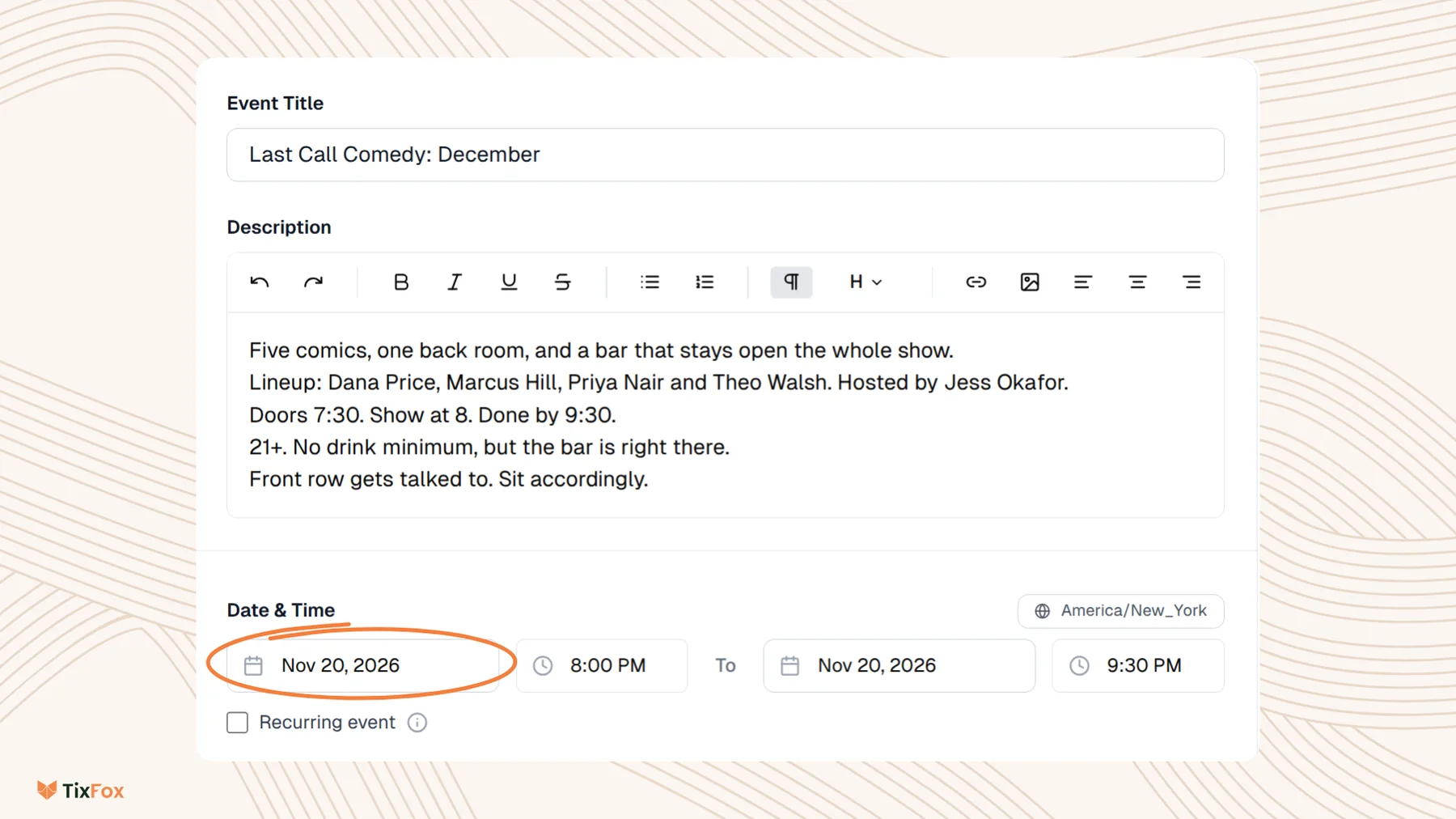
The copy keeps the original date and time, so update them before you publish.
- On the copy's card, click the three dots and choose Edit Event.
- Change anything that's different, such as the Event Title, Date & Time or Location.
- Click Update Event.
- Check your tickets, especially quantities and any sale dates you set.
- When you're ready, click the three dots on the card again and choose Publish Event.
The copy gets its own event link. To choose a custom link, click the three dots and choose Update Event URL.
Good to know
- Duplicating doesn't change the original event or its sales.
- If your event repeats on a set schedule, like every Friday, a recurring event lets you sell every date from one event instead of making copies.
- To learn more about setting up tickets, see Adding Ticket Types to Your Event.
Common questions
Does the copy include orders and attendees?
No. They stay with the original event, so the copy starts with nothing sold.
Does the copy get the same link?
No. The copy gets its own event link. To choose a custom one, use Update Event URL.
Can people buy tickets for the copy straight away?
No. The copy is saved as a draft. Nobody can buy until you choose Publish Event.
Should I duplicate or create a recurring event?
If your event repeats on a set schedule, like every Friday, a recurring event sells every date from one event. Duplicate when each event needs its own setup.