How to create a recurring event
Last updated at: Oct 20, 2026A recurring event lets you sell many dates and times from one event, like a weekly class, a monthly show or timed entry at an attraction. Tick Recurring event when you create the event, then add your dates from the Occurrences tab. Buyers pick a date and time from a calendar before choosing tickets.
1. Create the event as recurring
- Go to Events and click Create Event.
- Add your Event Title, Description, Location and image as usual.
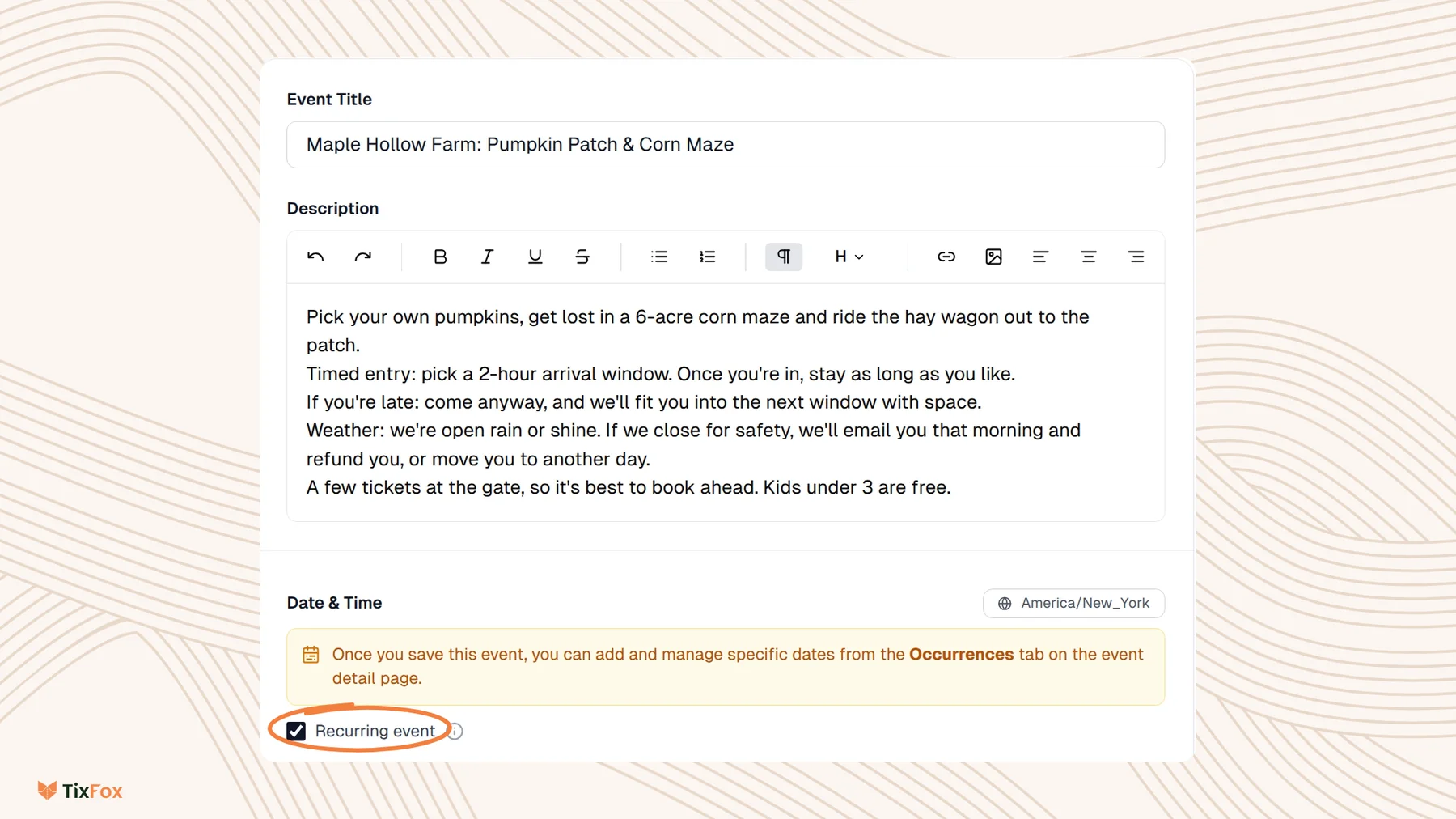
- Under Date & Time, tick Recurring event.
- Save the event.
2. Generate your dates
Instead of adding dates one by one, set a pattern and TixFox creates every date and time for you.
- Open the event and go to the Occurrences tab.
- Click Generate dates.
- Choose the Frequency, for example Weekly.
- Set the Interval. 1 means every week. 2 means every other week.
- Under Days of week, pick the days the event runs.
- Set Starting from and Until. The series can run up to 2 years from the start date.
- Under Time slots, set the start and end time. Click Add time slot to add more times on the same day.
- Click Generate.
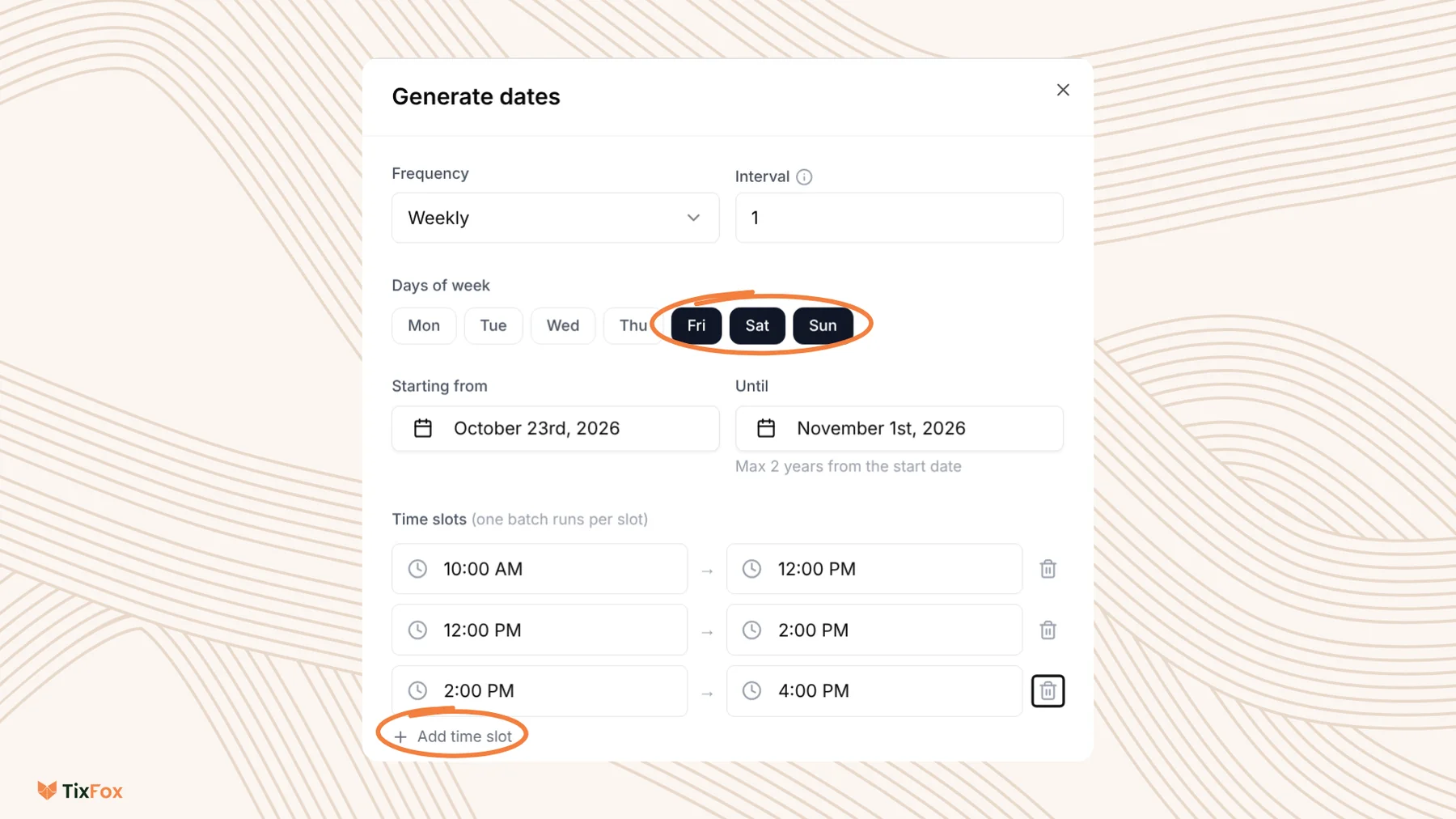
In this example, Fridays, Saturdays and Sundays for two weekends with three time slots each make 18 dates in one go.
3. Check and manage your dates
Every date and time appears in the Occurrences tab, split into Upcoming and Past.
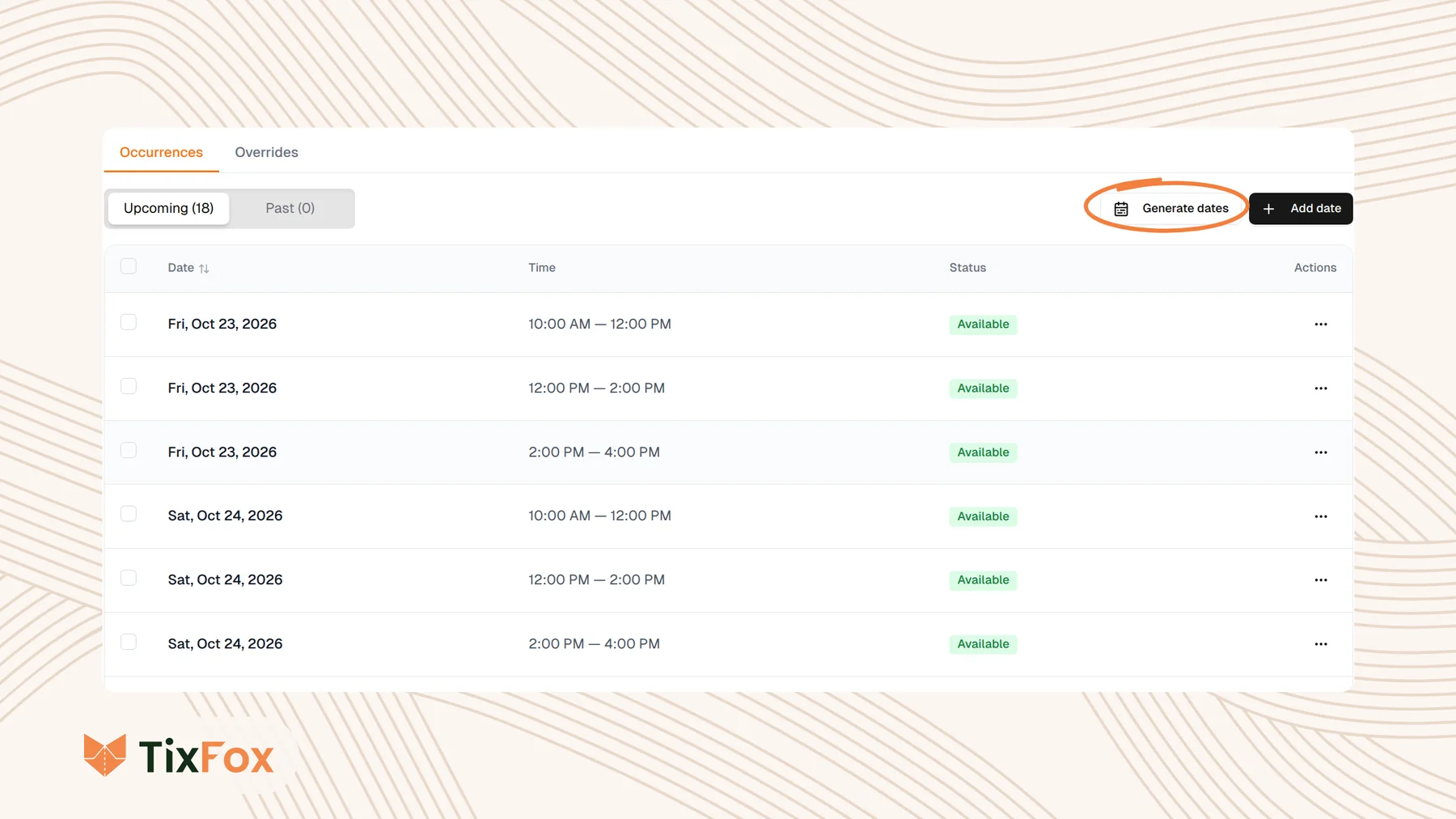
- Add a one-off date: click Add date and set the start and end date and time.
- Change one date: click the three dots on its row and choose Edit.
- Stop sales for one date: choose Set not available, for example if you close for weather.
- Skip a date: choose Hide to take it off the calendar, or Remove date to delete it.
4. Add your tickets
Add tickets in the Ticket Types tab, the same way as for any event. In a recurring event, the ticket Quantity counts for each date. A quantity of 200 means 200 tickets for every date and time, not 200 in total. Add-ons also have their own stock for each date.
For more on tickets, see Adding Ticket Types to Your Event.
5. Change the price or stock for one date
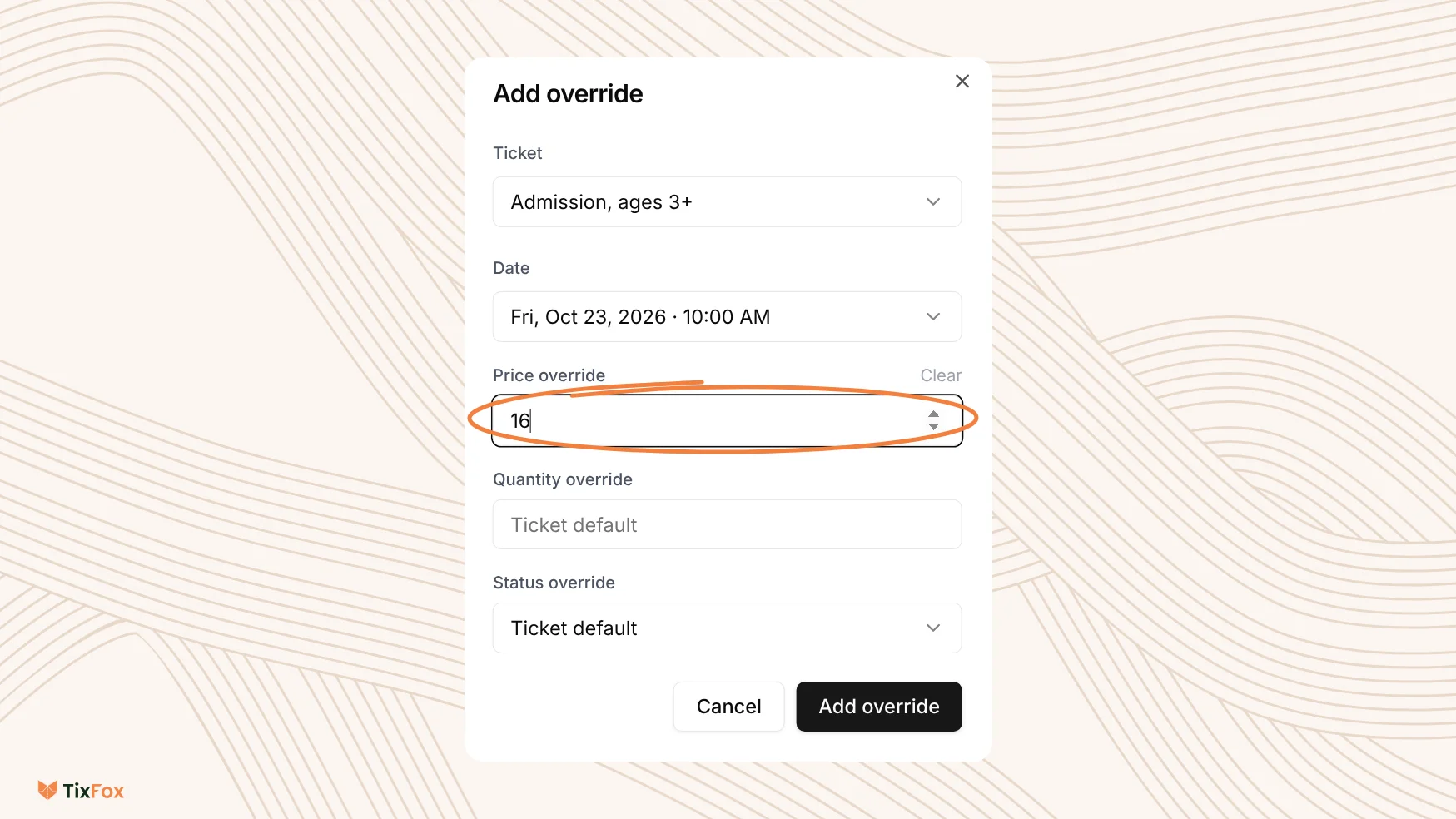
Use an override when one date needs something different, like a lower price on quiet days or fewer tickets on a holiday.
- In the Occurrences tab, open Overrides.
- Click Add override.
- Choose the Ticket and the Date.
- Fill in what changes: Price override, Quantity override or Status override. Anything you leave as Ticket default stays the same.
- Click Add override.
What buyers see
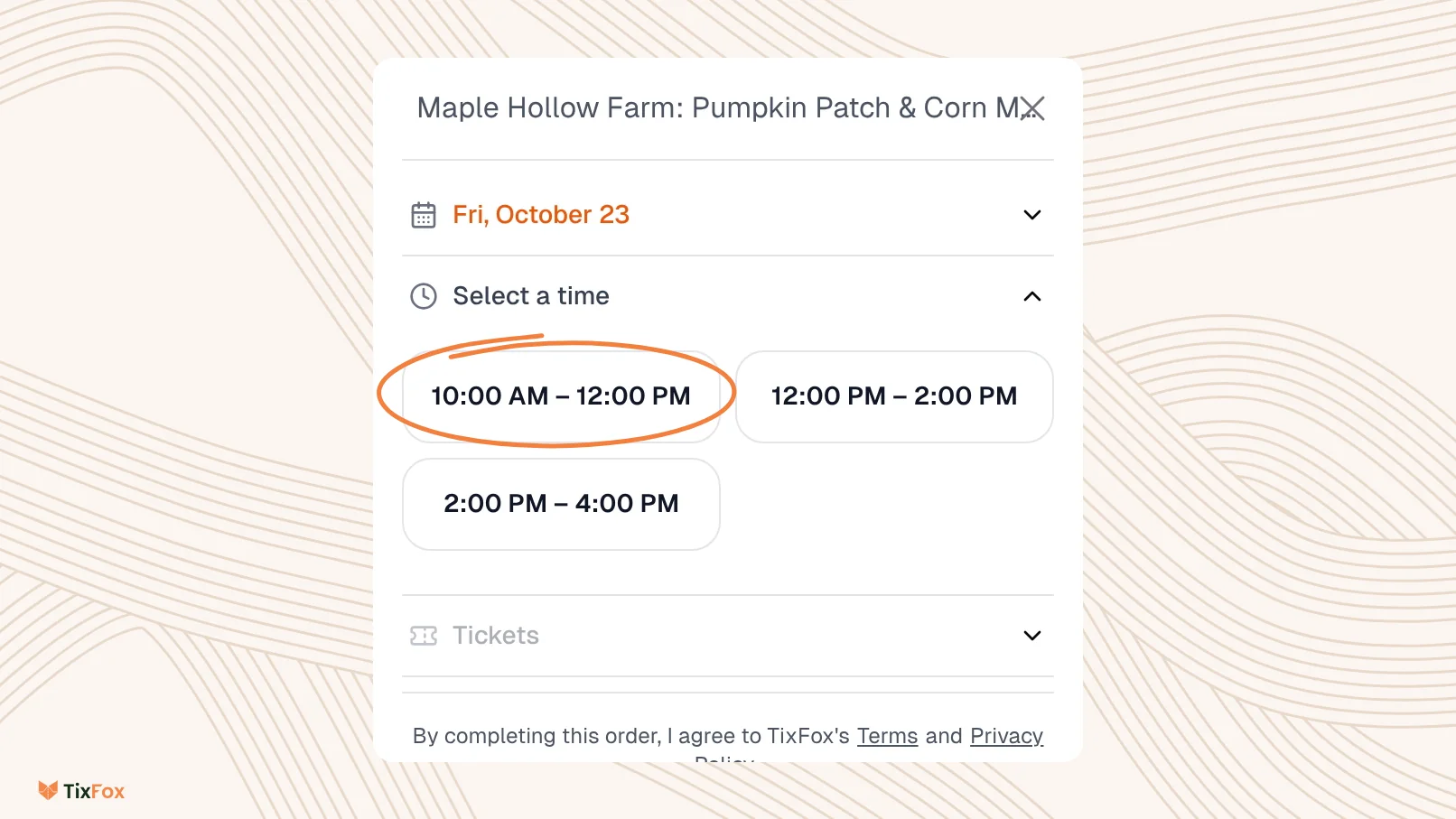
On your event page, buyers pick a date, then a time, then their tickets. Each order belongs to the date and time they chose, so you always know who's coming when.
Good to know
- Publish the event when your dates and tickets are ready. Nobody can buy until it's published.
- To see sales for one date, use the date filter on the Event Summary tab. It starts on All occurrences.
- If you run the same event again with a new setup each time, you can also duplicate an event instead.
Common questions
Is the ticket quantity shared across dates?
No. In a recurring event, the Quantity counts for each date. A quantity of 200 means 200 tickets for every date and time.
How far ahead can I generate dates?
Up to 2 years from the start date.
How do I stop sales for one date?
Click the three dots on its row and choose Set not available, or Hide to take it off the calendar.
Can I move a buyer to another date?
Yes. Open their order, click the three dots next to Customer Information and choose Reschedule. See How to resend tickets or change attendee details.