How to resend tickets or change attendee details
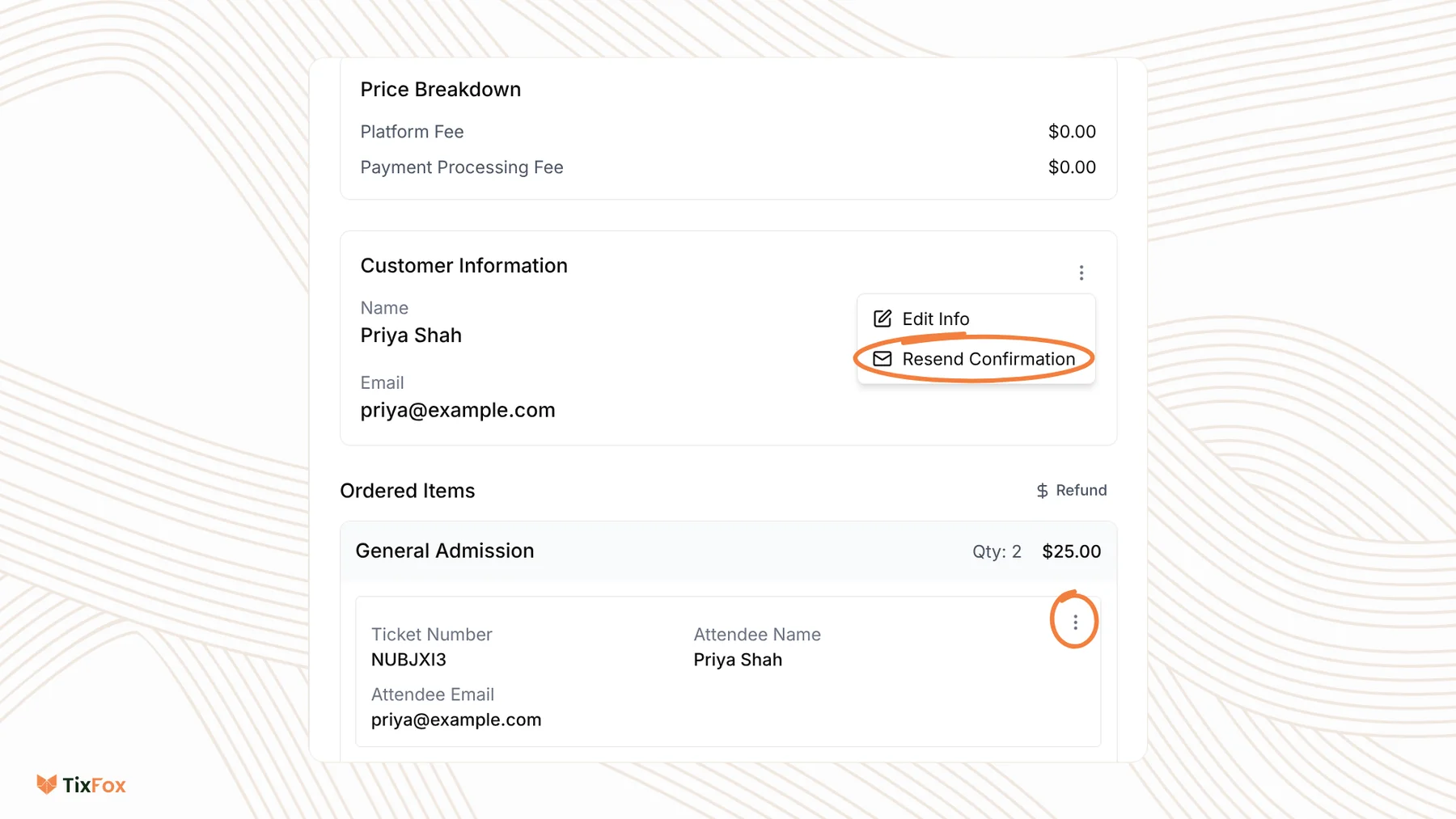
Last updated at: Oct 20, 2026To resend someone's tickets, go to Orders, open their order, click the three dots next to Customer Information and choose Resend Confirmation. To fix a name or email, choose Edit Info in the same menu, or click the three dots next to one ticket and choose Edit.
Resend the confirmation email
- Click Orders in the sidebar and use Search to find the buyer.
- Click the order to open Order Details.
- Next to Customer Information, click the three dots and choose Resend Confirmation.
- Check the address under Confirmation Email Will Be Sent To, then click Resend Email.
If a Verify you are human box appears, tick it before you send. If the address is wrong, fix it first with Edit Info, then resend.
Change the buyer's name or email
- In Order Details, click the three dots next to Customer Information and choose Edit Info.
- Change the Name or Email.
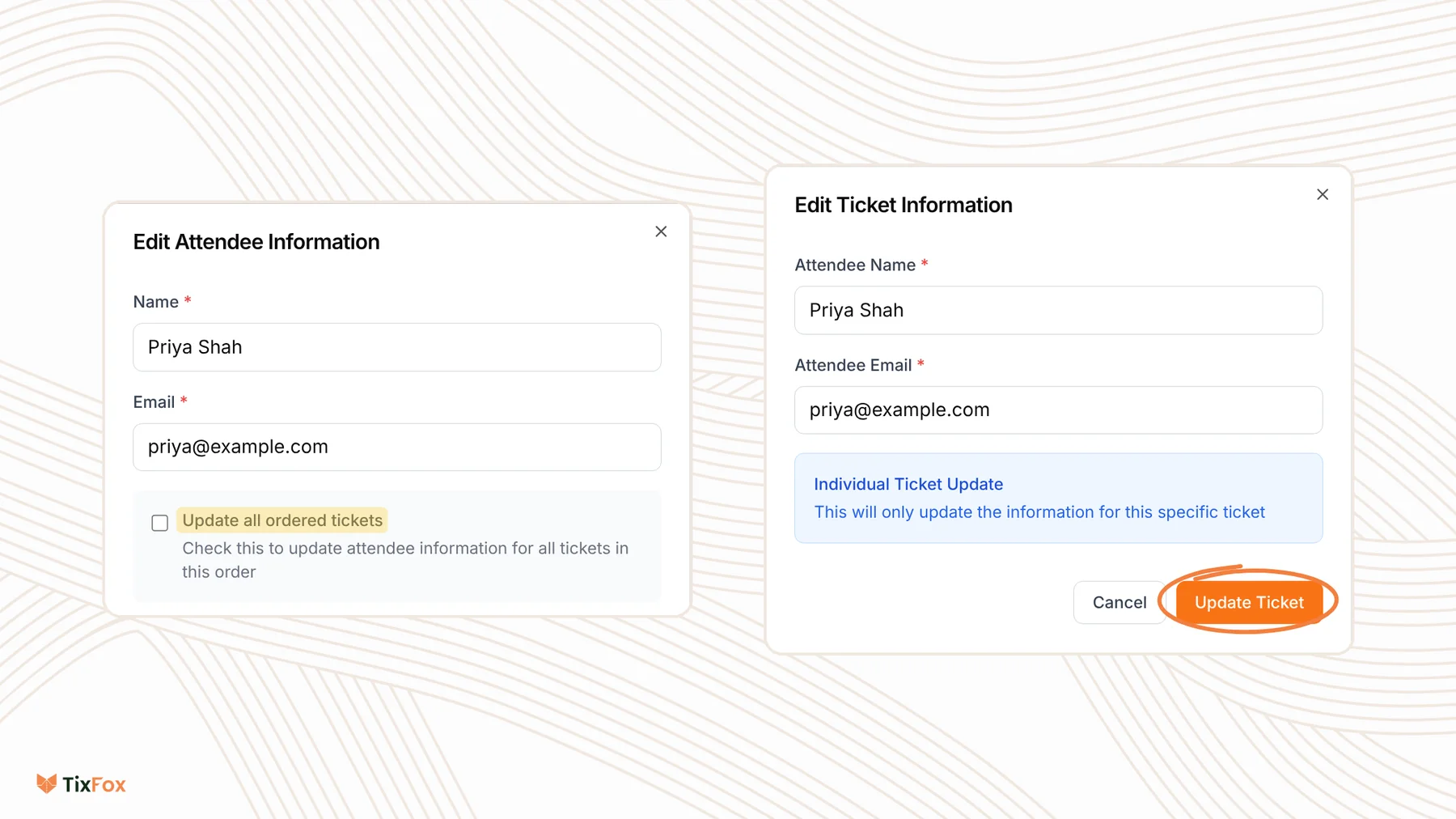
- To change every ticket in the order too, tick Update all ordered tickets.
- Click Update Attendee.
Change the attendee on one ticket
When a buyer gets tickets for a group, each ticket can carry its own guest's details. Under Ordered Items, click the three dots next to the ticket and choose Edit. Change the Attendee Name or Attendee Email and click Update Ticket. This only changes that one ticket.
Send the ticket link yourself
At the top of Order Details, click View Ticket. The buyer's ticket page opens in a new tab, with every ticket in the order and an Add to Apple Wallet button. Copy the link from your browser and send it to the buyer by text or email. Anyone with the link can open the tickets, so only send it to the buyer.
Common questions
A buyer says they never got their tickets. What should I do?
Open their order and check the email under Customer Information for a typo. Fix it with Edit Info if needed, then use Resend Confirmation. Ask them to check their spam or junk folder too. You can also send them the View Ticket link directly.
Can a buyer give their ticket to someone else?
Yes. Click the three dots next to that ticket, choose Edit and enter the new guest's name and email. The rest of the order stays as it is.
Can I move a buyer to another date?
Yes, for events with more than one date. In the Customer Information menu, choose Reschedule and pick the New date. All tickets in the order move together and stay valid. Tick Notify the buyer by email to let them know, then click Reschedule Order. See How to create a recurring event.
Do I need to resend tickets after changing an email?
To be sure the buyer has their tickets at the new address, use Resend Confirmation after you change it.
What if the buyer lost their ticket at the door?
You don't need the QR code to let them in. In the TixFox app, tap Attendees, search for their name and tap Check in. See How to scan tickets at the door.