How to refund a ticket order
Last updated at: Oct 20, 2026To refund an order, go to Orders, open the order and click Refund next to Ordered Items. Choose a full or partial refund, decide whether the tickets should stop working, then click Continue and Confirm Refund. Card refunds go back to the buyer's card, and the buyer gets an email.
Refund an order
- Click Orders in the sidebar and use Search to find the buyer.
- Click the order to open Order Details.
- Next to Ordered Items, click Refund.
- Under Refund Type, choose how much to refund.
- Under Ticket Status, choose what happens to the tickets.
- Click Continue, check the summary and click Confirm Refund.
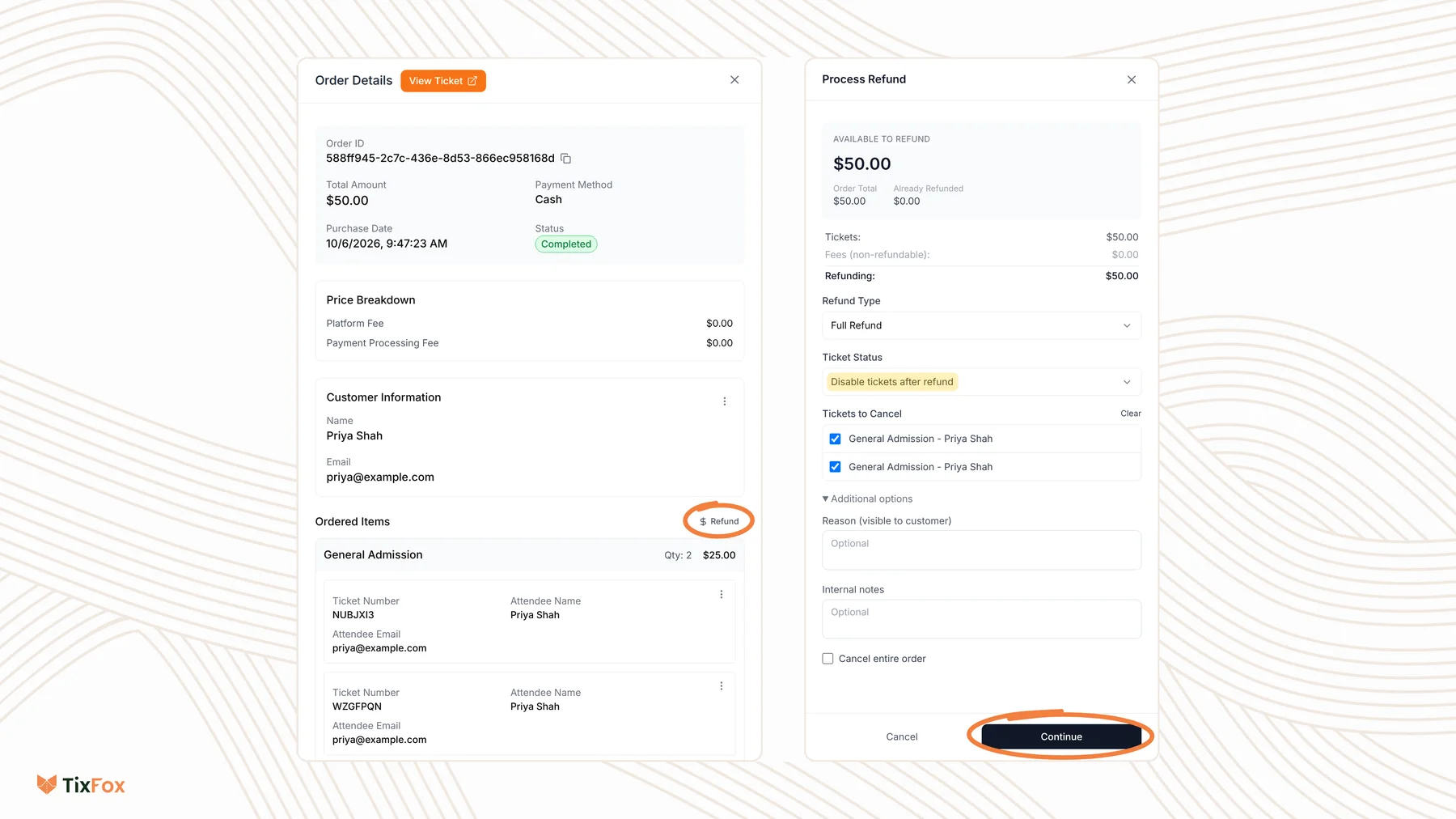
The top of the Process Refund window shows what you can refund: Available to Refund, the Order Total and anything Already Refunded. Just below, Refunding shows what the buyer will get back.
Choose how much to refund
- Full Refund: refunds everything that's left on the order.
- Partial - Select Tickets: tick the tickets to refund. Use this when a buyer can no longer bring one of their guests.
- Partial - Custom Amount: type an amount, up to the maximum shown. Use this for a goodwill refund or a price difference.
If the order includes a donation, you also choose between refunding everything including the donation, or refunding the tickets only and keeping the donation.
Decide what happens to the tickets
- Disable tickets after refund: pick the tickets under Tickets to Cancel, or click Select all. Their QR codes stop working at the door.
- Keep tickets active: the tickets still work. Use this when you refund part of the price but the buyer is still coming.
Add a reason or a note
Under Additional options you can fill in:
- Reason (visible to customer): a short message the buyer sees.
- Internal notes: a note for you and your team only.
- Cancel entire order: tick this to cancel the whole order as well.
Review and confirm
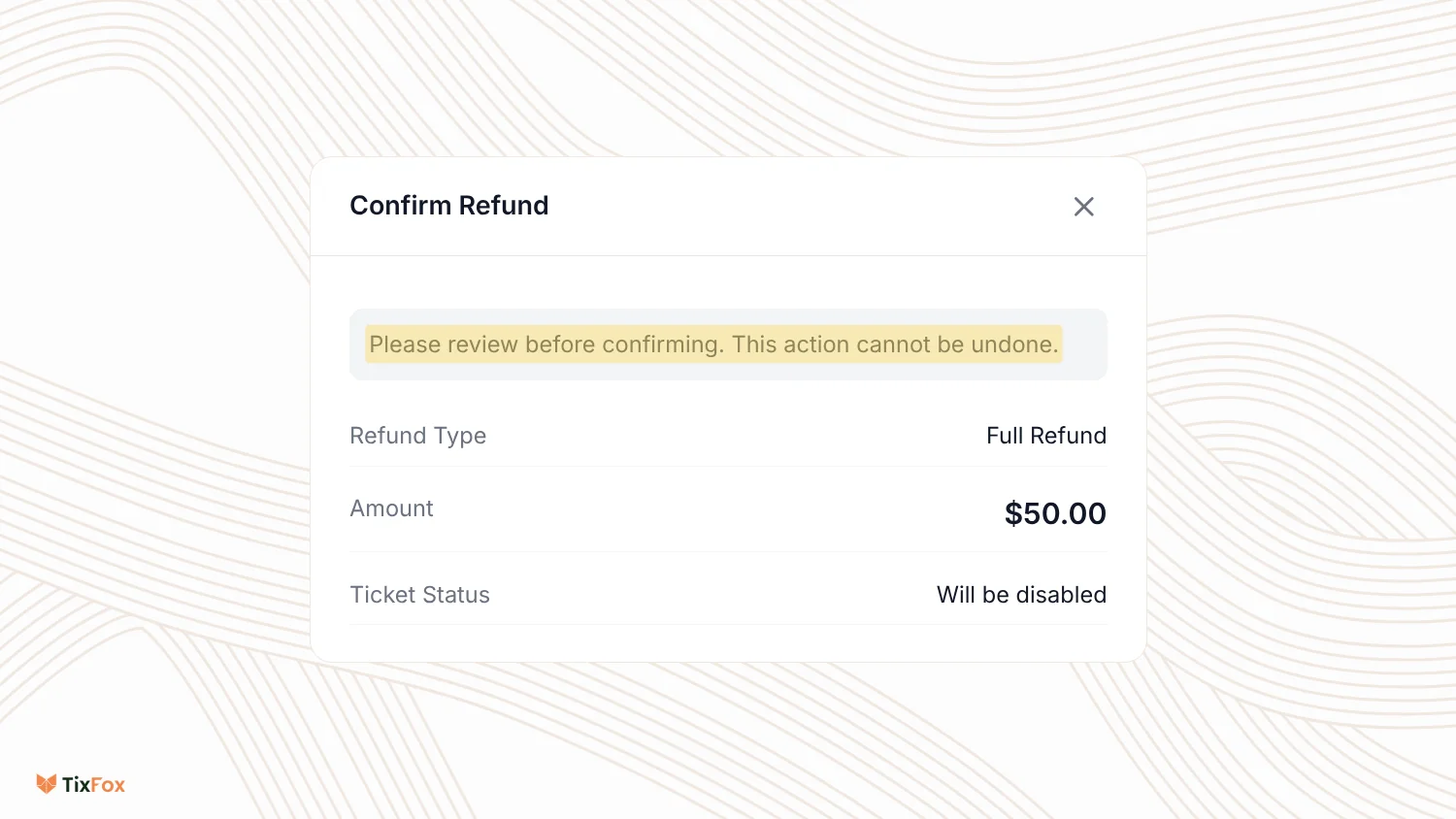
After you click Continue, the Confirm Refund screen shows the Refund Type, the Amount and the Ticket Status. A refund can't be undone, so check it, then click Confirm Refund. To change something, click Back.
What happens after you refund
- Card payments: you'll see Refund Submitted. The refund is with the payment provider and usually reaches the buyer in 5 to 10 business days. The buyer gets an email once it completes.
- Cash sales: you'll see Refund Complete. TixFox records it as settled, and you hand the money back to the buyer in cash. The buyer gets a confirmation email.
Good to know
- Fees aren't refunded. The window lists them as Fees (non-refundable), and Refunding shows the amount that goes back to the buyer.
- Card refunds come out of your connected Stripe account, so keep some money in it if refunds are likely. See How to connect Stripe to get paid.
- You set your own refund policy. Buyers are told to contact you about refunds. See How can I get a refund on TixFox?
Common questions
Can I refund just one ticket in an order?
Yes. Choose Partial - Select Tickets and tick only the tickets you want to refund.
Can I cancel a ticket without refunding it?
Yes. In Order Details, click the three dots next to the ticket, choose Cancel and confirm with Cancel Ticket. The ticket holder can no longer use it to get in. If you change your mind, open the same menu, choose Enable and confirm with Enable Ticket.
Why can't I refund an order?
The window shows Refund Not Available when the order has only free tickets, when it has already been fully refunded, or when the order isn't eligible for a refund.
Can I undo a refund?
No. Once you click Confirm Refund, it can't be reversed. That's why TixFox shows you a summary first.
How long does the buyer wait for their money?
Card refunds usually arrive in 5 to 10 business days, depending on the buyer's bank. Cash refunds are immediate, because you hand the money back yourself.