How do TixFox credits work?
Last updated at: Oct 20, 2026Credits pay TixFox's fee on paid tickets. You buy them ahead of your sales, and each paid ticket uses one credit. The bigger the pack, the less you pay per ticket, down to $0.29 instead of the regular $0.39. To buy your first pack, go to Settings, then Credits.
How much credits cost
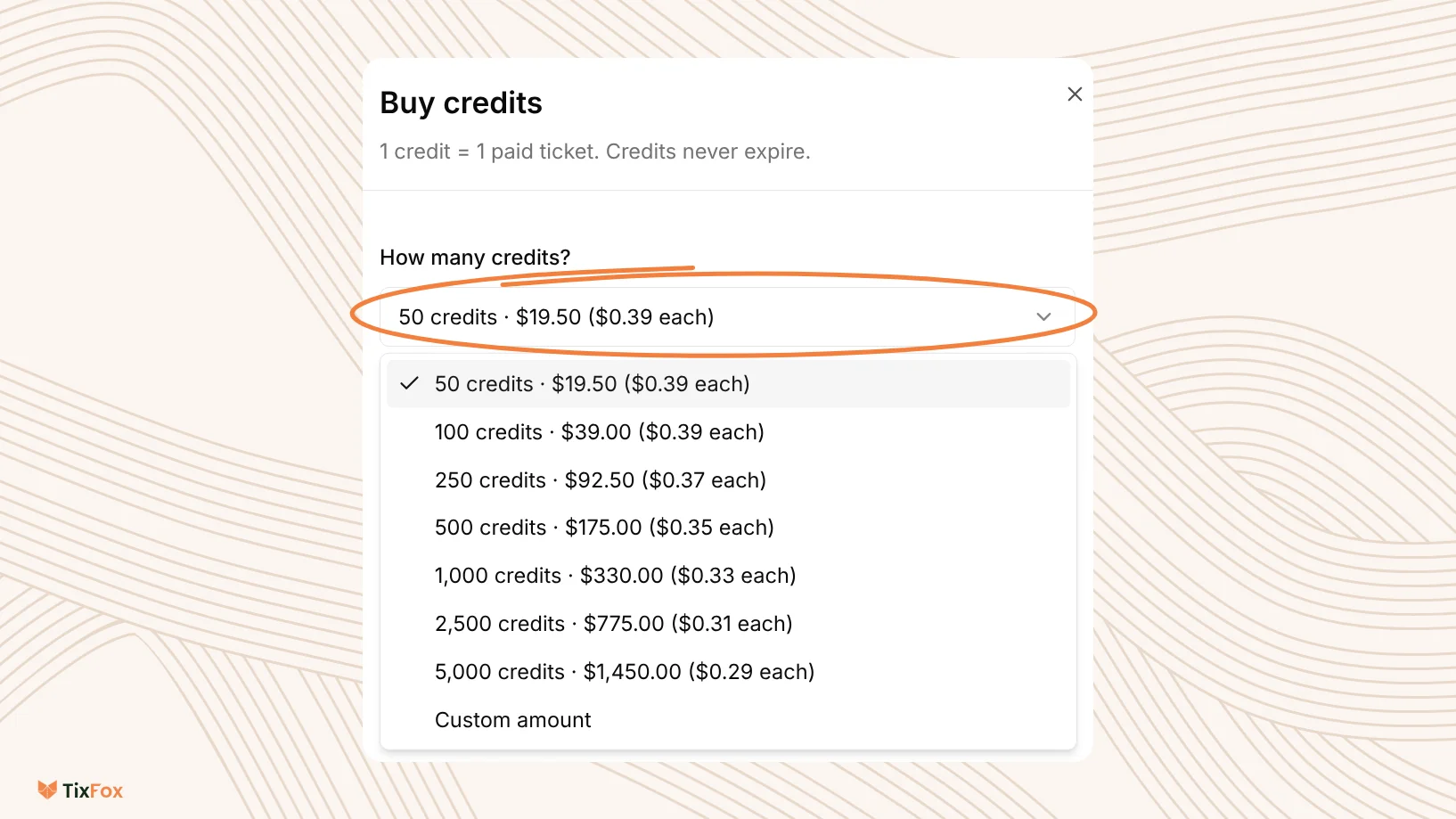
| Pack | Price | Per paid ticket |
|---|---|---|
| 50 credits | $19.50 | $0.39 |
| 100 credits | $39.00 | $0.39 |
| 250 credits | $92.50 | $0.37 |
| 500 credits | $175.00 | $0.35 |
| 1,000 credits | $330.00 | $0.33 |
| 2,500 credits | $775.00 | $0.31 |
| 5,000 credits | $1,450.00 | $0.29 |
You can also choose Custom amount.
Credits never expire. They're non-refundable and can't be transferred. Once a credit is used, it isn't returned.
Where credits are used
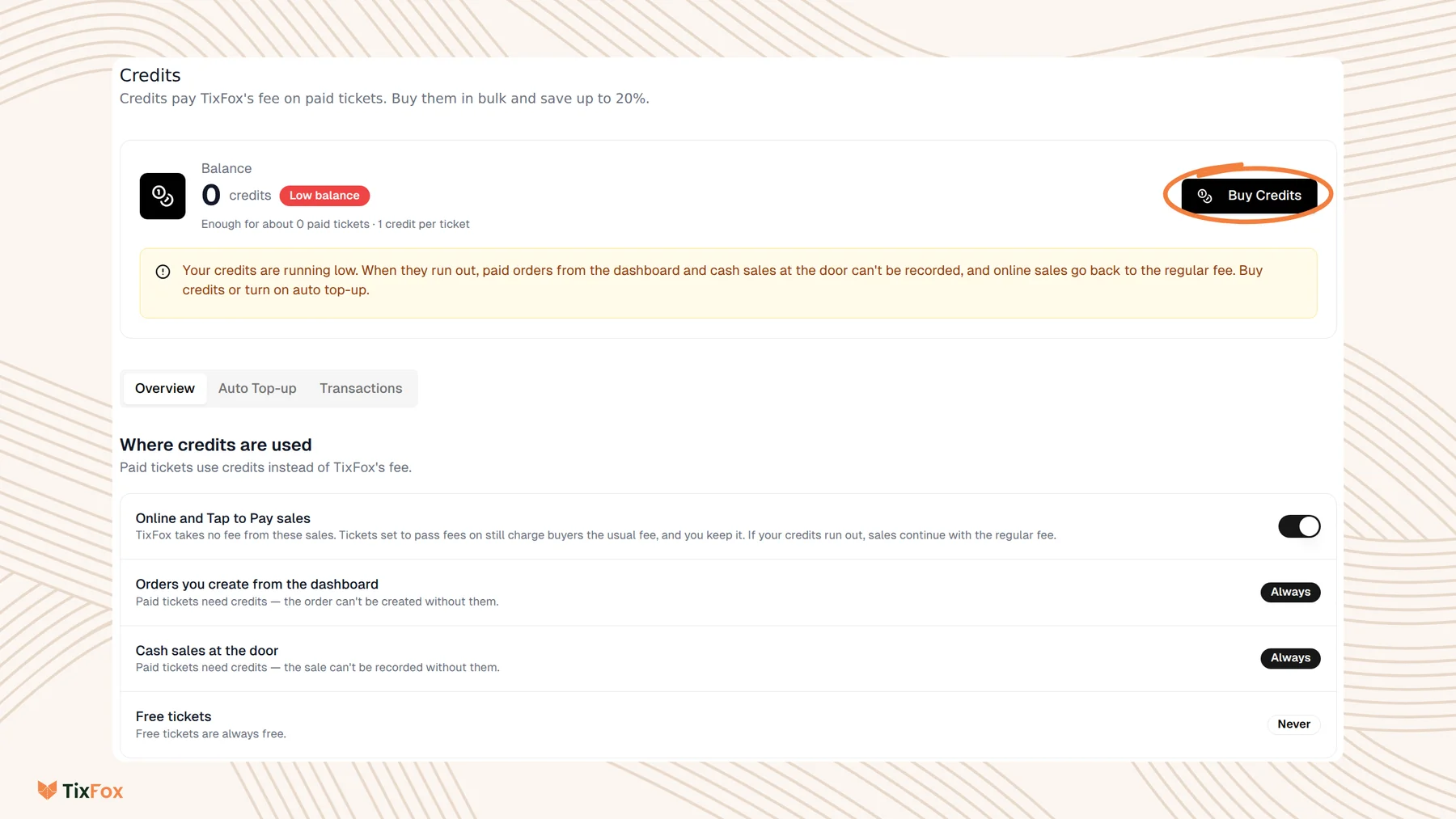
Credits work everywhere you sell. Each paid ticket uses 1 credit.
- Online and Tap to Pay sales: credits are used instead of TixFox's fee, so TixFox takes no fee from these sales. If your credits run out, sales carry on with the regular fee. You can turn this off with the switch next to Online and Tap to Pay sales.
- Orders you create from the dashboard: paid tickets need credits. The order can't be created without them.
- Cash sales at the door: paid tickets need credits. The sale can't be recorded without them.
- Free tickets: never use credits. Free tickets are always free.
You still choose who pays the fee
Credits don't change your fee settings. Each ticket type still has Handle Fees, under Show Advanced Settings, set to Absorb fee or Pass fee to the buyer. See Adding Ticket Types to Your Event.
- Absorb fee: a credit covers TixFox's fee, so you pay your pack's price per ticket instead of the regular fee.
- Pass fee to the buyer: buyers still pay the usual fee at checkout, and you keep it.
Card processing by Stripe is separate and isn't covered by credits.
How to buy credits
- Go to Settings, then Credits.
- Click Buy Credits.
- Under How many credits?, choose a pack, or Custom amount.
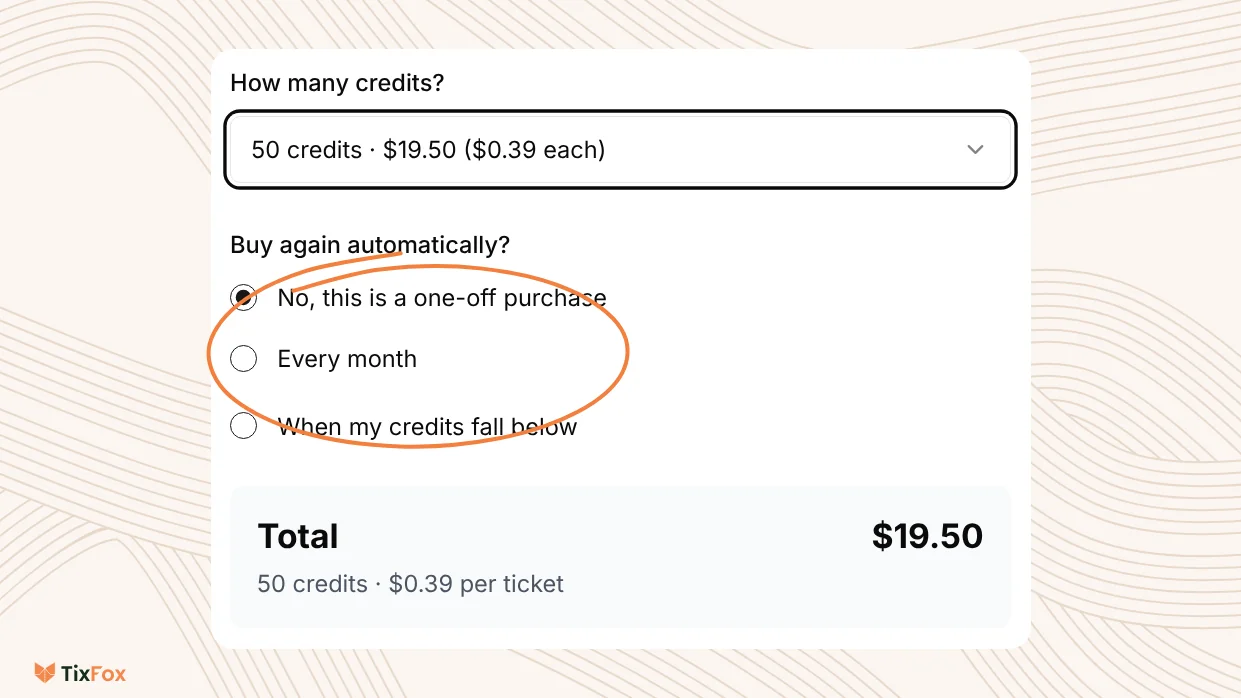
- Under Buy again automatically?, choose No, this is a one-off purchase, Every month, or When my credits fall below.
- Check the Total.
- Tick I understand and agree that, then click Buy now.
Turn on automatic top-ups
Automatic top-ups buy a new pack for you, so you don't run out in the middle of a sale. Choose Every month or When my credits fall below when you buy credits. You can also open the Auto Top-up tab on the Credits page and click Set Up Auto Top-up.
We also email you when your balance drops below 25 credits.
What happens if you run out
- Online and Tap to Pay sales keep going, with the regular fee.
- Paid orders from the dashboard and paid cash sales at the door can't be recorded until you buy more credits.
Your balance is at the top of the Credits page. It shows how many credits you have and about how many paid tickets they cover.
Common questions
Do credits expire?
No. Credits never expire. They're non-refundable and can't be transferred.
Do free tickets use credits?
No. Free tickets never use credits.
What if I run out during a sale?
Online and Tap to Pay sales keep going with the regular fee. Paid orders from the dashboard and paid cash sales at the door need credits, so top up first.
Do credits cover card processing?
No. Card processing by Stripe is separate and isn't covered by credits.