How to set up tracking pixels (Meta, Google Analytics 4, Tag Manager, Reddit, X)
Last updated at: Oct 20, 2026Tracking pixels let your ad platforms see which ads sell tickets. Paste your pixel or tag ID in Promote, under Tracking Pixels, choose which events it runs on, and TixFox sends page views, add-to-carts and purchases with the amount paid. TixFox works with Meta Pixel, Google Analytics 4, Google Tag Manager, Reddit Pixel and X (Twitter) Pixel. No code needed.
Add a tracking pixel
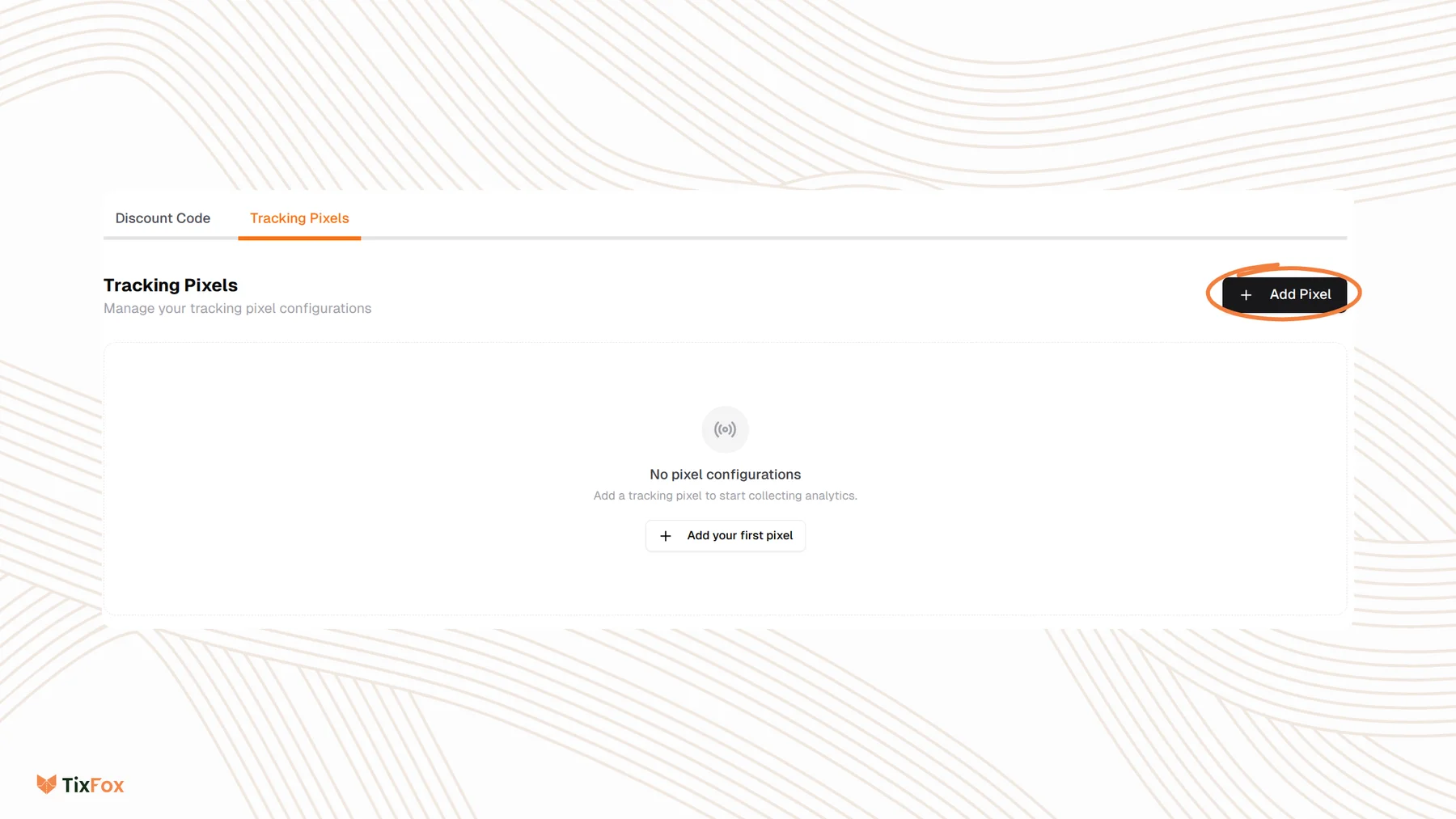
- Go to Promote and open Tracking Pixels.
- Click Add Pixel.
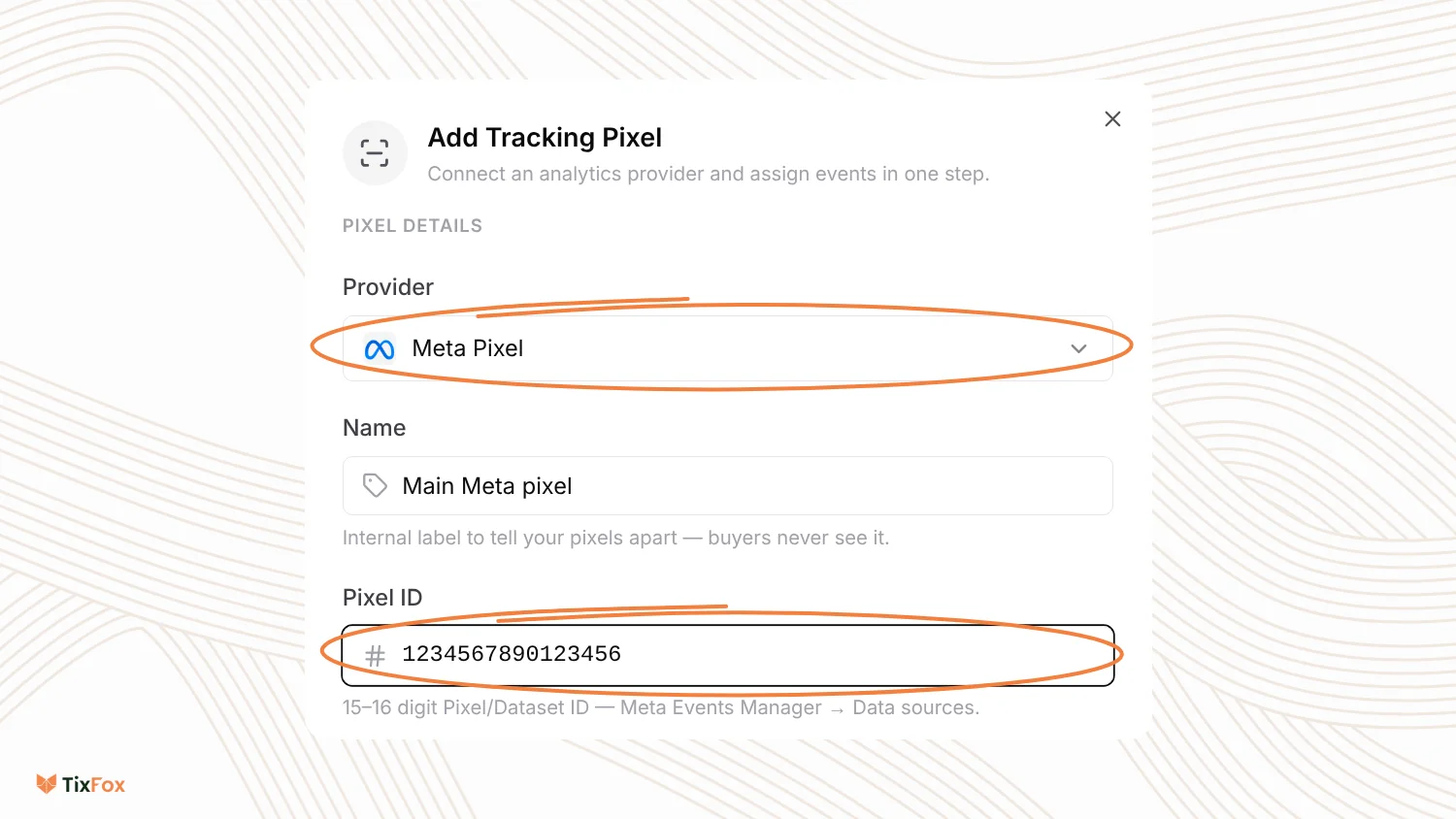
- Under Provider, choose your platform.
- Give it a Name, like "Main Meta pixel". Only you see this.
- Paste the ID from your platform (see where to find it below).
Where to find your ID
- Meta Pixel: the 15 to 16 digit Pixel or Dataset ID, in Meta Events Manager under Data sources.
- Google Analytics 4: the Measurement ID (starts with G-), in GA4 Admin, Data streams, then your web stream.
- Google Tag Manager: the Container ID (starts with GTM-), in the top bar of your Tag Manager workspace.
- Reddit Pixel: the Pixel ID (starts with a2_), in Reddit Ads, Events Manager.
- X (Twitter) Pixel: the Pixel ID (a short code starting with o), in X Ads, Events Manager. X also needs your Purchase event ID, from your Purchase event in X Events Manager. An Add-to-cart event ID is optional.
Choose which events it runs on
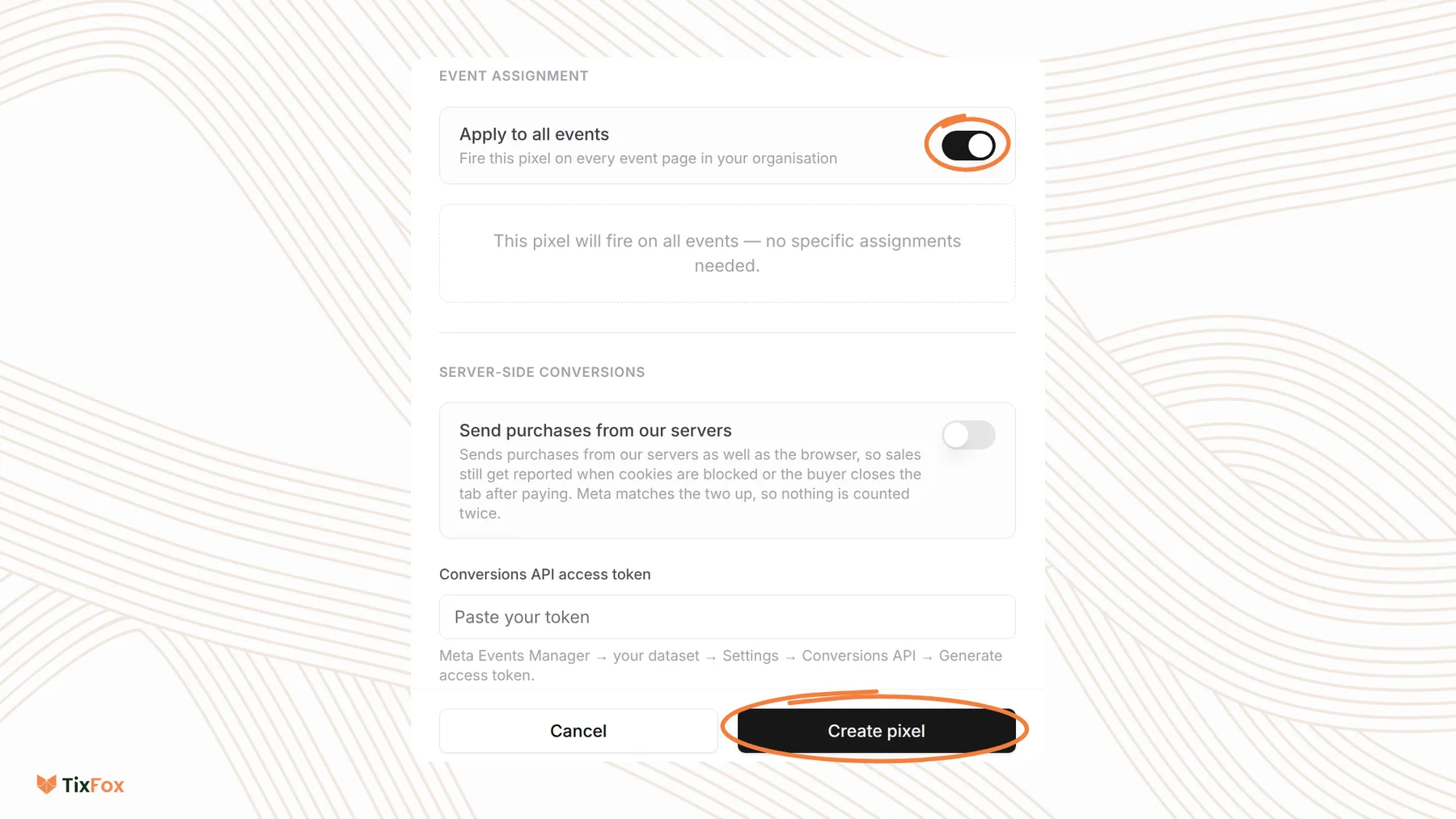
- Turn on Apply to all events to run the pixel on every event page in your account.
- Or leave it off and tick the events you want. Use the search box to find them.
Using one pixel per brand or client? Give each one a clear name and pick its events, so each ad account only gets its own sales.
Send purchases from the server (Meta and Google Analytics 4)
Blocked cookies, or a buyer closing the tab right after paying, can stop a purchase from being reported in the browser. For Meta and GA4, you can also send purchases from TixFox's servers.
- Meta: turn on Send purchases from our servers and paste a Conversions API access token. Get it in Meta Events Manager: open your dataset, then Settings, then Conversions API, then Generate access token. Purchases are sent from the browser and the server, and Meta matches the two so nothing is counted twice. To check your setup, paste a Test event code from Meta's Test Events, then clear it when you're done.
- Google Analytics 4: turn on Send purchases from our servers and paste a Measurement Protocol API secret. Create one in GA4 Admin, Data streams, your web stream, then Measurement Protocol API secrets. Purchases for that stream are then reported from the server instead of the browser.
When everything's filled in, click Create pixel.
Check that it works
- Open your event page and pick a ticket, then check your platform's live or test events view for a page view and add-to-cart.
- Purchases show up after a real order. They include the amount charged, so your ad platform can report revenue and optimize for sales.
Good to know
- Track where your sales come from without ads too: add UTM tags to the links you share. See How to track ticket sales with UTM links.
- For promo codes to pair with your ads, see How to create a discount code.
Common questions
Do I need to add any code to my site?
No. Paste your pixel or tag ID in TixFox and choose your events.
Can I use a different pixel for each event?
Yes. Leave Apply to all events off and tick the events for each pixel.
Will purchases be counted twice with server sending on?
No. For Meta, purchases are sent from the browser and the server, and Meta matches the two so nothing is counted twice.
Can I track sales without ads?
Yes. Use UTM links and check the UTM Parameters in your event's Analytics.