How to add an order or comp tickets from your dashboard
Last updated at: Oct 20, 2026You can add an order yourself, for someone who paid you another way or for a guest you're letting in free. Go to Orders, click Create Order, choose the event, enter the attendee's name and email, pick their tickets and click Create Order. There's no payment step, so TixFox doesn't charge the attendee.
Create an order
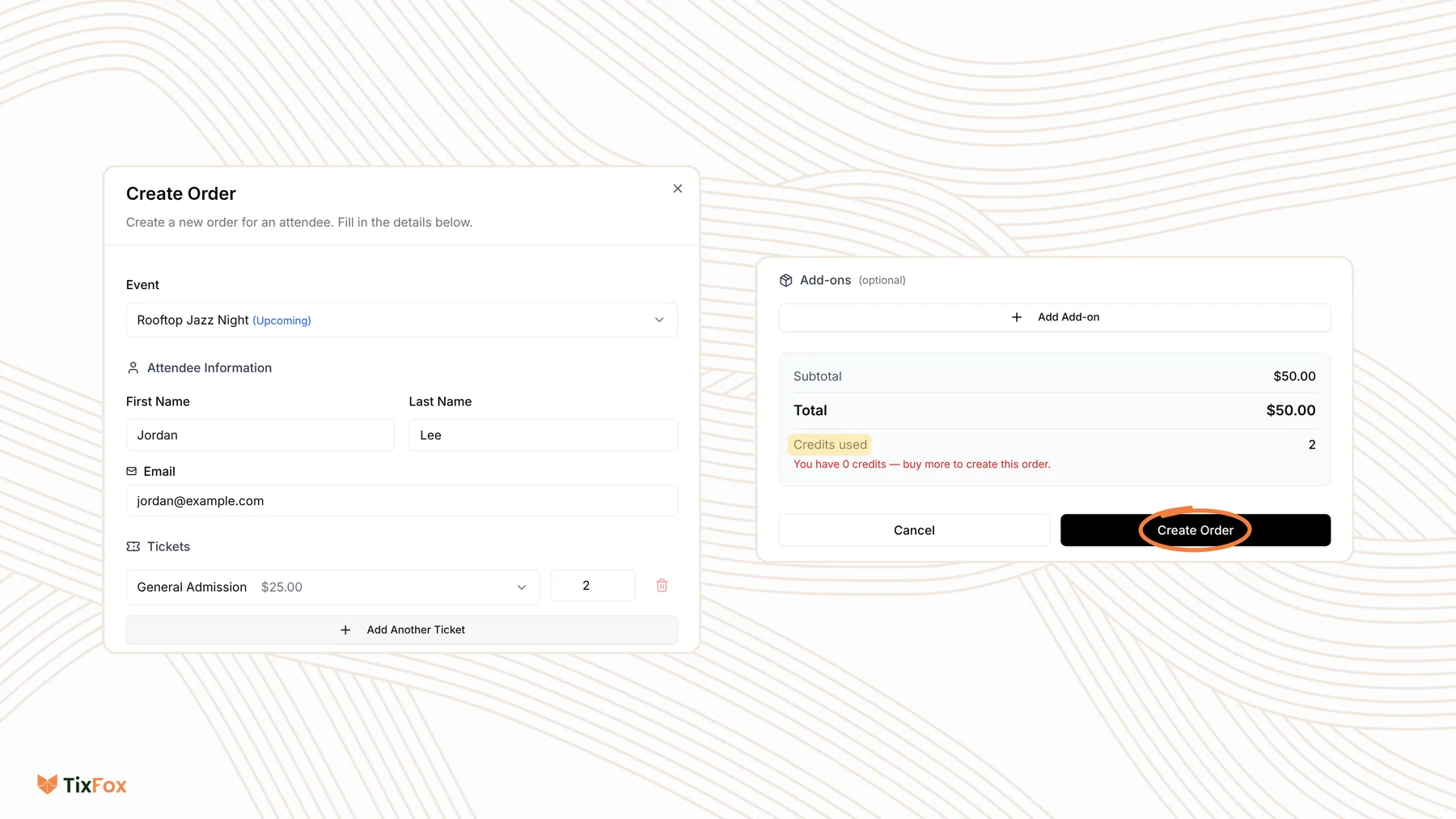
- Click Orders in the sidebar, then Create Order.
- Under Event, choose the event. For a recurring event, also choose the date and time under Occurrence.
- Under Attendee Information, enter their First Name, Last Name and Email.
- Under Tickets, choose a ticket and the quantity. Click Add Another Ticket to add a different ticket type.
- Optional: click Add Add-on to include extras.
- If your event asks questions at checkout, fill them in under Additional Information. Required questions must be answered.
- Check the Total and click Create Order.
You'll see "Order created successfully", and the order appears in your Orders list.
Credits for paid tickets
Each paid ticket or add-on in an order you create uses one TixFox credit. Credits used shows how many the order needs and how many you have. If you don't have enough, the order can't be created until you buy more. Go to Settings, then Credits. See How do TixFox credits work?
Free tickets never use credits.
Give comp tickets
For guest list, press or crew tickets, add a free ticket type, like "Comp" with a price of $0, on the event's Ticket Types tab. Then create orders with that ticket. They don't use credits.
A free ticket type shows on your event page like any other ticket. To keep it private, turn on Hide Ticket under Show Advanced Settings, and give your guests an access code that reveals it, so they can claim their own ticket. See How to hide an event or make it private.
Common questions
Does the attendee pay anything?
No. Orders you create have no payment step. Use them for tickets that were paid another way, or that you're giving away.
How do I make sure they have their ticket?
Open the order. Use Resend Confirmation, or click View Ticket and send them the link. See How to resend tickets or change attendee details.
Why can't I create the order?
Check that every required field is filled in, that you've chosen at least one ticket, and, for paid tickets, that you have enough credits.
Can I sell at the door instead?
Yes. For walk-up sales with Tap to Pay or cash, use the TixFox app. See How to sell tickets onsite.