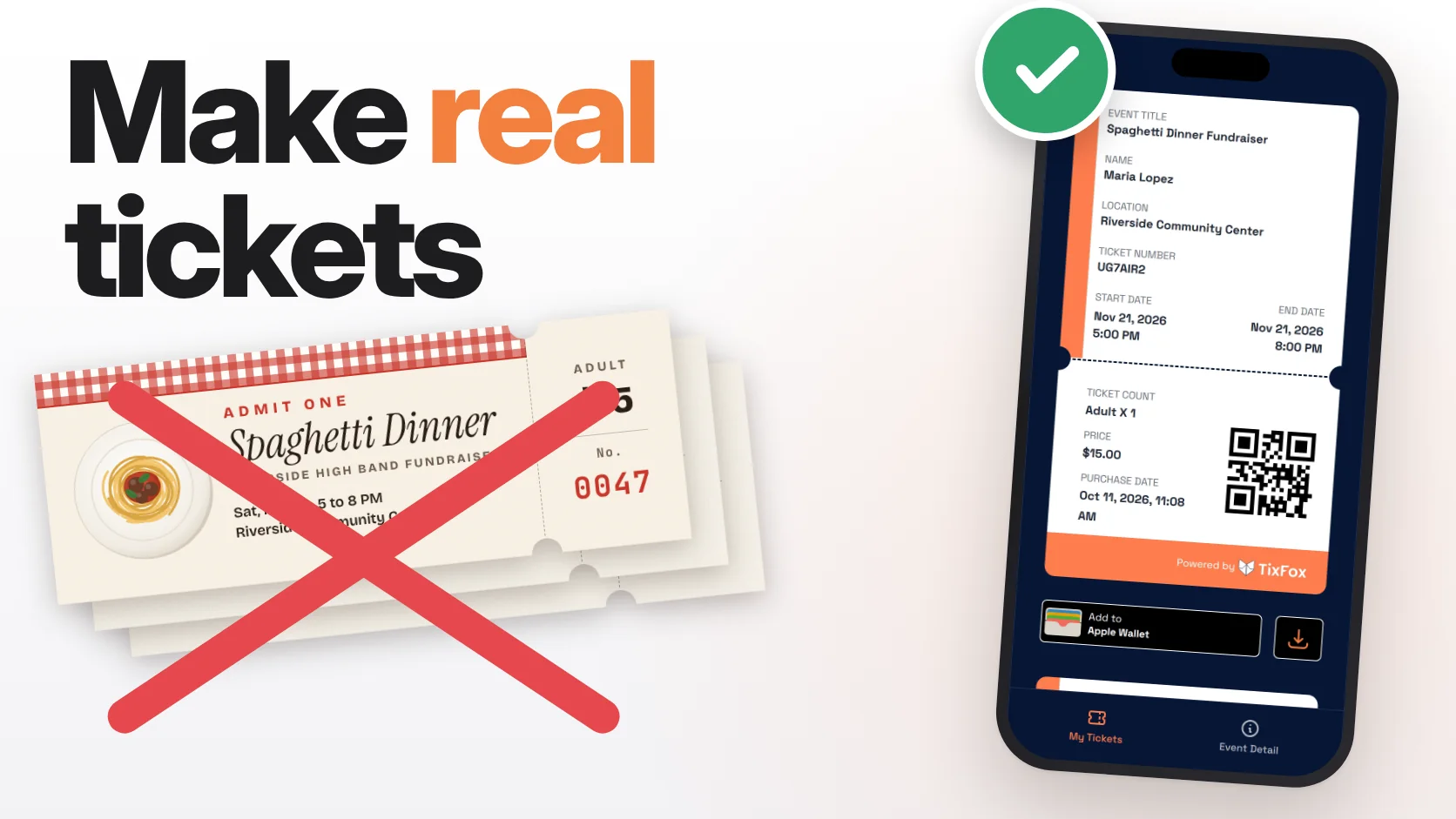
Most of us make our first event tickets the same way. A nice design in Word or Canva, "Admit One," a number in the corner. It looks great. Then someone runs it through a copier, and at the door you're holding five identical tickets with no way to tell which one somebody paid for.
Here's how to make tickets for an event that do the whole job: each one numbered, sent to the person who paid, and good for one entry at the door. We'll make real tickets for a spaghetti dinner fundraiser, start to finish, on the real TixFox dashboard. Setup is free, and free tickets stay free.
The whole walkthrough in about six minutes, from the dashboard to the door scan.
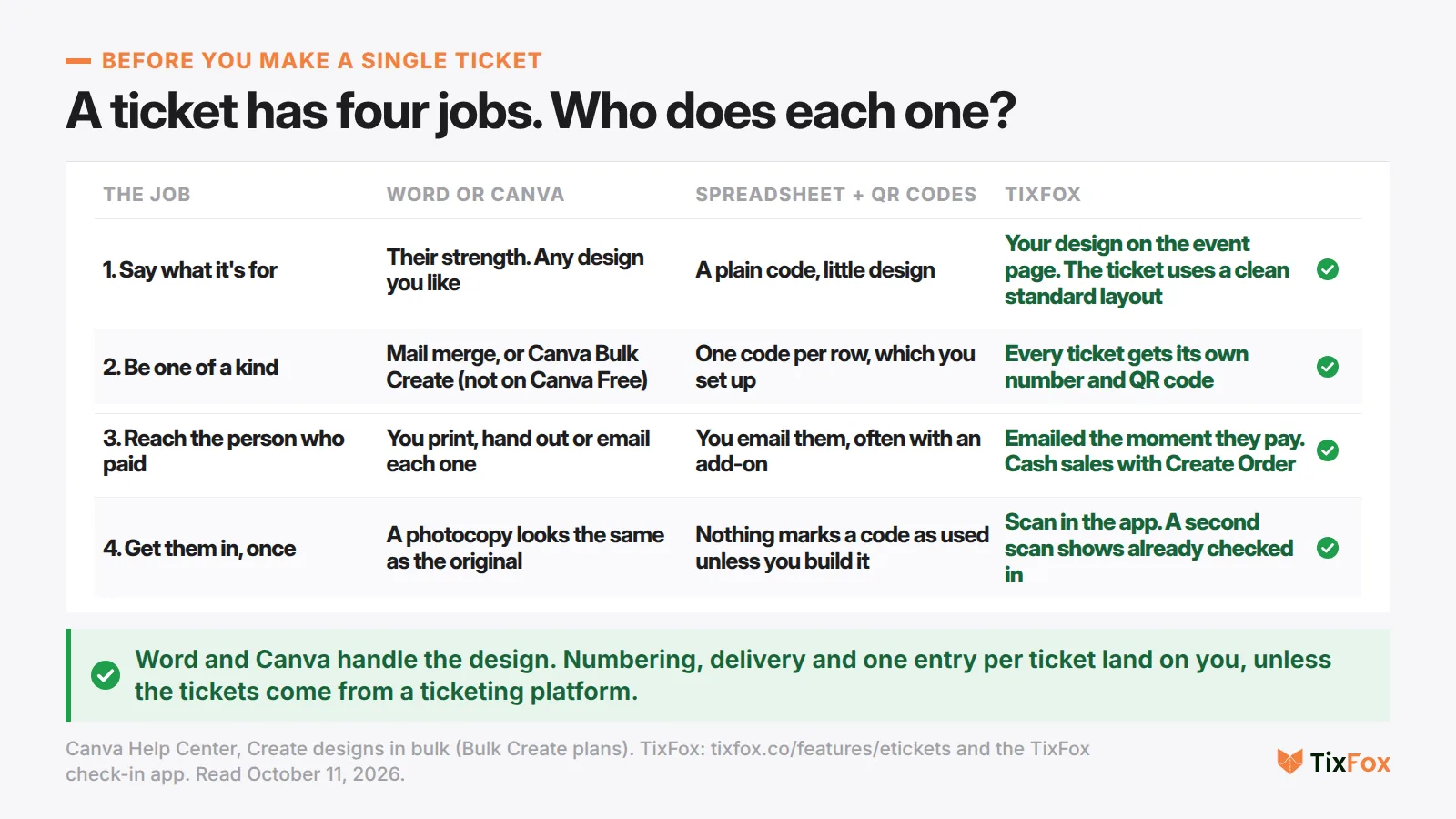
A ticket has four jobs
Before you open any tool, it helps to know what a ticket is for. It has four jobs:
- Say what it's for. The event, the date, the place, the price.
- Be one of a kind. Its own number, so one ticket can't pass for another.
- Reach the person who paid. In their hands, or their inbox, before the night.
- Get them in the door. Once. And stop a copy from getting in after them.
Word and Canva are great at job one. The other three land on you, and that's where the hours go. Under a popular YouTube tutorial on numbering tickets with Word and Excel, one commenter wrote: "I spent two days trying to figure out the numbering in excel and merging into Word." Another: "I spent hours last year numbering 800 tickets by hand."
Generating QR codes in a spreadsheet gets you closer, then raises a new question. As one person asked under a Google Sheets QR ticket tutorial: "How do I prevent one QR code being used multiple times?" On its own, a QR code is just a link or a bit of text. Nothing marks it as used unless you build that part too.
When paper is fine. A raffle, or a free open house where you only need a rough headcount, doesn't need any of this. Printed raffle tickets with sequential numbers, like the ones in Avery's ticket guide, do that job well. Once people pay to get in, you need all four.
How to make tickets for an event in TixFox, step by step
Our example is a real setup in a TixFox demo account: the Spaghetti Dinner Fundraiser at Riverside Community Center, Saturday, November 21, 5 to 8 PM. Three kinds of tickets: Adult at $15, Kids 6 to 12 at $8, and Kids 5 and under, free.
Step 1: Create the event, and keep your Canva design
In TixFox, go to Events and click Create Event. Type the name, then a few lines about it: what's on the menu, and where the money goes. Pick the date and time, and add the place.
Already made something nice in Canva? Keep it. Upload it as your event image. Click Create Event, and your event page is ready.
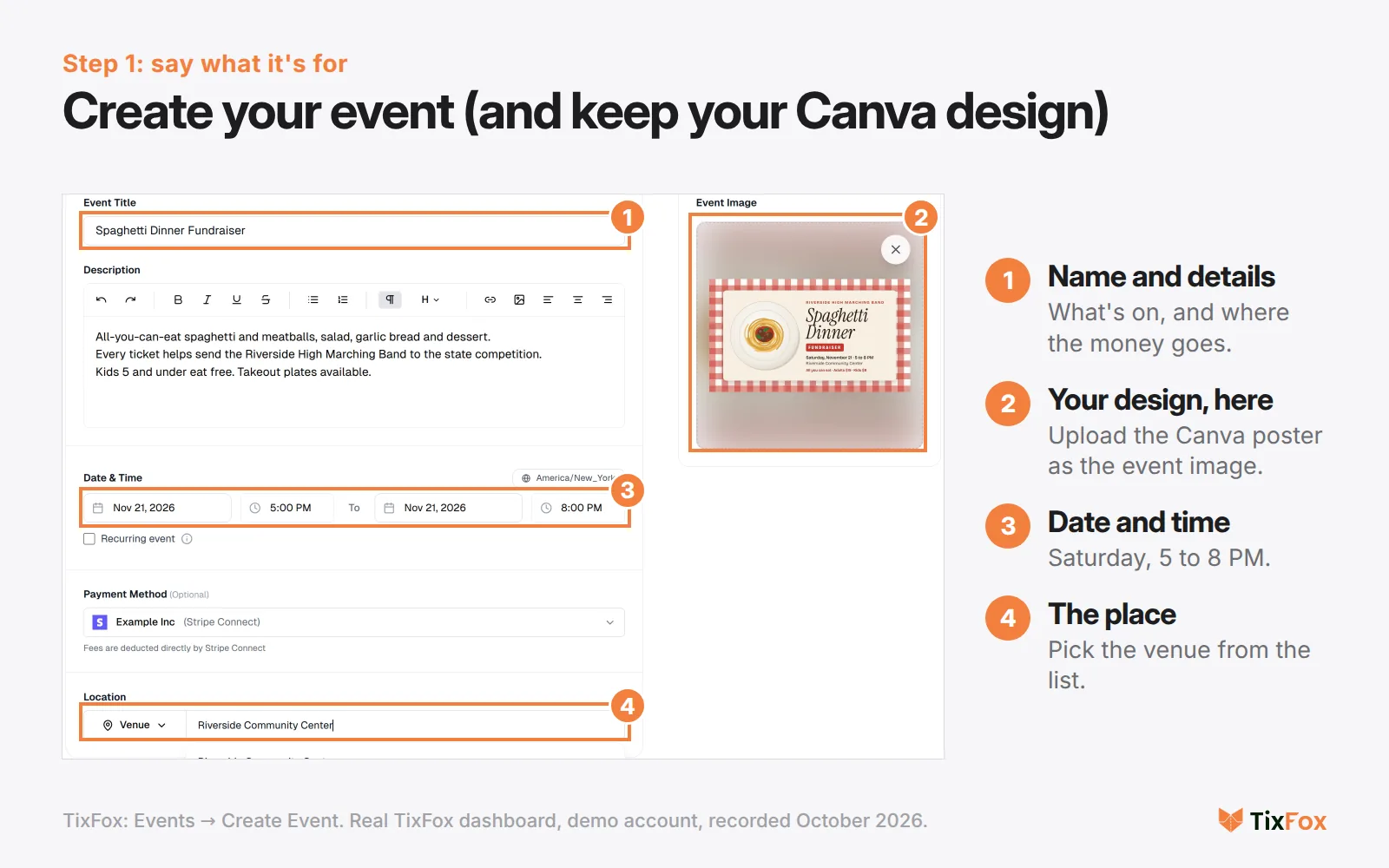
One honest note: your design goes on the page people buy from, and the ticket itself uses TixFox's clean, standard layout (event, name, ticket number, QR code). If a fully custom printed ticket matters more to you than numbering and check-in, Word and Canva are still the right tools.
Step 2: Add ticket types, and the numbering is done
Open Ticket Types and click Create Ticket. Name it Adult. Set up to 10 per order, a price of $15, and a quantity of 150.
That's the step that replaces the mail merge. TixFox will sell up to 150 Adult tickets, and each one it issues gets its own ticket number and its own QR code. No spreadsheet. No numbering by hand. Sales stop on their own when the 150 are gone.
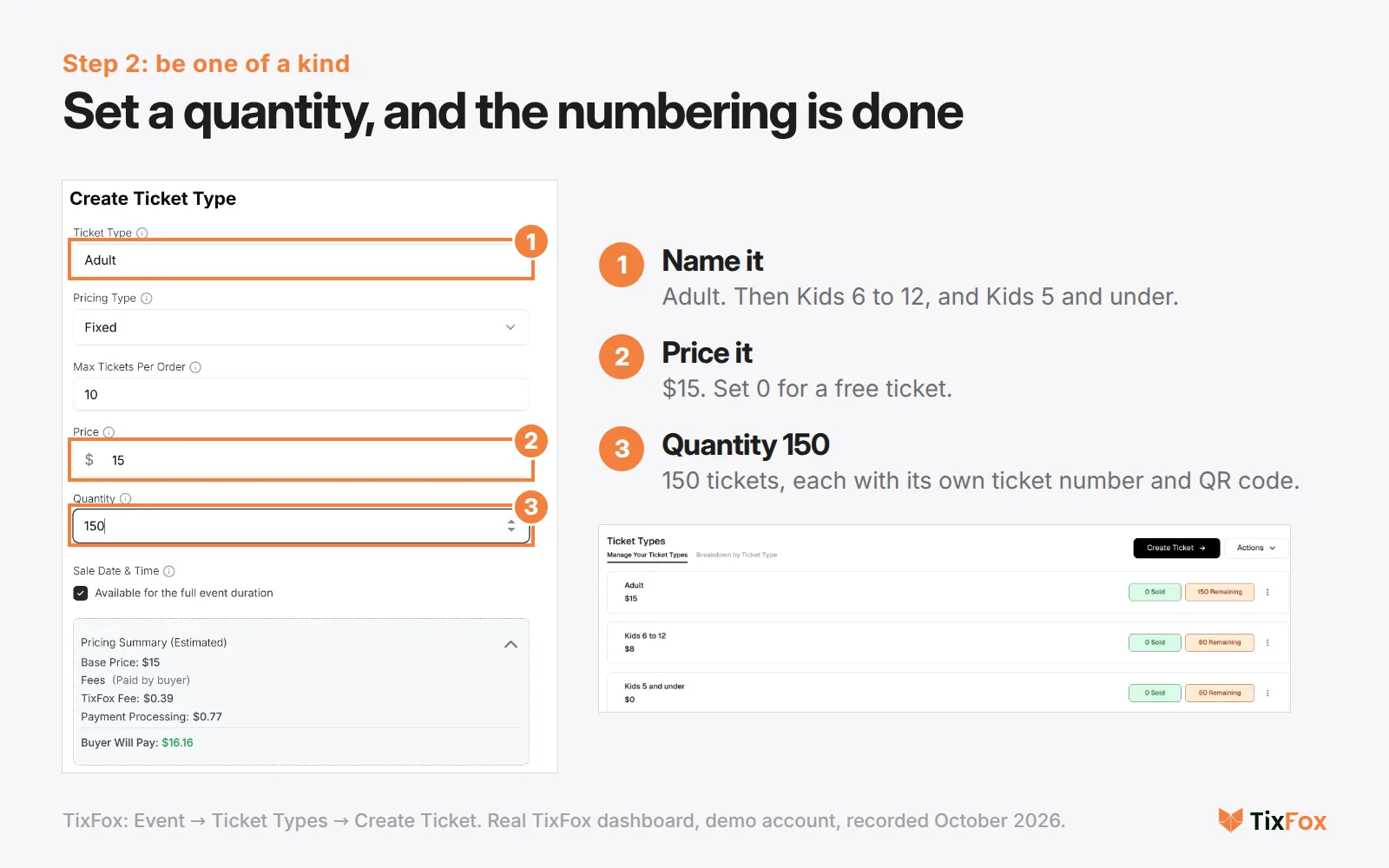
Add a second type for Kids 6 to 12 at $8, 80 of them. Then a third for kids 5 and under with the price set to 0. Free tickets still get a real ticket with a number and a QR code, and they cost you nothing.
The pricing summary shows what a buyer will pay before you publish. On the $15 Adult ticket, it lists a 39¢ TixFox fee and 77¢ of card processing, paid by the buyer, for an estimated $16.16 in total. If you'd rather absorb the fees yourself, you can choose who pays them.
Step 3: Get the tickets to the people who paid
Click Publish, then Copy Link, and share it anywhere: your website, Facebook, the parish newsletter, the group chat.
Here's what a buyer sees on their phone: your poster, the date, the place, and Get Tickets. They pick their tickets, say two adults and a kid, add their name and email, and pay. Their ticket lands in their inbox right away, with their name, a ticket number and a QR code that belongs to that one ticket.
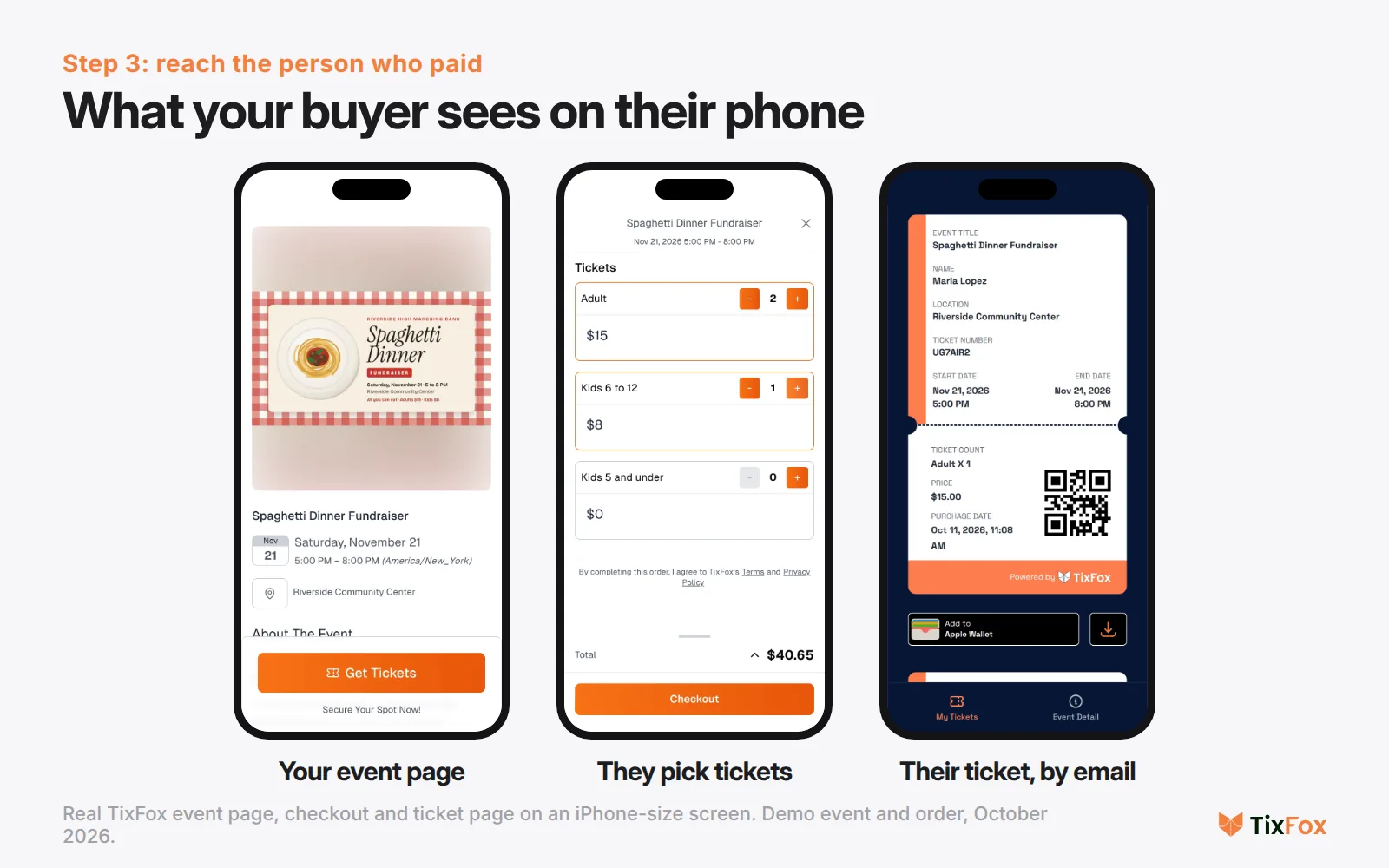
They can add it to Apple Wallet or Google Wallet, or print it. Paper works fine. If they lose the email, there's a Resend Confirmation Email link on your event page, and it's back in their inbox. More on what buyers receive: electronic tickets in TixFox.
Selling tickets for cash, in person
A lot of fundraiser tickets get sold after church, at the front office, or out of a cash box. You don't need a second system for those.
Keep the cash. Then open Orders and click Create Order. Type the buyer's name and email, pick the tickets (two Adult tickets, say), and click Create Order. That's a real order, marked Cash, with two tickets and two ticket numbers, sitting on your list next to the online sales. Click View Ticket to print it for them, or send them the link.
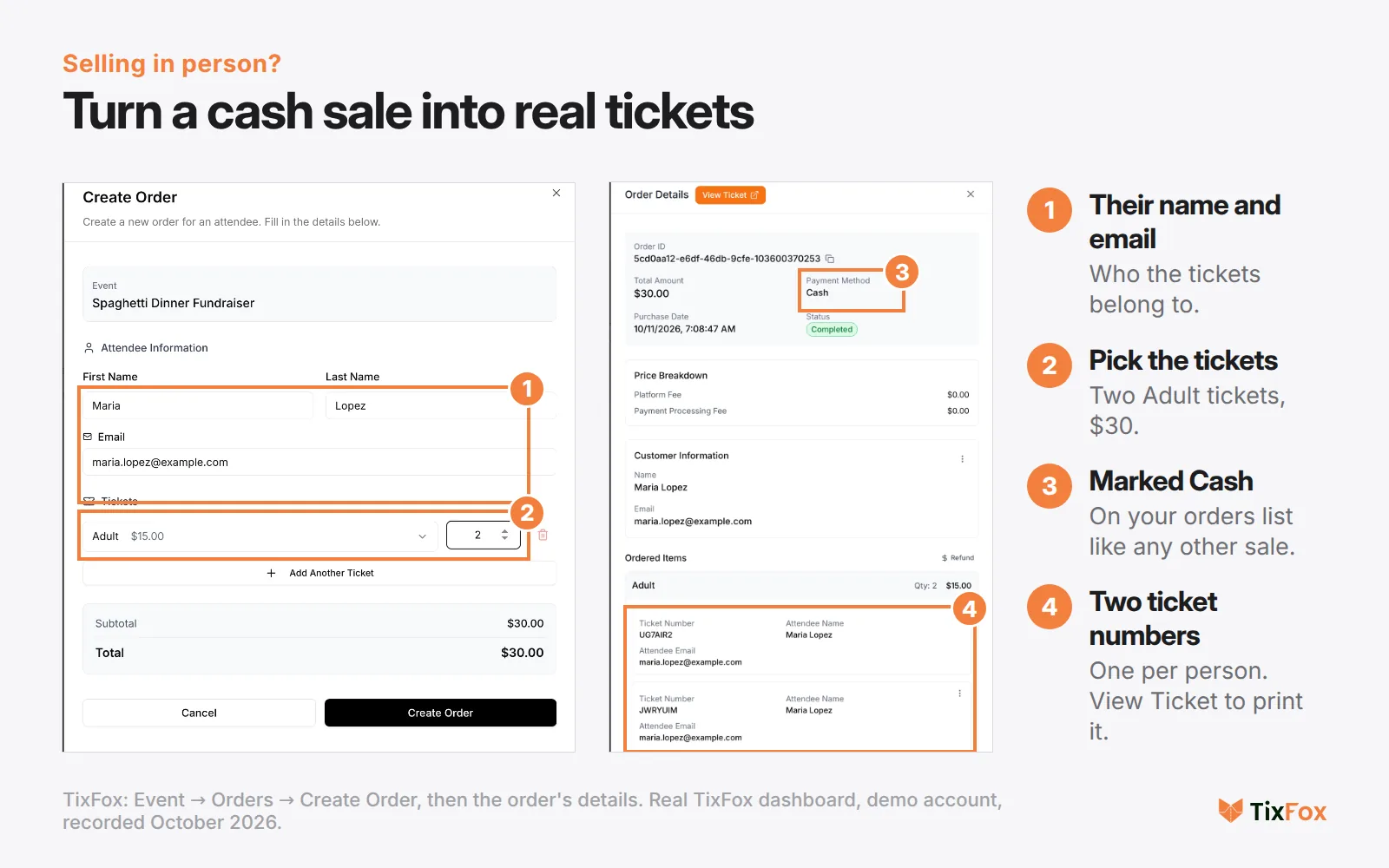
Step 4: Scan at the door, one entry per ticket
On the night, open the free TixFox app on your phone (iPhone or Android), pick your event, and tap Scan. Green means they're in.
Remember that photocopy? Here's the same code scanned a second time: red, already checked in. A screenshot, a forwarded email, a photocopy of a printout: it's all the same code, so it only gets one person in.
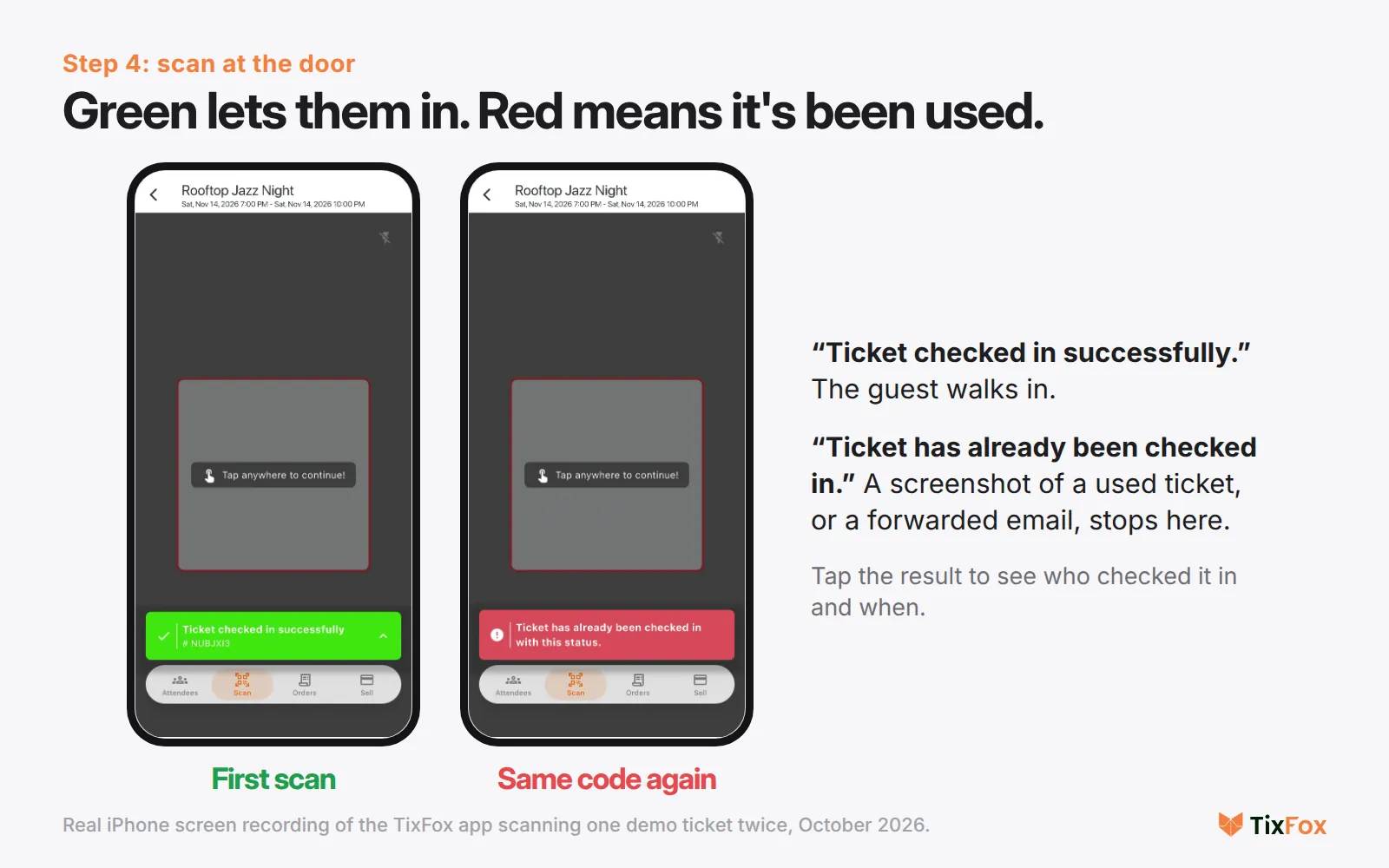
This recording is from another TixFox demo event. The app works the same for every event.
Got helpers at the door? Add them as check-in assistants. They can scan tickets for your event without seeing your sales. Running a bigger door? Our guide to QR code tickets covers how many scanners you need and what to check at the door before guests arrive.
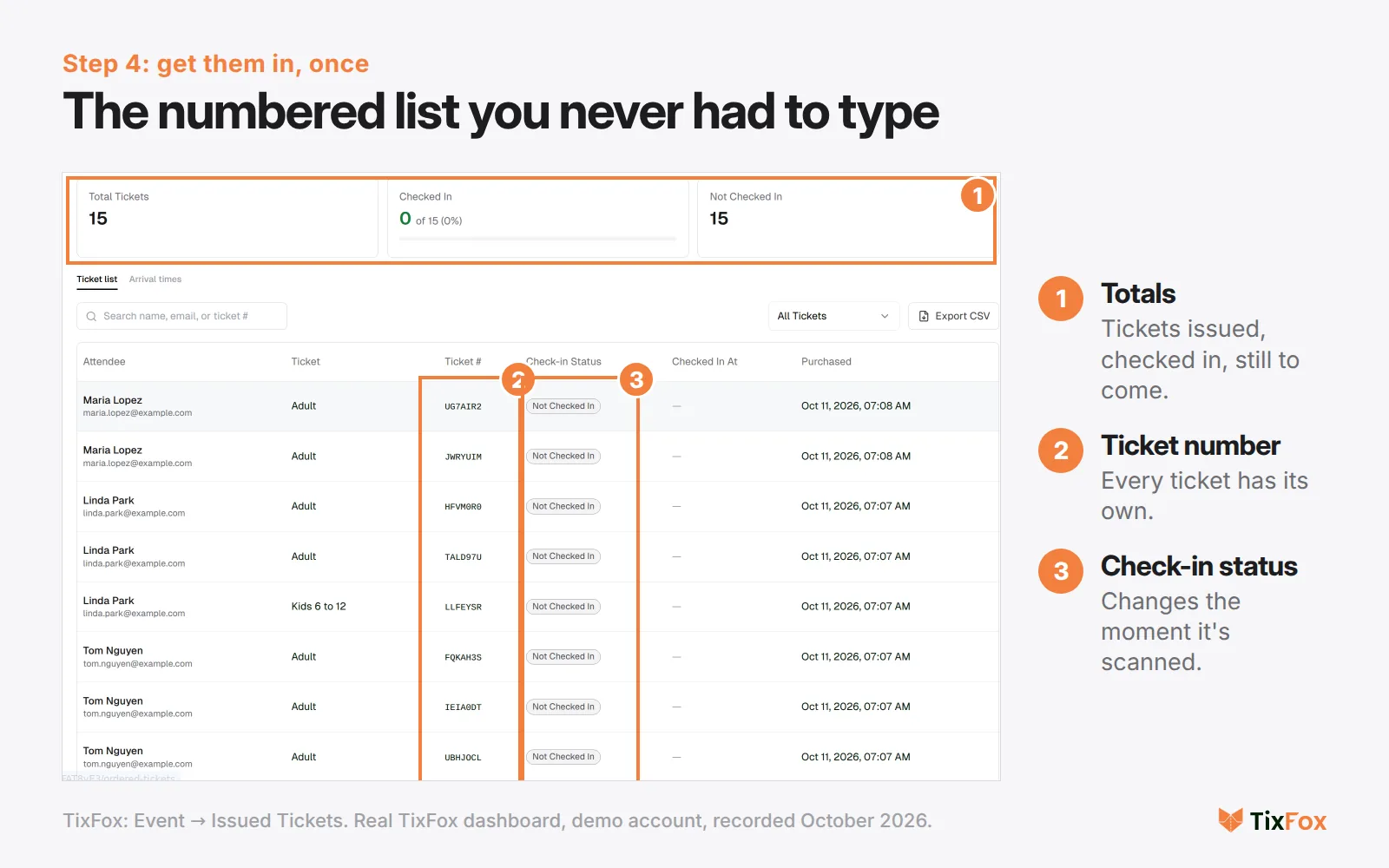
And here's the numbered list you never had to type: every ticket, who has it, and whether they're in yet.
What it costs to make tickets this way
Free tickets cost nothing. Paid tickets are 39¢ each, or 30¢ on tickets under $5, plus Stripe's card processing. There's no monthly fee, and signing up is free. Full details are on the TixFox pricing page.
For paid tickets, you connect your Stripe account once, and the ticket money goes straight into your Stripe account as sales come in. Nobody holds it until after the dinner.
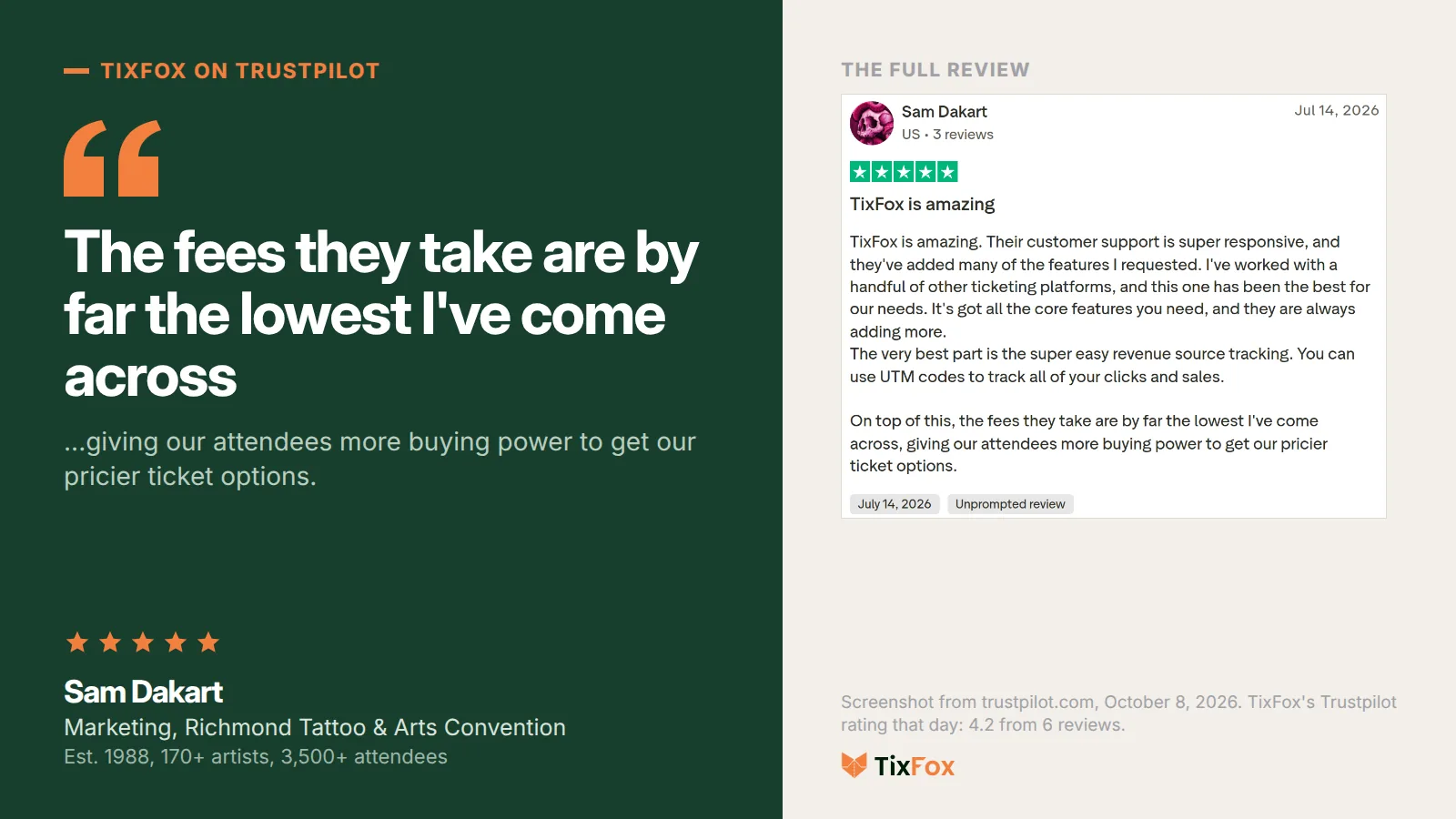
And it isn't only for spaghetti dinners. The Richmond Tattoo & Arts Convention, three days and more than 3,500 attendees, sells its tickets on TixFox too.
Mistakes to avoid when you make your own tickets
Numbering after you print. If the numbers aren't in the file before it goes to the printer, you're writing them by hand later. With ticket types, the number is assigned when someone gets a ticket, so there's nothing to pre-print.
Treating a QR code as a ticket. A QR generator gives every buyer a code, but a code alone can't tell you it was already used. Check-in needs a list that updates when a code is scanned.
Two lists for cash and online sales. If the cash box has its own sheet of names, someone at the door ends up checking two places. Put cash sales in as orders and the door has one list.
Forgetting the free tickets. Kids under 5, volunteers, the band. Give them a $0 ticket type so they're counted, and your headcount for the caterer is right.
Making event tickets: frequently asked questions
Can I make tickets in Canva or Word for free?
You can design them for free in either. Numbering is the hard part. In Word, it usually means a mail merge with a list of numbers from Excel. In Canva, the tool for numbering is Bulk Create, which Canva says is "available to Canva Pro, Canva Teams, Canva Business, Canva for Enterprise, Canva Education, and Canva for Nonprofits users on desktop only." Neither tool sends tickets to buyers or checks them in.
How do I number tickets automatically?
Set a quantity on a ticket type. In TixFox, a ticket type with a quantity of 150 can sell up to 150 tickets, and each one issued gets its own ticket number and QR code. You see every number on the Issued Tickets list.
How do I stop people from copying tickets?
Give each ticket its own code and scan it at the door with an app that remembers. With TixFox, a ticket is checked in on the first scan, and any copy of it (a photocopy, a screenshot or a forwarded email) shows "already checked in."
Can buyers print their tickets?
Yes. Buyers can print the ticket, keep it in their inbox, add it to Apple Wallet or Google Wallet, or show a screenshot. Every version scans the same way.
Do free tickets cost anything?
No. Free tickets on TixFox cost $0, and the people who get them still receive a real ticket with a ticket number and a QR code. More in our guide to free event ticketing software.
The short version
Word and Canva make a ticket look right. A ticket also has to be one of a kind, reach the person who paid, and get them in once. Create your event with your Canva design, set a quantity on each ticket type, share the link (or use Create Order for cash sales), and scan at the door.
Keep Canva for the poster, and leave the copier for the flyers. When you're ready, make your first tickets free on TixFox.
Keep more of every ticket sale.
- 39¢ per ticket, $0 on free events
- No monthly fee, no contract
- Get paid as each sale comes in