You can make a QR code in ten seconds with a free generator. Put it on a ticket, send it to everyone, done. Then the night arrives, the first guest holds up their phone, and you realize the code on their screen is the same code on everyone else's. Including the screenshot someone just posted in the group chat.
That's the catch with most "QR code tickets" advice. A QR code is just a way to store information. What makes it a ticket is that each guest gets their own code, and your phone can tell whether that code has already been used.
The short answer: to make QR code tickets that work at the door, use a ticketing tool that gives every ticket its own code and checks it when you scan. In TixFox it takes five steps:
- Create your ticket types (name, price, quantity; price 0 for a free event).
- Share your event link. Every buyer gets an email with one QR code per ticket.
- Add your door team as scanners, each with their own login.
- Scan tickets with the free TixFox app. Green lets them in, red means the code was already used.
- Watch arrivals live in your dashboard.
Watch it in under 3 minutes
The full walkthrough on YouTube (2:58): create a ticket, see what the buyer gets, then a real phone scans the same ticket twice.
QR code vs. QR code ticket: what's the difference?
A QR code ticket is a ticket with its own unique code, tied to one buyer's order. When it's scanned at the door, the system checks it against the guest list, marks it used, and rejects any later scan of the same code. A plain QR code from a generator does none of that. It just opens a link.
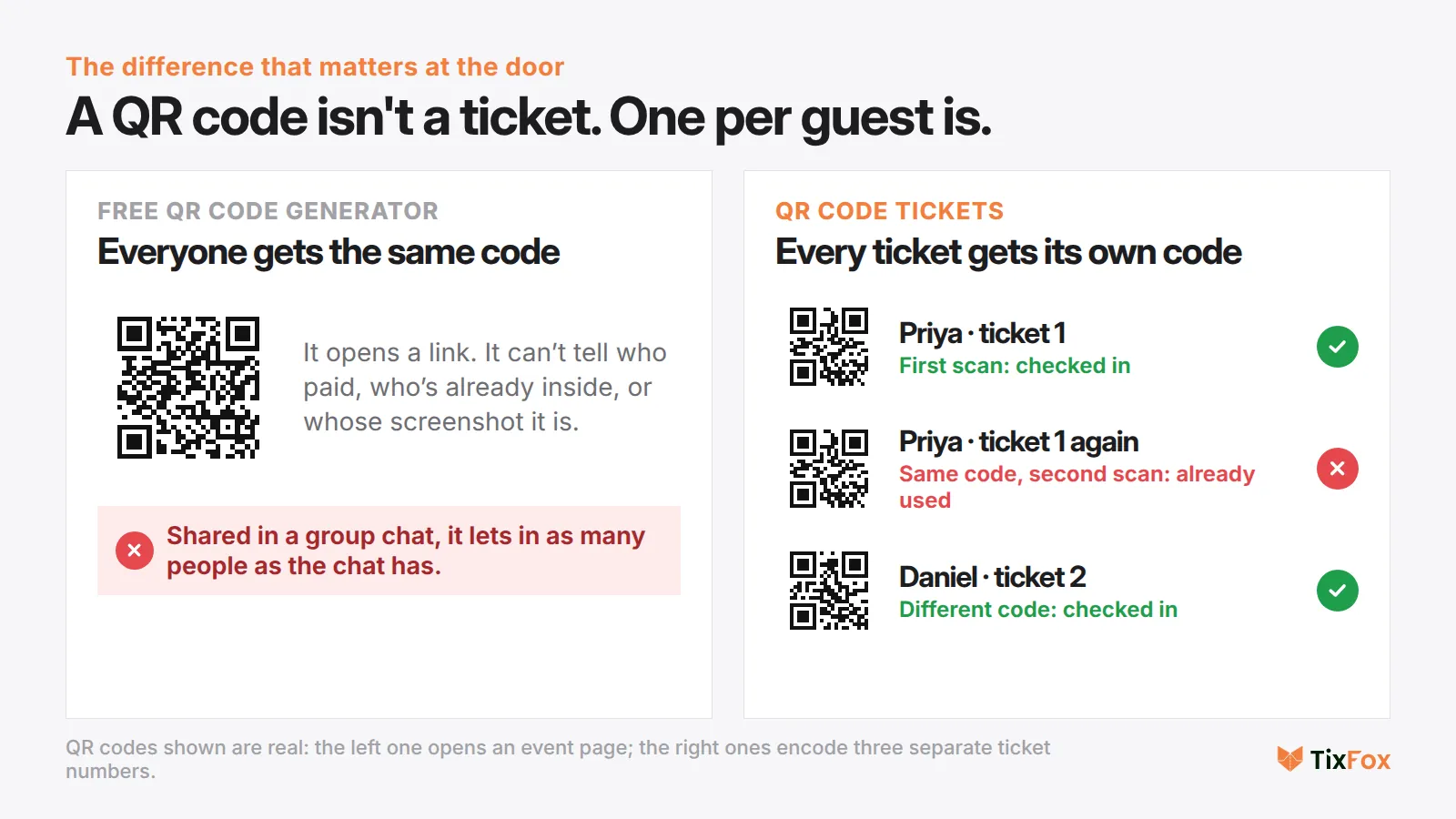
That difference decides what happens when a ticket gets shared. With one code for everyone, a screenshot forwarded to five friends gets six people in. With one code per ticket, the screenshot scans green once, then red for everyone after.
Three ways to make QR code tickets (and what each costs you at the door)
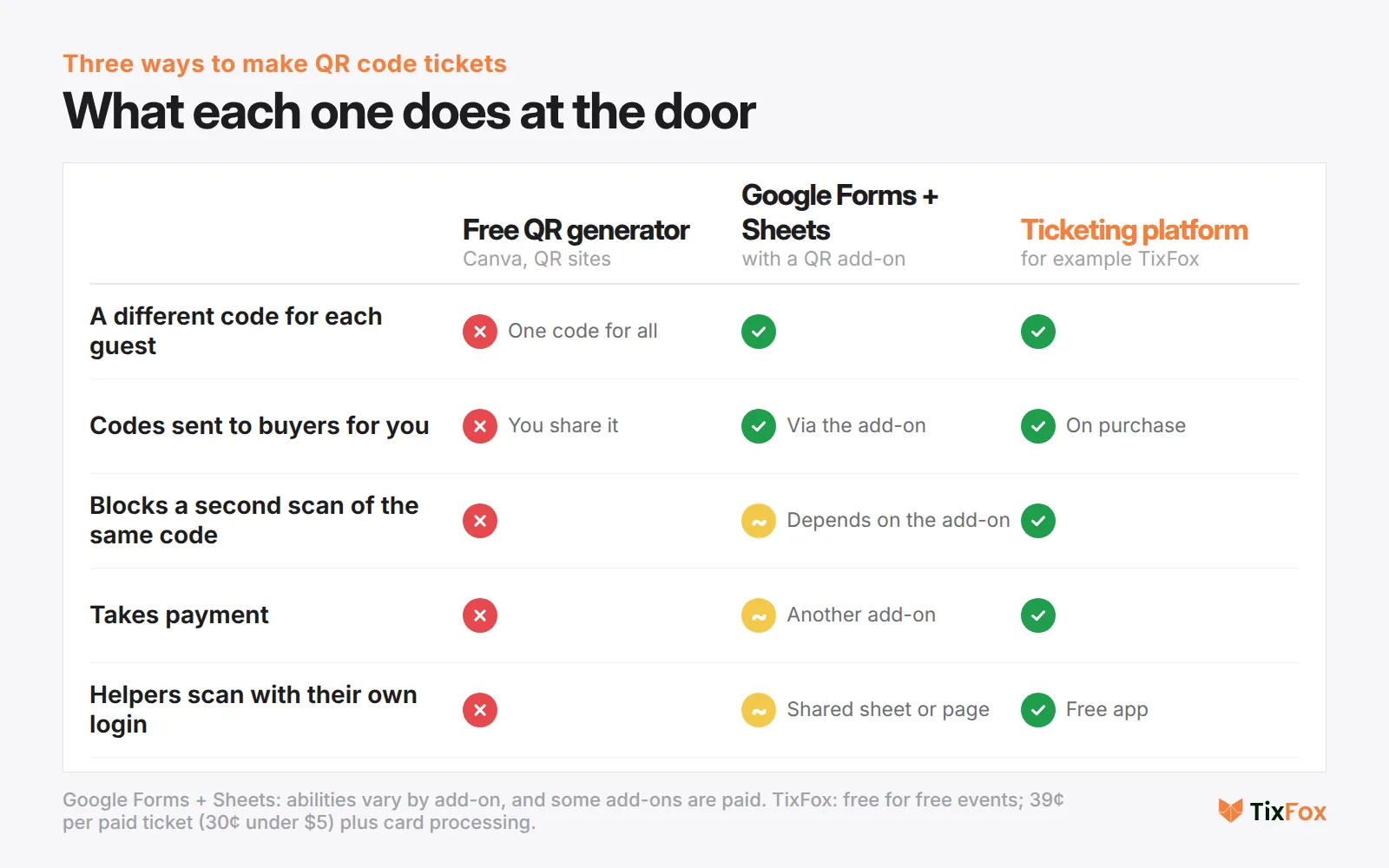
1. A free QR code generator
Fine for linking to your event page from a poster. Not fine as a ticket. Every guest gets the same code, nothing gets sent for you, and there's no way to know who's already inside. If you only need a code that opens your RSVP page, this is all you need.
2. Google Forms and Sheets with a QR add-on
This is the route behind most of the popular YouTube tutorials. Google Forms collects sign-ups, a Sheets add-on creates a code for each row and emails it, and the add-on's scanner page checks people in. It works, especially for free sign-ups. The catches: taking payment means adding another add-on, each add-on has its own limits and pricing, and you're the one keeping the spreadsheet in shape. One organizer described the guest-list version of this bluntly: "it's hard to scroll up and down 500 names on an iPad."
3. A ticketing platform
A ticketing platform handles the sale or the free registration, sends each ticket its own code, and gives your door team a scanner app. The usual worry is cost. When someone asked r/EventProduction for a free option for a $9.99 seminar with "some kind of in-person check-in system (I was thinking a QR code scanner)," they turned down a $1-per-ticket platform because "$1 fee is quite a bit since my friend's event is only $10."
On TixFox, free events cost $0 to run. Paid tickets are 39¢ each (30¢ under $5) plus card processing, and the scanner app is free on every plan. You can also set the buyer to cover the fee.
How to make QR code tickets in TixFox, step by step
Step 1: Create your ticket types
Open your event, go to Ticket Types, and click Create Ticket. Give it a name, a price and a quantity. For a free event, set the price to 0.
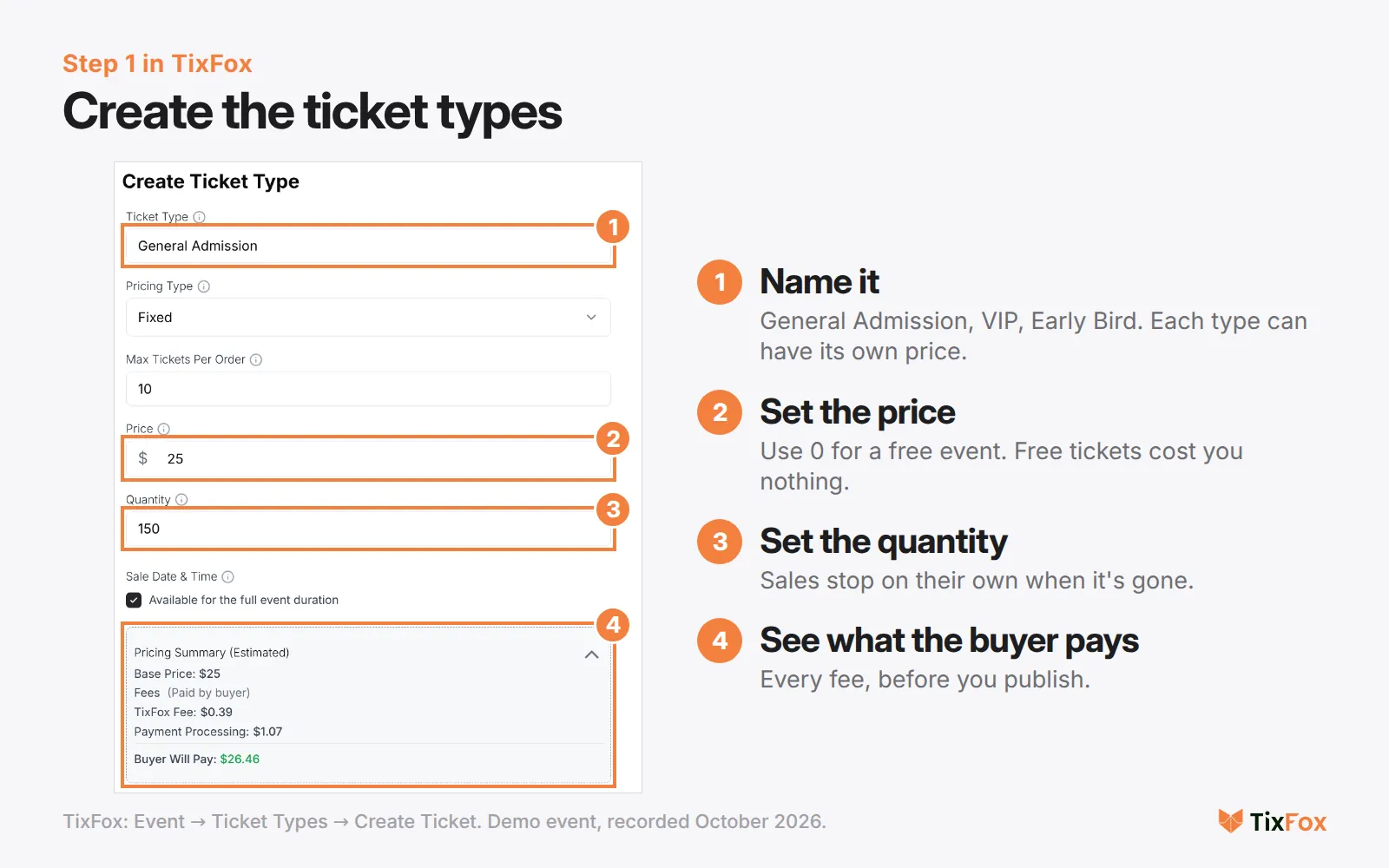
Every ticket sold from this ticket type gets its own code automatically. The code is created for you. If you need more than one kind of ticket (VIP, early bird, a table), create one ticket type each. New to setting up an event? Our guide to selling event tickets online covers the rest of the setup.
Step 2: Share your link. Buyers get one QR code per ticket
The moment someone buys, TixFox emails them a ticket with the event name, date, place and a QR code. Buy two tickets, get two codes, one for each person, so a friend can walk in ahead of you.
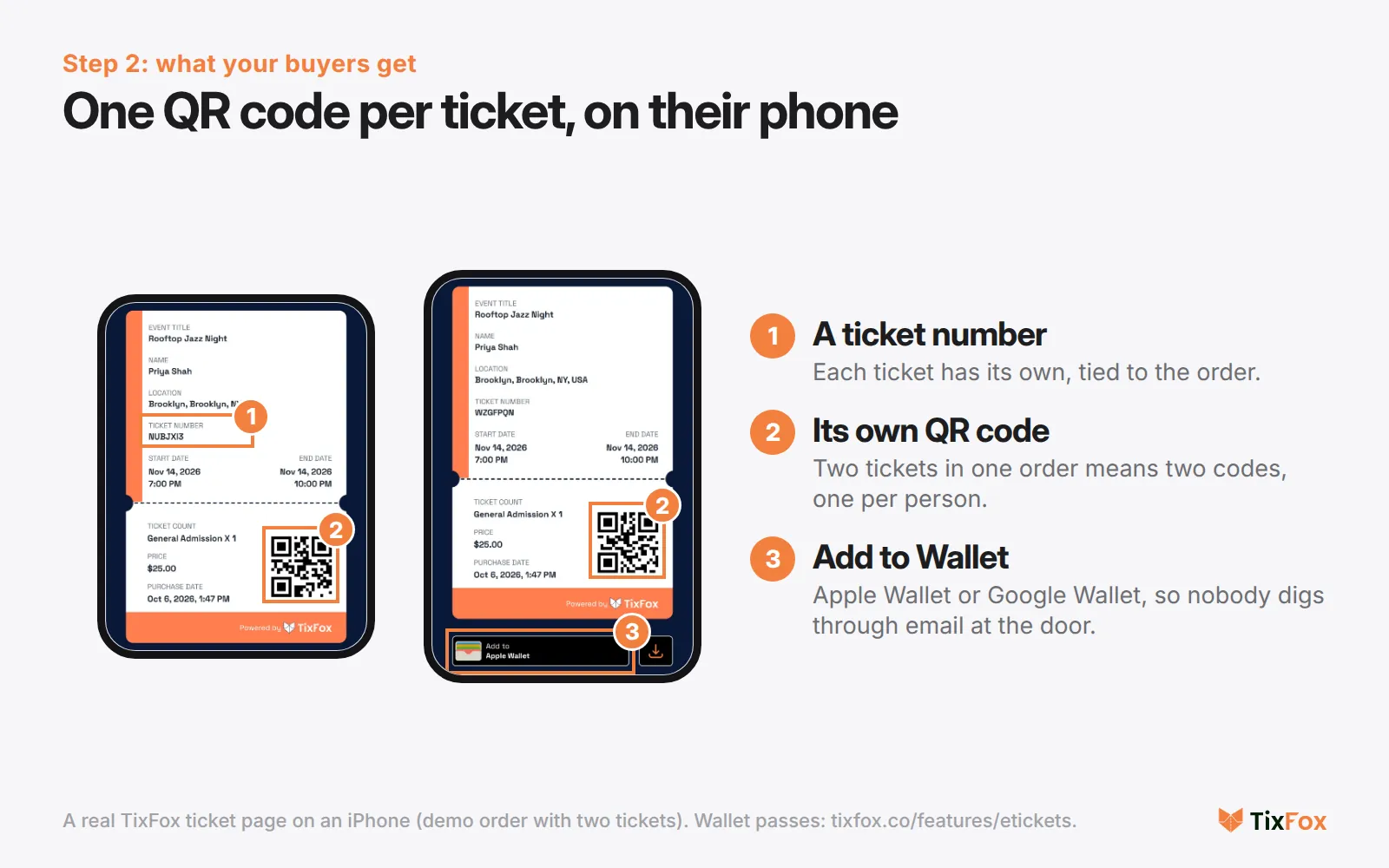
Guests don't need an app. They can show the email, a screenshot or a printout. They can also add the ticket to Apple Wallet or Google Wallet, which helps, because "let me find the email" holds up everyone behind them.
Step 3: Add your door team as scanners
Go to Check-in Assistants, click Add Scanner, and enter your helper's email. They get an invitation, download the free TixFox app, and log in with their own account.
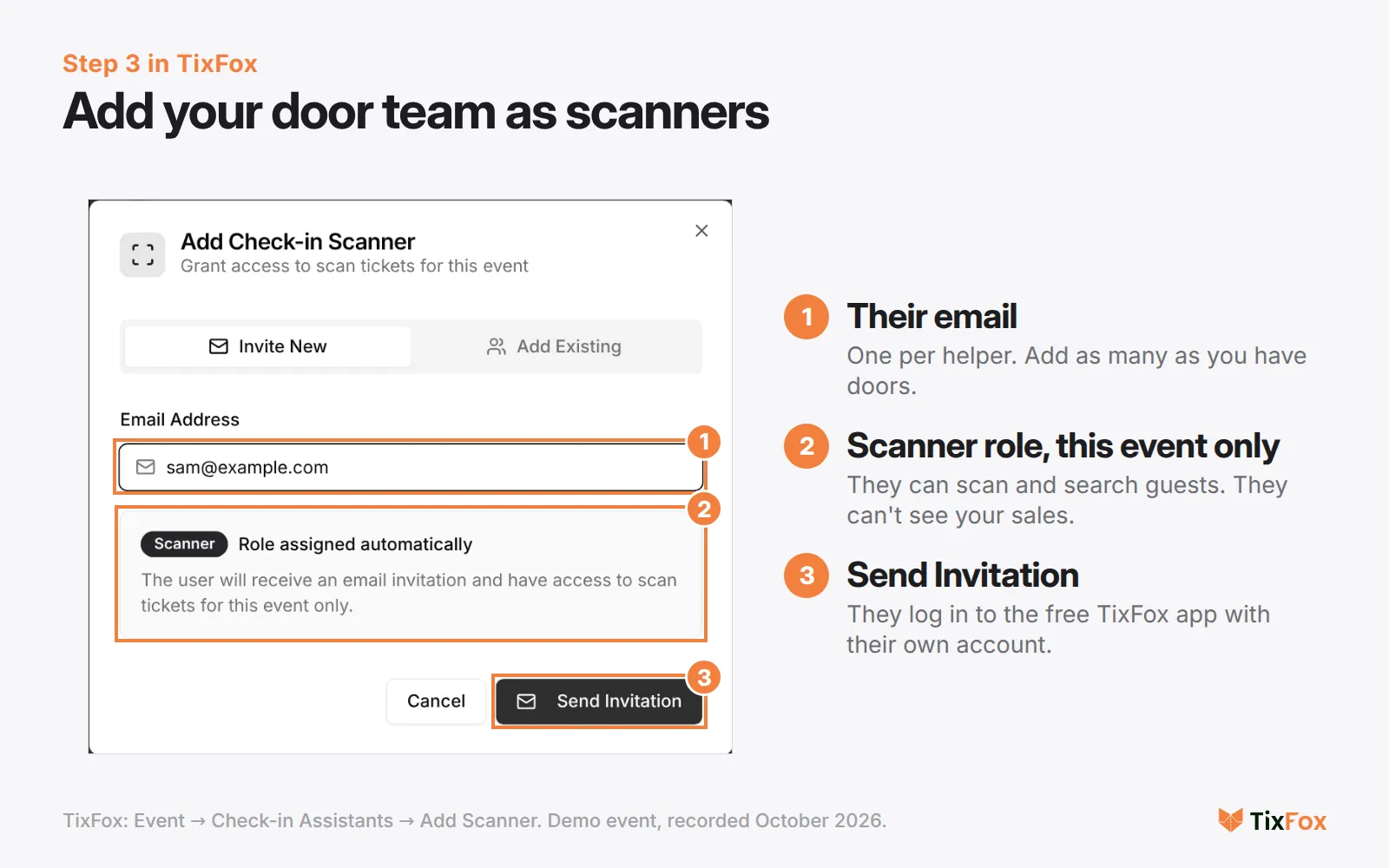
Scanners only get access to that one event, and they can't see your sales, revenue or account settings. And each scanner gets their own login. A nonprofit organizer shared what happened at their gala when the check-in software didn't allow it: "When one volunteer logged in, it would kick all the other volunteers off. So a line of 200 people backed up."
You can add as many scanners as you need and remove them any time. There's a separate walkthrough on inviting a check-in assistant if you want more detail.
Step 4: Scan tickets at the door
On the day, open the TixFox app on an iPhone or Android phone, pick your event, and tap Scan. Point the camera at the guest's code.
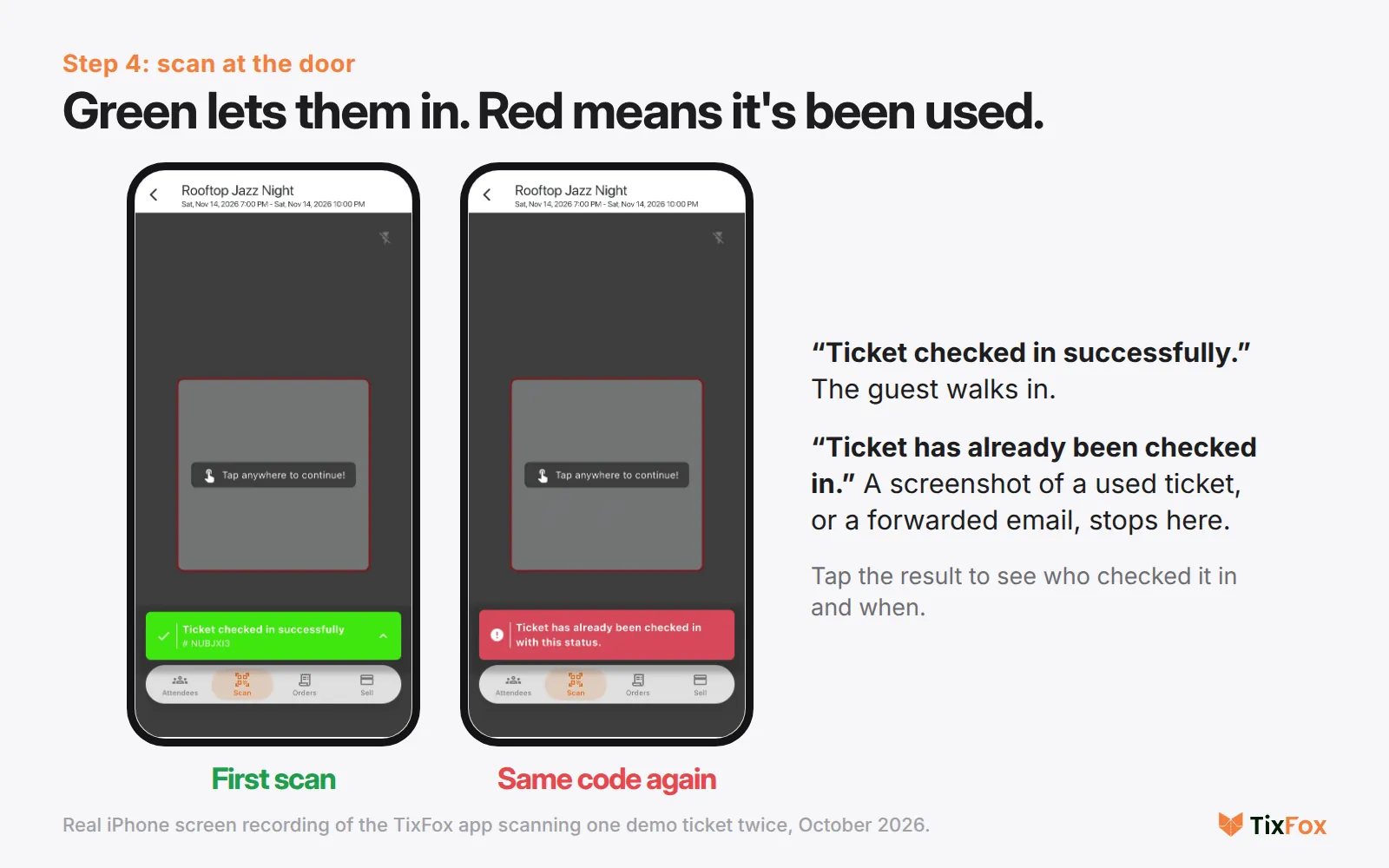
In our test we scanned one ticket twice. The first scan shows "Ticket checked in successfully" and the guest walks in. The second shows "Ticket has already been checked in." A screenshot or a forwarded email gets the same red screen once the ticket's been used, because TixFox ties every copy to the same record. Tap the result to see who checked it in and when.
Dark entrance? The app has a flashlight button on the scan screen.
Step 5: Watch arrivals from your dashboard
While your team scans, open Issued Tickets on your laptop. You'll see how many people are in, who hasn't arrived, when each guest checked in and who scanned them.
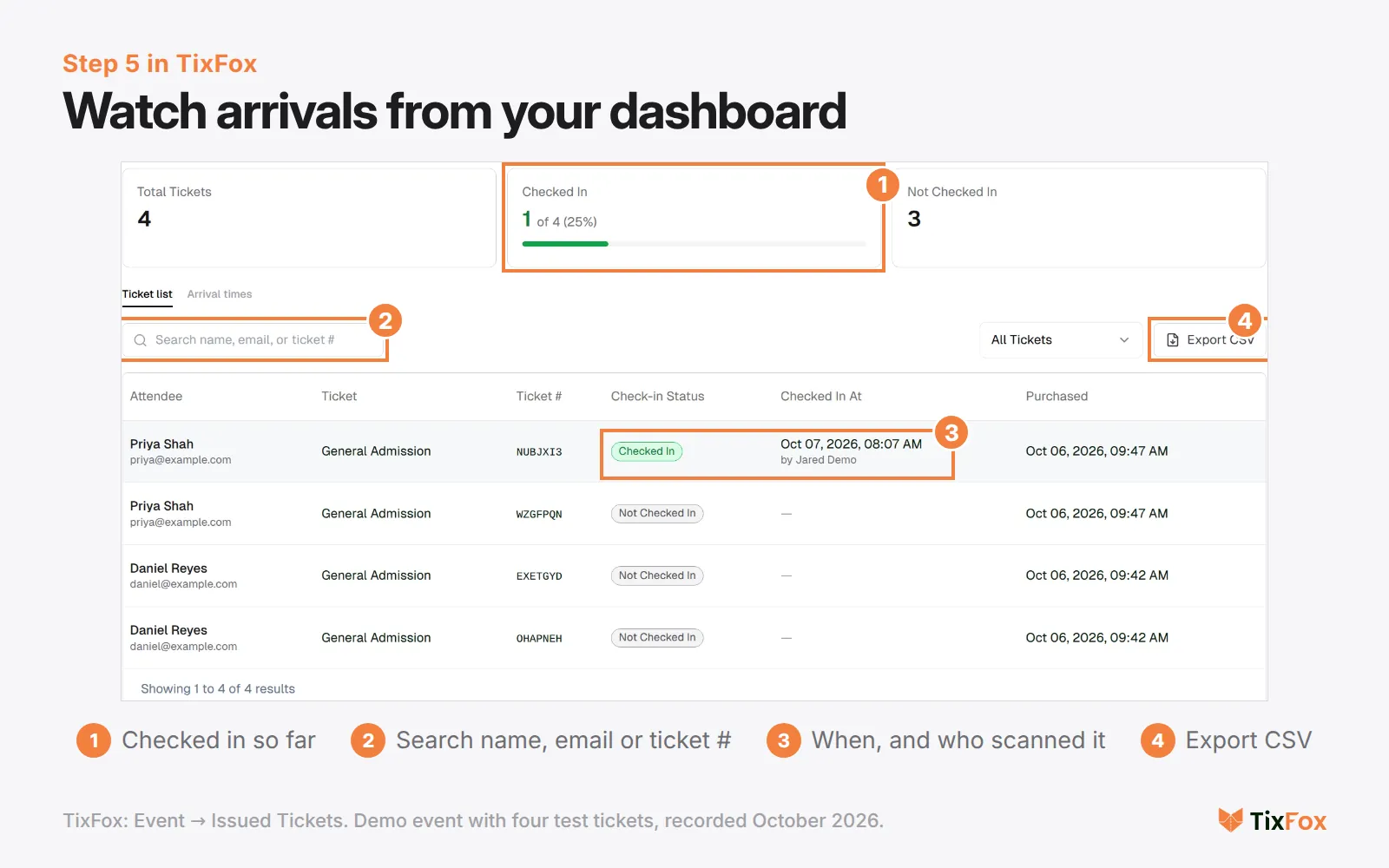
After the event, Export CSV gives you the list of who actually came, ready for thank-you emails. Our post on tracking event attendance goes further into what to do with it.
How many ticket scanners do you need?
Fewer than you'd think, if you plan for the rush instead of the total. In real conditions, one phone scans about 8 to 10 tickets a minute, according to Ticket Fairy's 2026 guide to entry tech. The scan itself takes under a second. Most of the time goes to guests finding their ticket.
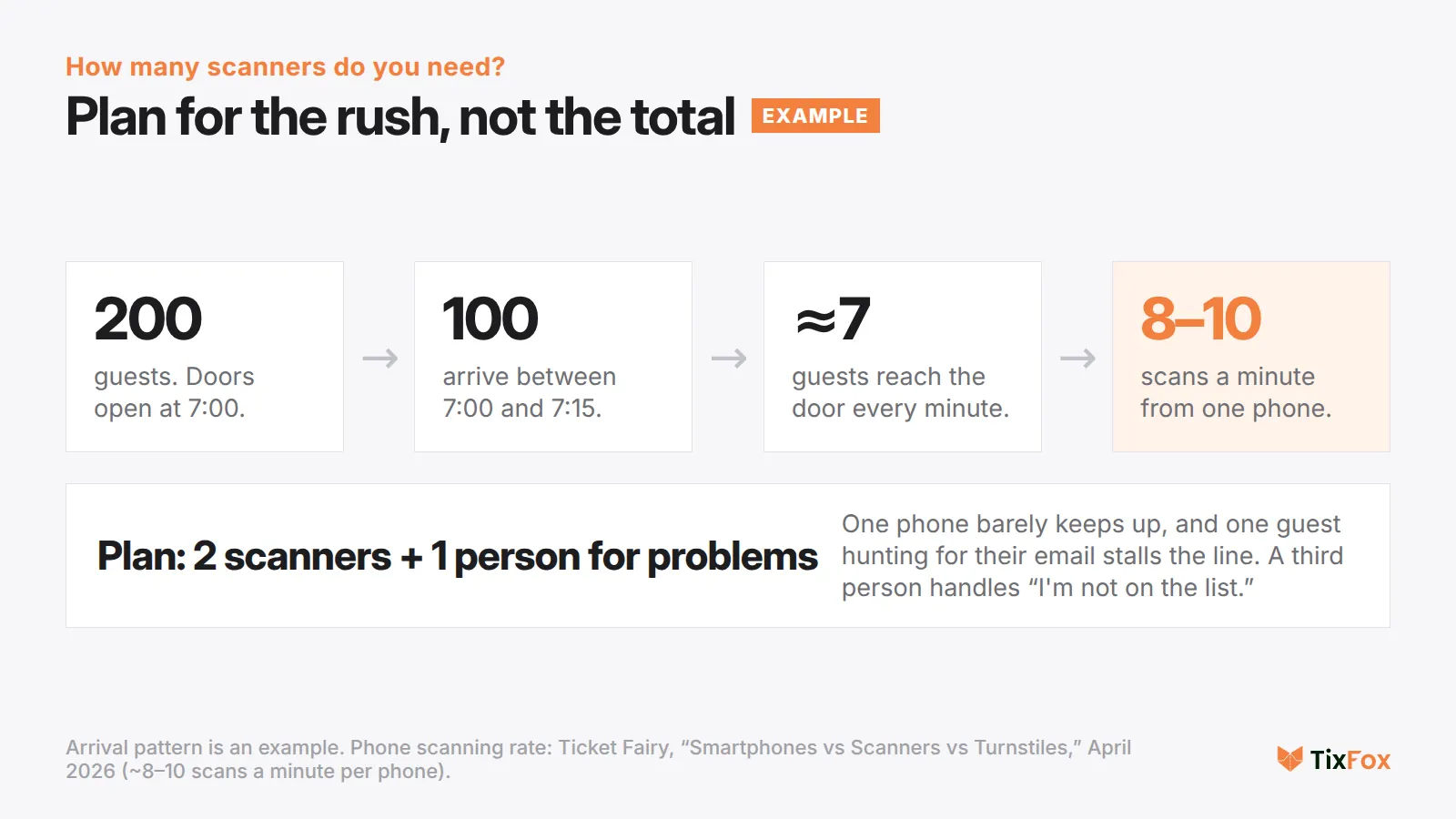
So for 200 guests where half show up in the first 15 minutes, that's about 7 people a minute. One phone can technically keep up. Plan two anyway, because a single guest digging through their inbox stalls one line completely.
Then check your doors. A commenter put it plainly on r/EventProduction: "How many doors do you have? That's gonna set the max for scanners. If you just have one set of double doors, the line is gonna move about as fast with 2 scanners as with 16."
Then add one person who doesn't scan at all. Their only job is problems: the guest who isn't on the list, the wrong name, the ticket bought for a friend. As one commenter in a nonprofit thread on modernizing check-in put it, you need to "have someone or multiple someone's designated to manage people who's names aren't on the list." Your scanners keep scanning, and the line keeps moving.
When a ticket won't scan
Phones die. Someone bought the ticket under their partner's email.
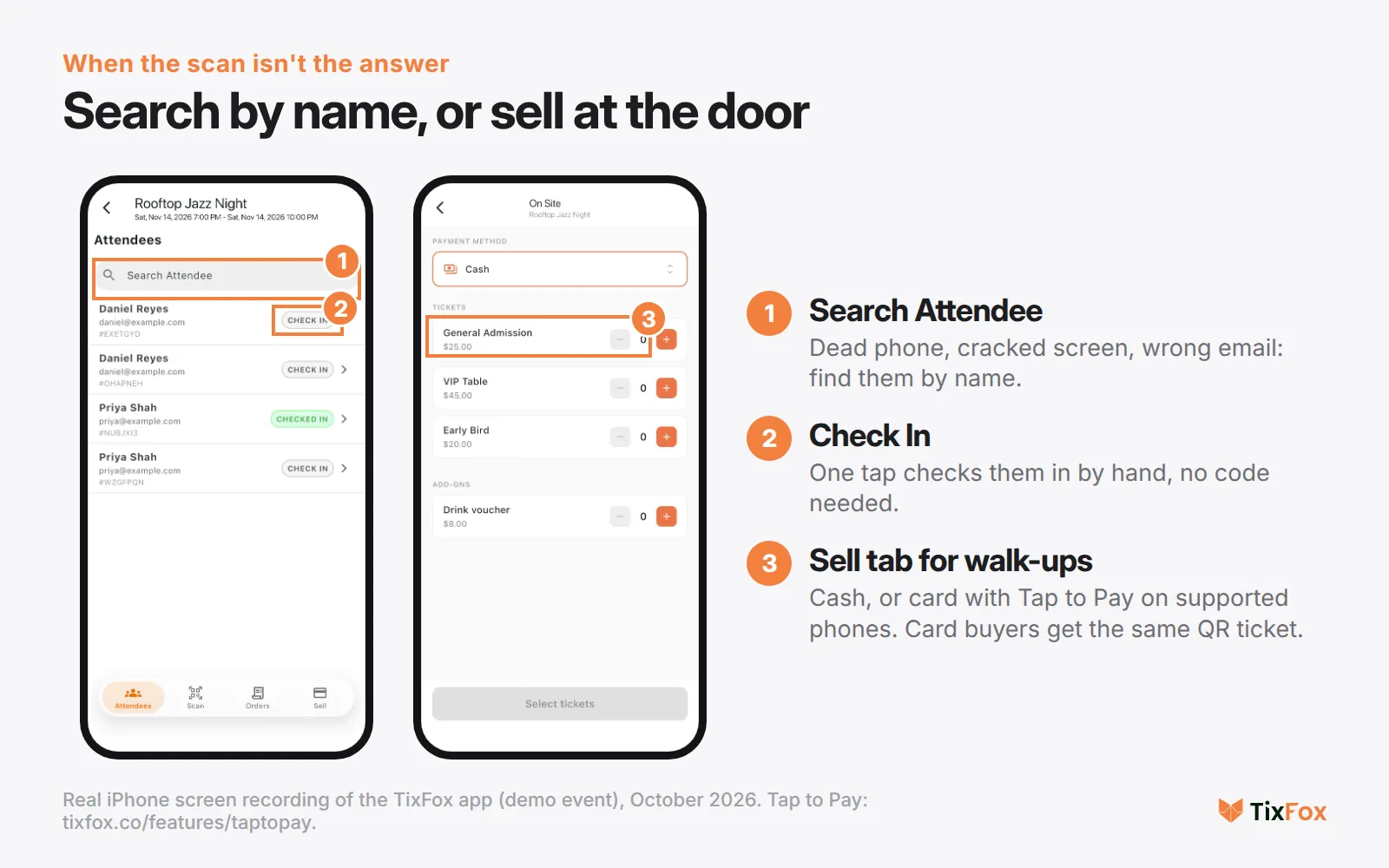
In the app's Attendees tab, search the guest by name or ticket number and tap Check In. It's marked the same as a scan, so nobody can use that ticket again later.
For walk-ups, the Sell tab sells tickets and add-ons right at the door. Take cash, or card with Tap to Pay on supported iPhone and Android phones, no card reader needed. Card buyers get the same QR ticket by email, and the sale shows up with your online orders.
Your QR ticket door checklist
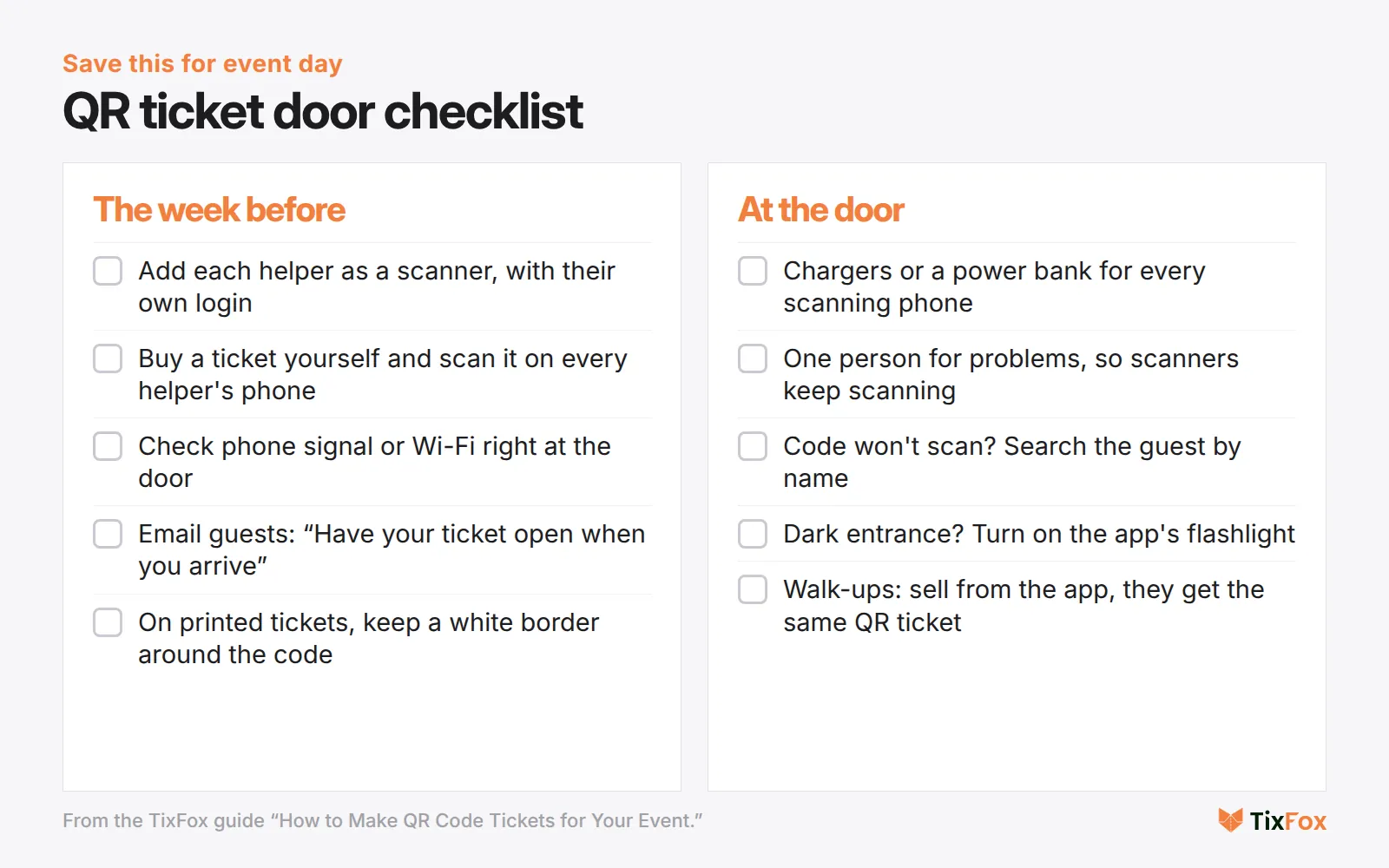
The week before:
- Add each helper as a scanner so they log in with their own account.
- Buy one ticket yourself and scan it on every helper's phone. You'll find the person whose app isn't installed now, not at 6:55 PM.
- Stand where the door will be and check the phone signal. If it's weak, ask the venue for the staff Wi-Fi.
- Email guests the day before: "Have your ticket open when you arrive." Add a line about Apple Wallet or Google Wallet.
- Printing tickets? Keep the code dark on a light background with a clear margin around it. The QR code standard calls for a blank border four modules wide on every side (Denso Wave, the inventor of the QR code), so don't let a design crop into it.
At the door:
- A charger or power bank for every scanning phone.
- One person for problems, so scanners never stop to sort out a name.
- Code won't scan? Search the guest by name instead of retrying the camera.
- Dark entrance? Use the flashlight button in the app.
- Walk-ups? Sell from the app's Sell tab.
Test it before the doors open: create a free event on TixFox, make a $0 ticket, buy one yourself, and scan it with your own phone. It costs nothing. Create your event free.
FAQ
Can I make QR code tickets for free?
Yes. A free QR code generator makes a code for free, but it isn't a ticket: everyone gets the same one. For tickets with a unique code each, TixFox is free for free events. Paid tickets are 39¢ each (30¢ under $5) plus card processing, and the scanner app is free.
Can someone get in with a screenshot of a QR code ticket?
Once. A screenshot scans exactly like the original, so the first person to show it gets in. Every scan after that comes up red as already checked in, so each guest in a group needs their own ticket.
Do guests need an app to use a QR code ticket?
No. The ticket arrives by email, and guests can show the email, a screenshot or a printout. They can also save it to Apple Wallet or Google Wallet. Only your door team needs the TixFox app.
Can I print QR code tickets?
Yes. Guests can print the ticket from their email. If you print codes yourself, keep them dark on a light background, leave a clear blank border around the code, and test-scan a printed copy before printing hundreds.
What if a guest's QR code won't scan?
Search them by name or ticket number in the app's Attendees tab and check them in by hand. It counts the same as a scan, so the ticket can't be used again.
How many people do I need at the door?
For most events under 300 people with one entrance: two scanners and one person to handle problems. Count your rush (how many people arrive in the first 15 minutes), divide by about 8 scans a minute per phone, and don't add more scanners than your doors can fit.
Want to try it? Create a free event in TixFox and scan one test ticket first. After that it's a ticket type, a link, your helpers' emails and your phone. Free events cost $0, paid tickets are 39¢ each plus card processing, and there's no monthly fee. Create your event free or see pricing. If you're worried about people not turning up at all, read our guide to reducing no-shows.
Sources
- Ticket Fairy (April 2026). Smartphones vs Scanners vs Turnstiles: 2026 Event Entry Tech Guide. ticketfairy.com
- Denso Wave. QR Code: how to use, quiet zone. qrcode.com
- TixFox feature pages: electronic tickets, check-in assistants, scanner app, Tap to Pay, pricing. Checked October 2026.
- Organizer posts on Reddit: r/EventProduction (May 2025, October 2025, June 2026) and r/nonprofit (May 2025, October 2025), linked where quoted.
- Screens: TixFox dashboard and a real iPhone screen recording of the TixFox app, demo event, October 2026.