New guide, October 2026: a video walkthrough, the exact clicks in Canva and TixFox, and what your visitors see at checkout. Checked October 13, 2026.
Quick answer
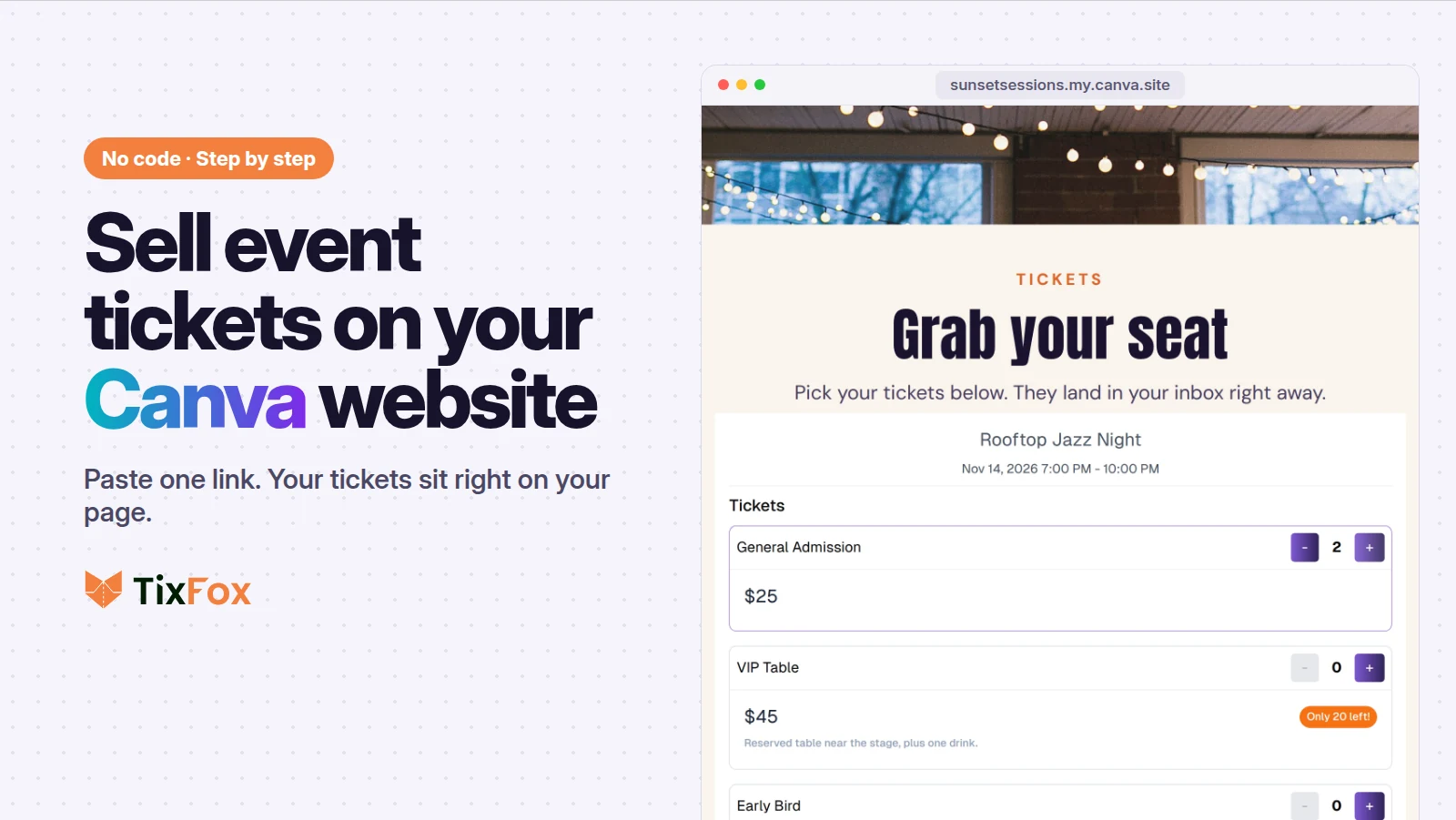
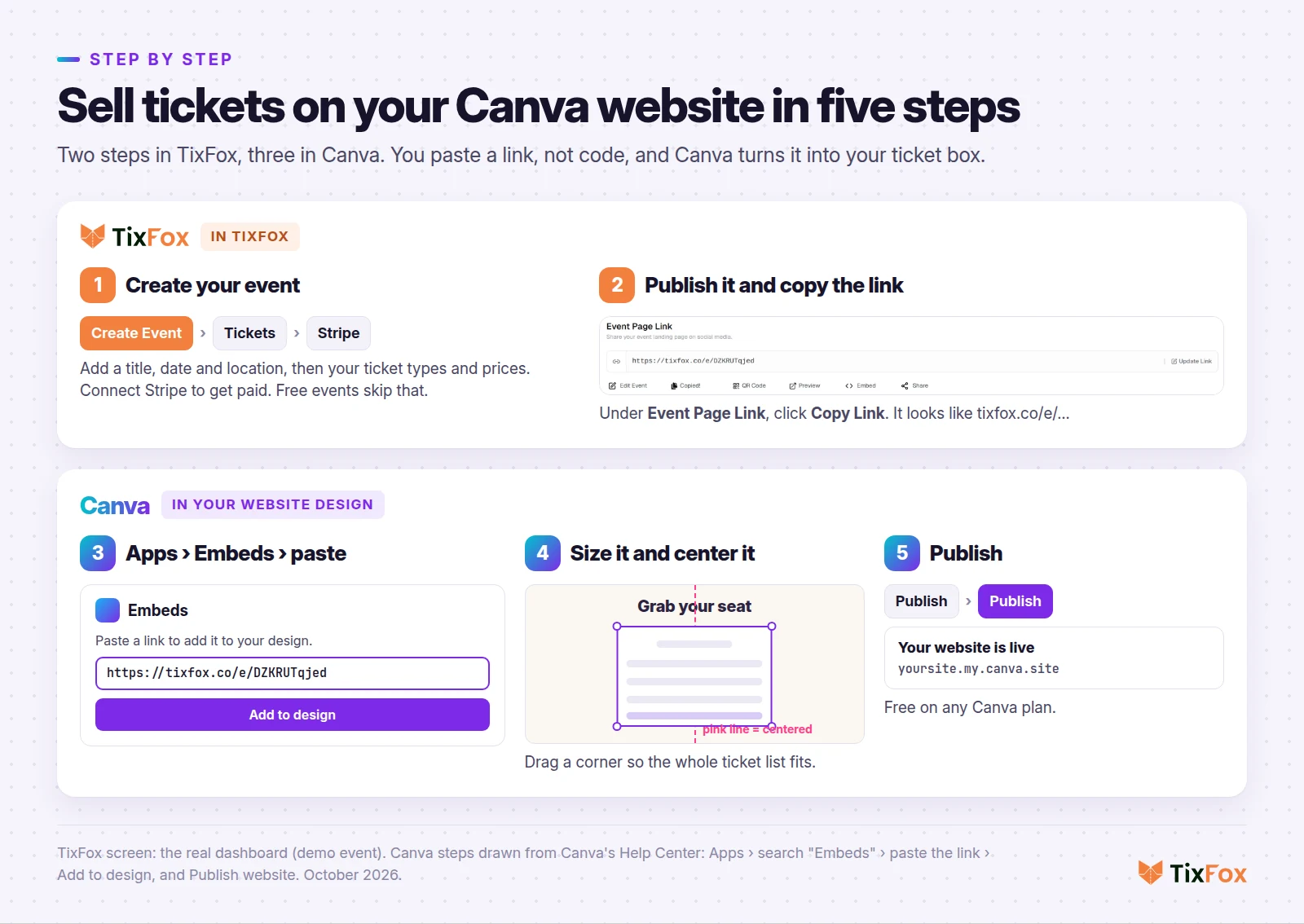
To sell event tickets on a Canva website, create your event in TixFox, copy its event page link, and paste it into Canva's Embeds app (Apps, search "Embeds", then Add to design). Canva turns the link into a live ticket box where visitors pick tickets and pay by card without leaving your site. No code is needed, and a free Canva plan works.
- Steps: five in total, two in TixFox and three in Canva.
- What you paste: your TixFox event page link (tixfox.co/e/...), not HTML code.
- Cost: Canva charges $0 to publish (free on every plan, up to five sites on Canva Free). TixFox charges 39¢ per ticket (30¢ under $5) plus Stripe's 2.9% + 30¢ per payment in the US. Free events cost nothing.
- What buyers get: a ticket by email with its own QR code, scanned once at the door with the free TixFox app.
- After you publish: price and ticket changes in TixFox show on your site on their own. Only design changes need Publish again in Canva.
You probably made the flyer in Canva already, and maybe the whole website too. Canva publishes the page. It doesn't take ticket orders by itself, and that's what this guide adds.
Watch: sell tickets on your Canva website in three minutes
The video creates the event at 0:29, copies the link at 0:53, adds it with the Embeds app at 1:05, sizes it at 1:25, publishes at 1:39, and shows the visitor's checkout at 1:50.
Can you sell tickets on a Canva website?
Yes, but not with Canva alone. Canva handles the pages, the design and the free web address. It doesn't have a ticket checkout of its own, so you add one from a ticketing platform.
Paste your TixFox event page link into Canva's Embeds app. Canva shows your live ticket list on the page, buyers check out inside it, and each buyer gets a ticket by email with its own QR code for the door.
Most "Canva tickets" guides stop at designing a ticket to print. A printed design can't stop the same ticket from being copied and used twice. A real ticket can, because each one gets scanned once at the door. Our guide to making tickets for an event covers that side, including how to keep the design you already made in Canva.
How to sell event tickets on your Canva website, step by step
You need two things: your Canva website (any design made from a Website template) and a free TixFox account. A free Canva account is enough.
Step 1: Create your event in TixFox
- In TixFox, click Create Event.
- Add a title, a description, the date and time, and where it is. Already made a cover in Canva? Upload it as your event image.
- Add your tickets. For example: General Admission, $25, 150 available.
- To get paid, connect Stripe under Settings, then Payment Method. Ticket money goes straight to your own Stripe account. Free events can skip this.
Our full guide to selling event tickets online covers ticket types, early bird prices and add-ons.
Step 2: Publish it and copy your event link
When the event's ready, click Publish and confirm. Then, on the event's summary page under Event Page Link, click Copy Link. The button changes to "Copied!".
The link looks like https://tixfox.co/e/ followed by a short code. Canva only needs that link. Publish the event before you paste it, so your visitors can actually buy.
Step 3: Add it with Canva's Embeds app
- Open your website design in Canva and go to the page where your tickets should go. A page called Tickets works well.
- In the side panel, click Apps.
- Type Embeds in the search bar and open it.
- Paste your event link and click Add to design.
Canva turns the link into your ticket box, with your event name, date and every ticket type. You don't paste HTML or touch any code.
Step 4: Size it and place it
Treat the ticket box like any photo or text box in your design. Drag it to where it belongs, then pull a corner to make it bigger until the whole ticket list fits.
To center it, slide it toward the middle of the page. When Canva's pink guide line appears, it's centered. Leave some room underneath, because the checkout needs space when buyers enter their details.
Step 5: Publish your website
Click Publish, check your website address, and click Publish again. Canva shows "Your website is now live." Click View website and scroll to your tickets.
On the free plan, your site lives on a free my.canva.site address, and you can publish up to five sites. Canva adds a small "Designed with Canva" footer to free sites.
Don't have a TixFox account yet? Create one free and set up your event. There's no monthly fee, and free events cost nothing.
What your visitors see on your Canva site
Visitors click your Get Tickets button or scroll to the ticket list under your heading. They choose how many of each ticket they want, plus any add-ons like a drink voucher. Then they enter their name and email, answer any custom questions you've added, and pay by card on Stripe's secure form.
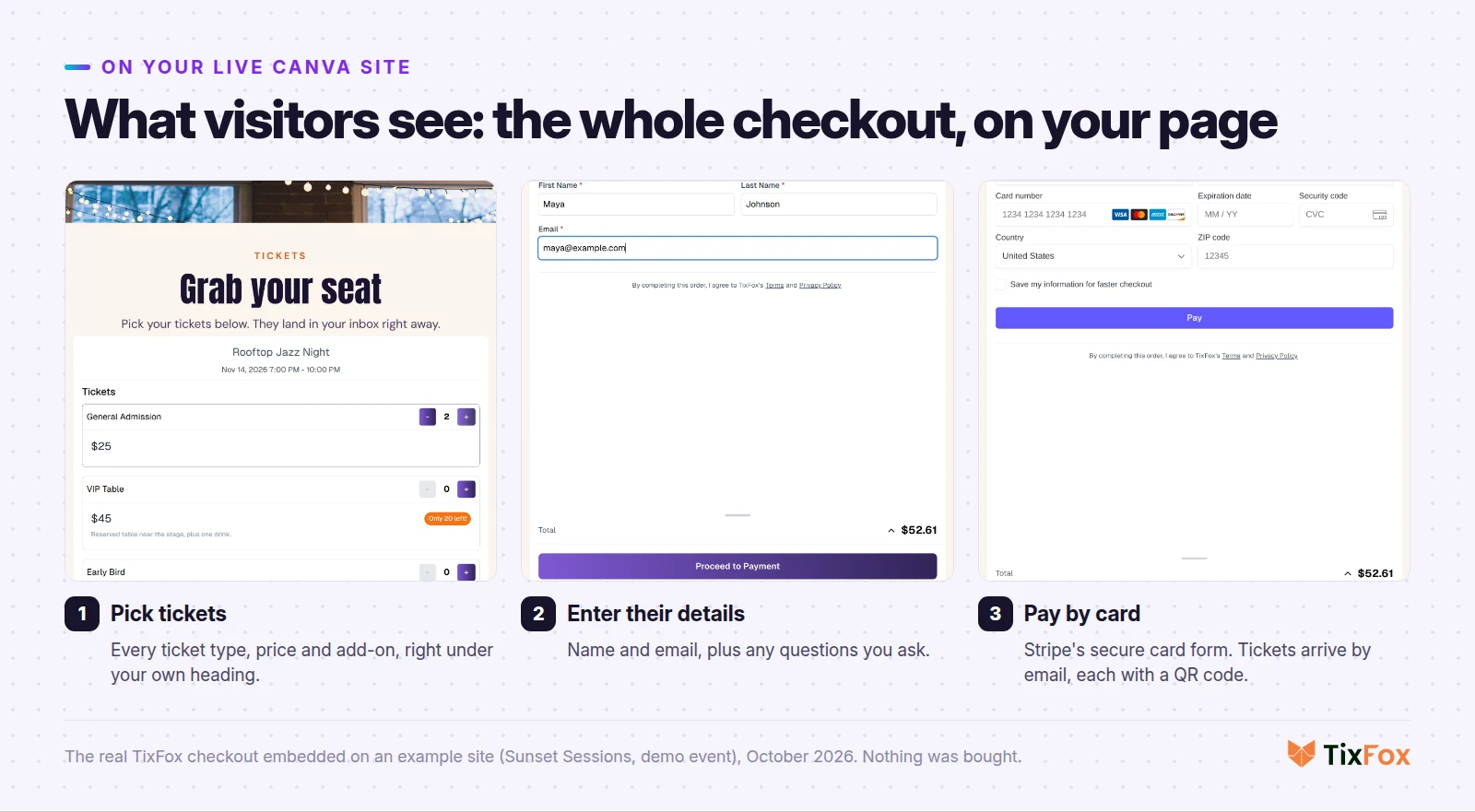
They never leave your site. Each ticket arrives by email with its own QR code, and the order shows up in your TixFox dashboard. On the night, you scan tickets with the free TixFox check-in app on iPhone or Android, and a ticket that's already been scanned can't get in twice.
What it costs to sell tickets on a Canva site
Canva charges nothing here: publishing on my.canva.site is free on every plan, and the Embeds app is free. TixFox charges 39¢ per ticket (30¢ under $5), plus Stripe's card processing of 2.9% + 30¢ per payment in the US. There's no monthly fee, and free events cost nothing.
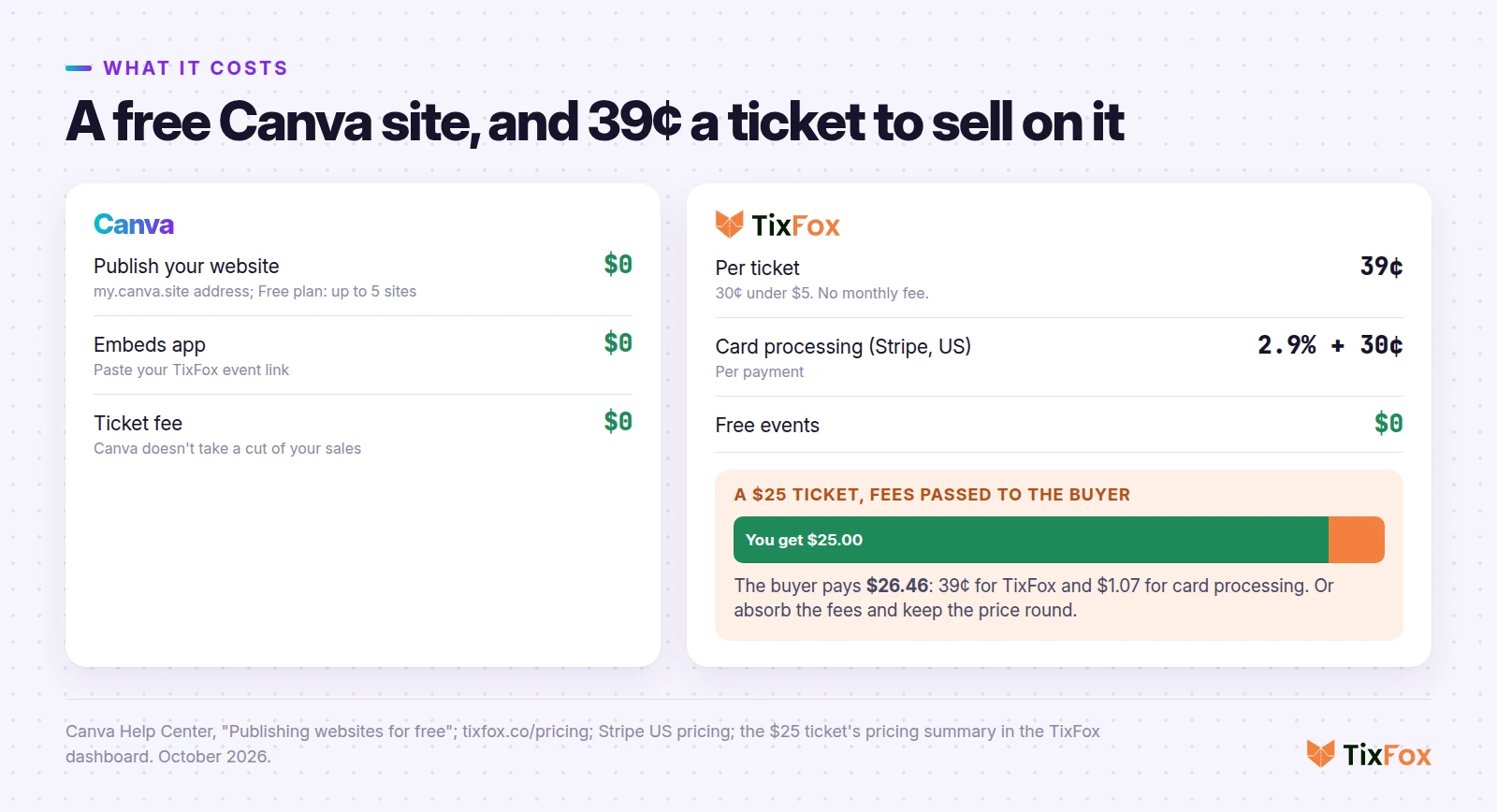
You choose who pays the fees. Pass them to the buyer, and on a $25 ticket the buyer pays $26.46 while you get the full $25. Or absorb them and keep the price round. That choice is one setting per ticket, called ticketing fee control. For the full breakdown, see TixFox pricing.
Ticket money lands in your own Stripe account as each ticket sells, and Stripe pays it out to your bank on your payout schedule. Our Stripe guide covers payouts in detail.
Change prices without touching Canva
This part saves you trips back into Canva. The ticket box loads from TixFox every time someone opens your page.
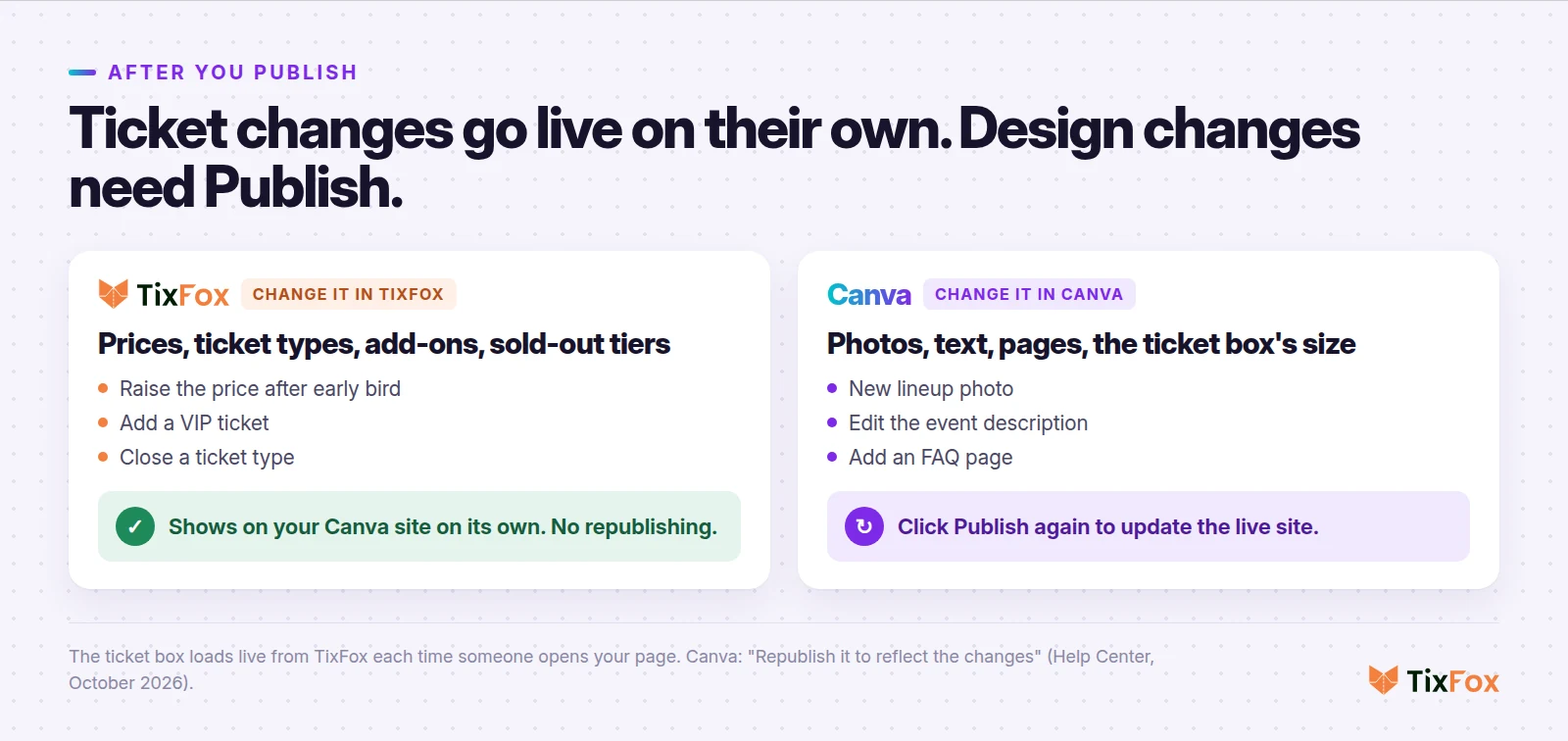
So when early bird ends and the price goes up, you change it in TixFox, and your Canva site shows the new price on its own. The same goes for adding a VIP ticket or closing a sold-out tier. You only republish in Canva when you change the design itself: a new photo, new text, a new page, or the ticket box's size. Canva's own help center says to republish your site to show those changes.
Make your Canva ticket page easy to buy from
- Link your Get Tickets button to the tickets. Select the button, click Link (it's under the ••• menu if you don't see it), and pick your Tickets page from the pages in your design. Add the same page to your site's menu.
- Check it on a phone. Plenty of visitors will tap through from Instagram or a group chat. Use Preview and switch to the mobile view. Canva's Resize on mobile setting, on the Site tab of your website settings, adjusts the design for small screens. If the ticket list looks cramped, make the box as wide as the page.
- Keep it to one event per box. Each event has its own link, so a weekly class or a two-night run gets its own box, or use a recurring event and buyers pick the date in the checkout.
- Give partners a code. Discount codes can show which band member or sponsor sold tickets.
- Send reminders. TixFox sends reminder emails before the event on its own.
Building the site from scratch? Our guide to creating an event website covers what to put on each page.
If your tickets don't show up right
- Canva doesn't turn the link into a ticket box. Paste the event page link that starts with https://tixfox.co/e/, the one from Copy Link, not the address of your TixFox dashboard.
- Visitors can't buy yet. Check that the event is published in TixFox and that your tickets are on sale.
- The ticket list is cut off. The box is too small. Pull a corner until the whole list fits.
- Your design changes aren't on the live site. Click Publish again. Canva doesn't update a published site until you do.
- A price change isn't showing. Refresh the page. TixFox changes don't need a republish, but an open browser tab won't update until it reloads.
On a different website builder? See how to sell event tickets on Wix, Squarespace or WordPress.
Ready to sell tickets on your Canva website? Create your free TixFox account, set up your event, and paste the link into Canva. The whole setup takes a few minutes.
FAQ
Can you sell tickets on a Canva website?
Yes. Canva doesn't have its own ticket checkout, but you can add one. Copy your TixFox event link, paste it into Canva's Embeds app, and click Add to design. Visitors pick tickets and pay right on your Canva page.
Do I need to paste HTML code into Canva?
No. Canva's Embeds app takes a link, not code. Paste your TixFox event page link and Canva turns it into the ticket box.
Does this work on a free Canva account?
Yes. Every Canva plan can publish a website for free on a my.canva.site address (up to five sites on the free plan), and the Embeds app is free to use. TixFox has no monthly fee either.
Can buyers pay without leaving my Canva site?
Yes. They choose tickets, enter their details and pay by card inside the ticket box on your page. Each ticket arrives by email with its own QR code.
Do I have to republish my Canva site when I change ticket prices?
No. The ticket box loads live from TixFox, so price changes, new ticket types and sold-out tiers show up on their own. Republish only when you change the Canva design.
Can I use Canva's PayPal app instead?
You can take a payment with it. PayPal's Payment Links app in Canva sends buyers to a PayPal checkout page, which works for a simple payment. For an event, TixFox covers the ticket side: each guest gets their own ticket with a QR code, your guest list builds itself, and you scan people in at the door.
How much does it cost to sell tickets on a Canva website?
Canva charges nothing. TixFox charges 39¢ per ticket (30¢ under $5) plus Stripe's 2.9% + 30¢ per payment in the US, and you can pass those fees to buyers. Free events are free.
Sources
- Canva Help Center: Embed media (Apps, search "Embeds", paste the link, Add to design), Publishing websites for free (free on all plans, five sites on Free, the "Designed with Canva" footer, republish to show changes), Publishing Canva websites (Resize on mobile) and Hyperlinks (linking to a page in your design). Checked October 13, 2026.
- PayPal: PayPal Payment Links in Canva. Checked October 13, 2026.
- TixFox: Pricing and the TixFox dashboard (Create Event, Event Page Link, the $25 ticket's pricing summary). Checkout screens are real, shown on an example site with a demo event, October 2026. Nothing was bought.
- Stripe: US pricing, 2.9% + 30¢ per successful domestic card payment.
Keep more of every ticket sale.
- 39¢ per ticket, $0 on free events
- No monthly fee, no contract
- Get paid as each sale comes in