New guide, October 2026. Every TixFox step was checked in the real dashboard on October 20, 2026, and every Zoom detail comes from Zoom's own help center.
Most people who start charging for a Zoom class do it the same way. A post goes up, people send money by Venmo or PayPal, and you reply to each one with the Zoom link. By the third week you're matching usernames to payments at 11pm, someone says they paid and you can't find it, and the link has turned up in a group chat you've never seen.
You can run it like a real ticketed class instead, and set it up in one sitting. People buy a seat on a proper event page, pay by card, and get your Zoom link in their confirmation email the moment they buy. Here's the whole setup, with real screens from TixFox, the Zoom settings that matter, and the math on a $25 class.
Quick answer: To charge for a Zoom class, schedule the meeting in Zoom first, then create the class as an online event on a ticketing platform and sell tickets at your price. Put the Zoom link in the message that goes only to buyers (on TixFox, the ticket's Custom Deliverable Message, which lands in the confirmation email), not on the public event page. Turn on Zoom's waiting room and admit people by name 15 minutes before you start.
What you need before you start
Three things, and you may already have all of them.
- A Zoom account that fits your class. Zoom's free Basic plan allows meetings of up to 40 minutes with up to 100 participants. A 60 or 90-minute class needs a paid plan, which raises the limit to 30 hours.
- A scheduled Zoom meeting for the class, made before you start selling. More on why in step 1.
- A Stripe account so card payments land in your bank. If you don't have one, TixFox walks you through it: how to connect Stripe to get paid.
Step 1: Schedule the Zoom meeting first
Schedule a new meeting for the class rather than using your Personal Meeting ID. Your personal ID is the same room for everything you host, so a link that gets passed around keeps working forever. A scheduled meeting is only for this class.
Two settings are worth turning on while you're there:
- Waiting room. Everyone who clicks the link waits outside until you let them in, so you decide who joins. It also stops people from starting without you, because the waiting room overrides "join before host".
- Passcode in the link. Zoom can build the passcode into the invite link (the "embed passcode in invite link" setting), so buyers join with one tap instead of typing a code.
Running a weekly class? Schedule it as a recurring meeting. Zoom gives every session in the series the same meeting ID and settings, which means one link works for every week. That matters in step 3.
Copy the invite link. Don't post it anywhere yet.
Step 2: Create the class as an online event
In TixFox, click Create Event and fill in the title, date and time. Two fields need a little thought for a Zoom class.
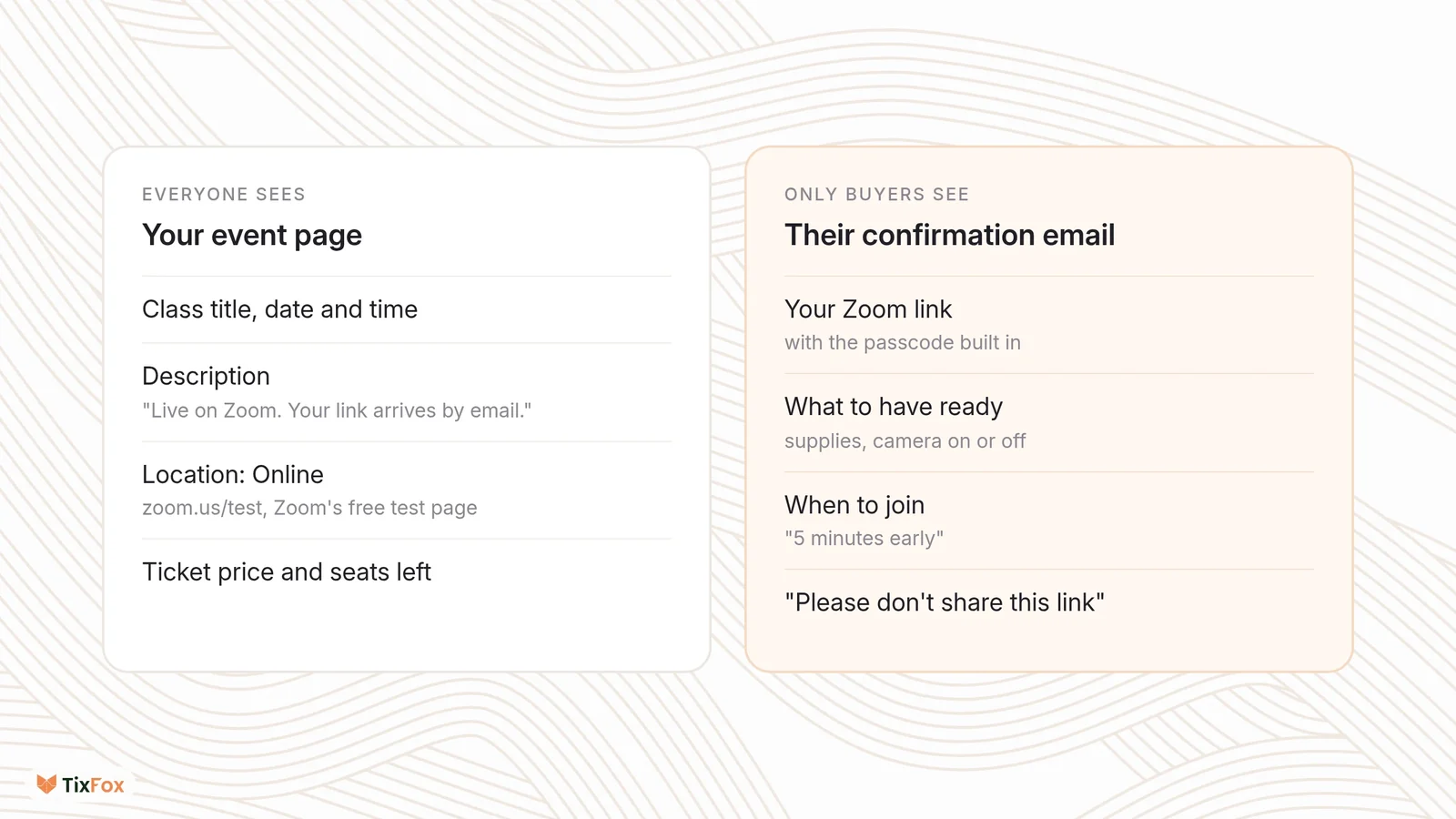
Description. Say plainly that it's live on Zoom and how the link arrives. Something like: "A 90-minute live class on Zoom. Bake along from your own kitchen. Your private Zoom link arrives in your confirmation email right after checkout." People want to know how they'll get in before they pay.
Location. Choose Online from the dropdown. TixFox asks for a link here, and this link is shown on your public event page, so it's the place for a link anyone can use. Paste Zoom's free test page, https://zoom.us/test, where buyers can check their camera and sound before class. Your real meeting link goes somewhere only buyers see, in the next step.
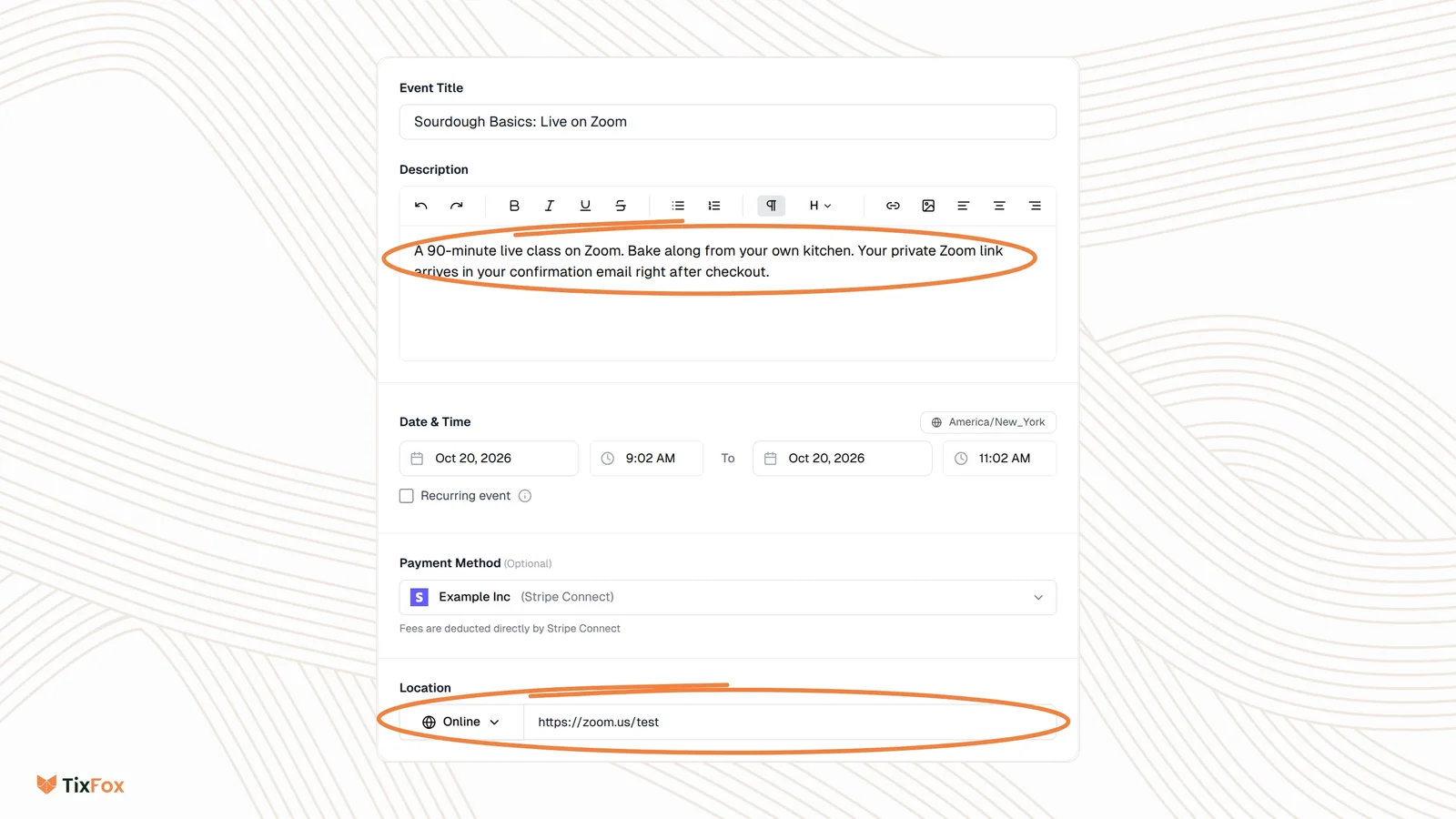
Here's the split to aim for. Everything on the left is public. Everything on the right goes only to people who paid.
Step 3: Add the ticket and put your Zoom link in the deliverable message
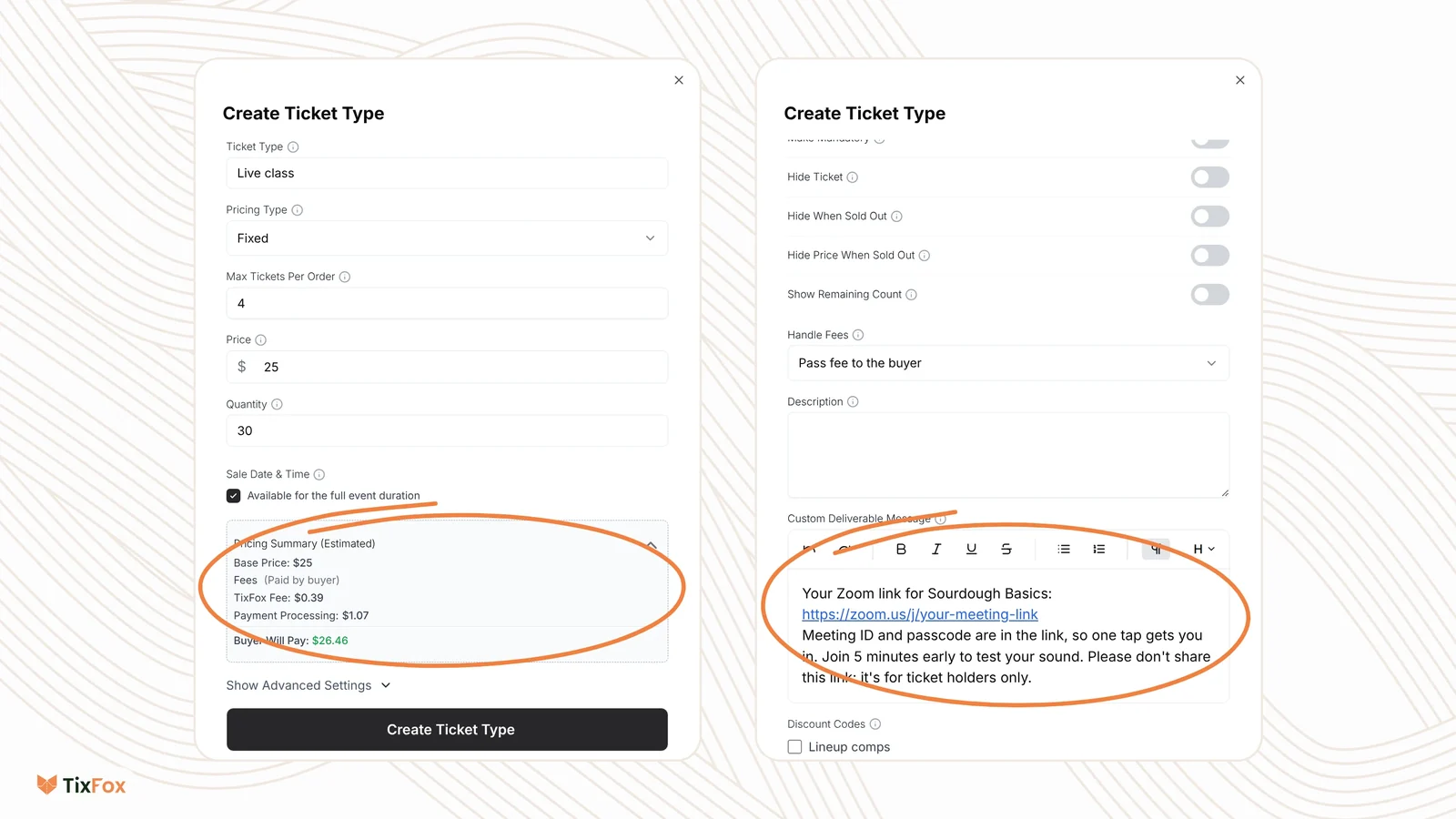
Open the event's Ticket Types tab and click Create Ticket.
- Ticket Type: "Live class" works. Add a second type if you also sell, say, a class plus a printed recipe kit.
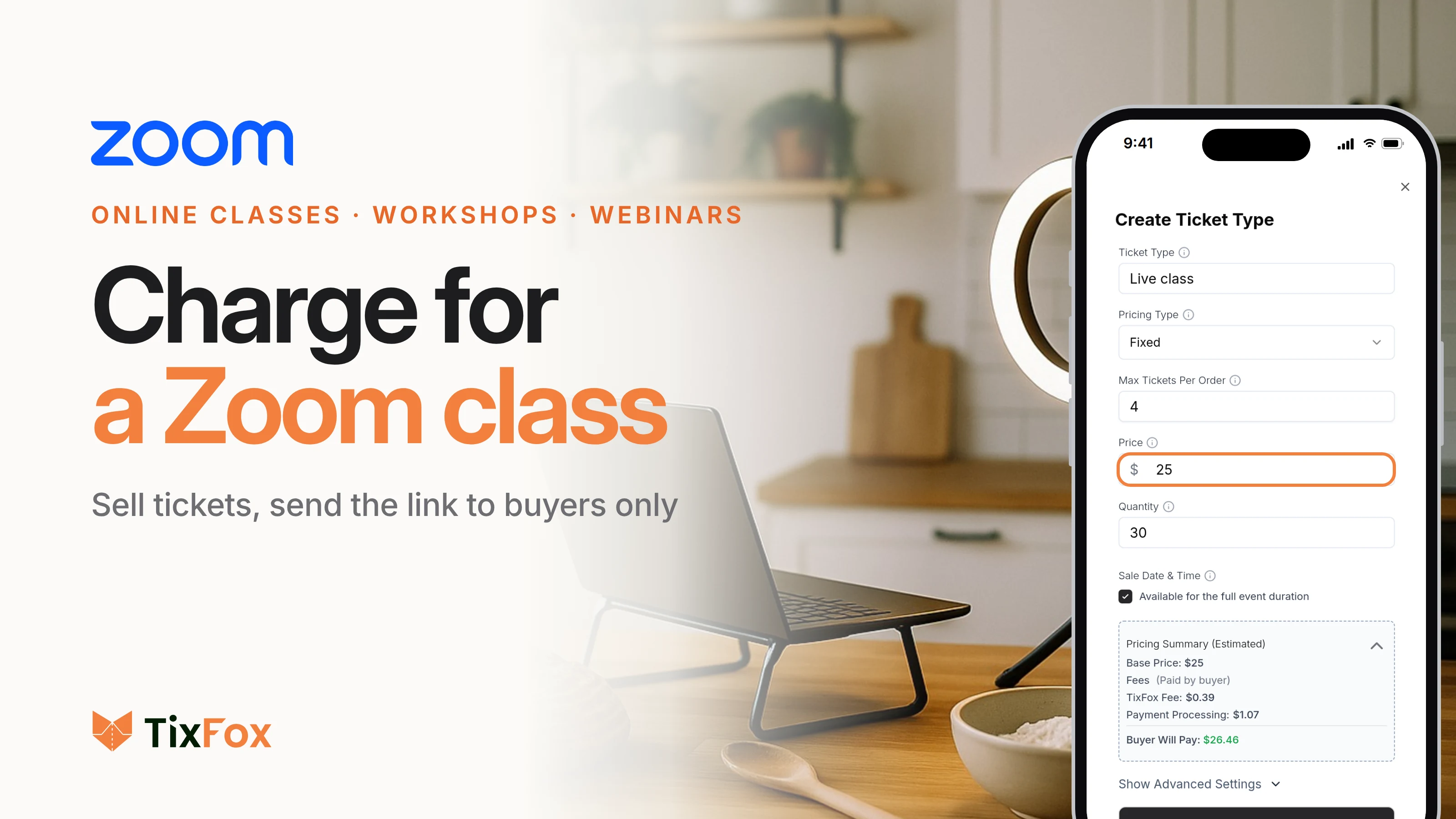
- Price and Quantity: your price and the number of seats. Zoom's free plan stops at 100 participants, so keep the quantity under your plan's limit.
- Max Tickets Per Order: 4 is a good default for households baking or painting together.
The Pricing Summary shows exactly what the buyer pays. On a $25 class with fees passed to the buyer, that's $25 plus the 39¢ TixFox fee plus $1.07 card processing: $26.46. If you'd rather the price be a round $25, switch Handle Fees to absorb them (how passing or absorbing fees works).
Now the important part. Click Show Advanced Settings and scroll to Custom Deliverable Message. Whatever you write here is sent only to people who buy this ticket, inside their confirmation email. Paste your Zoom link and a few lines of instructions:
Your Zoom link for Sourdough Basics: [your link]. The passcode is built into the link, so one tap gets you in. Join 5 minutes early to test your sound. Please don't share this link: it's for ticket holders only.
If you have more than one ticket type, add the message to each one. Using different messages is handy, too: the "class plus kit" ticket can also say when the kit ships.
Step 4: Check the confirmation email
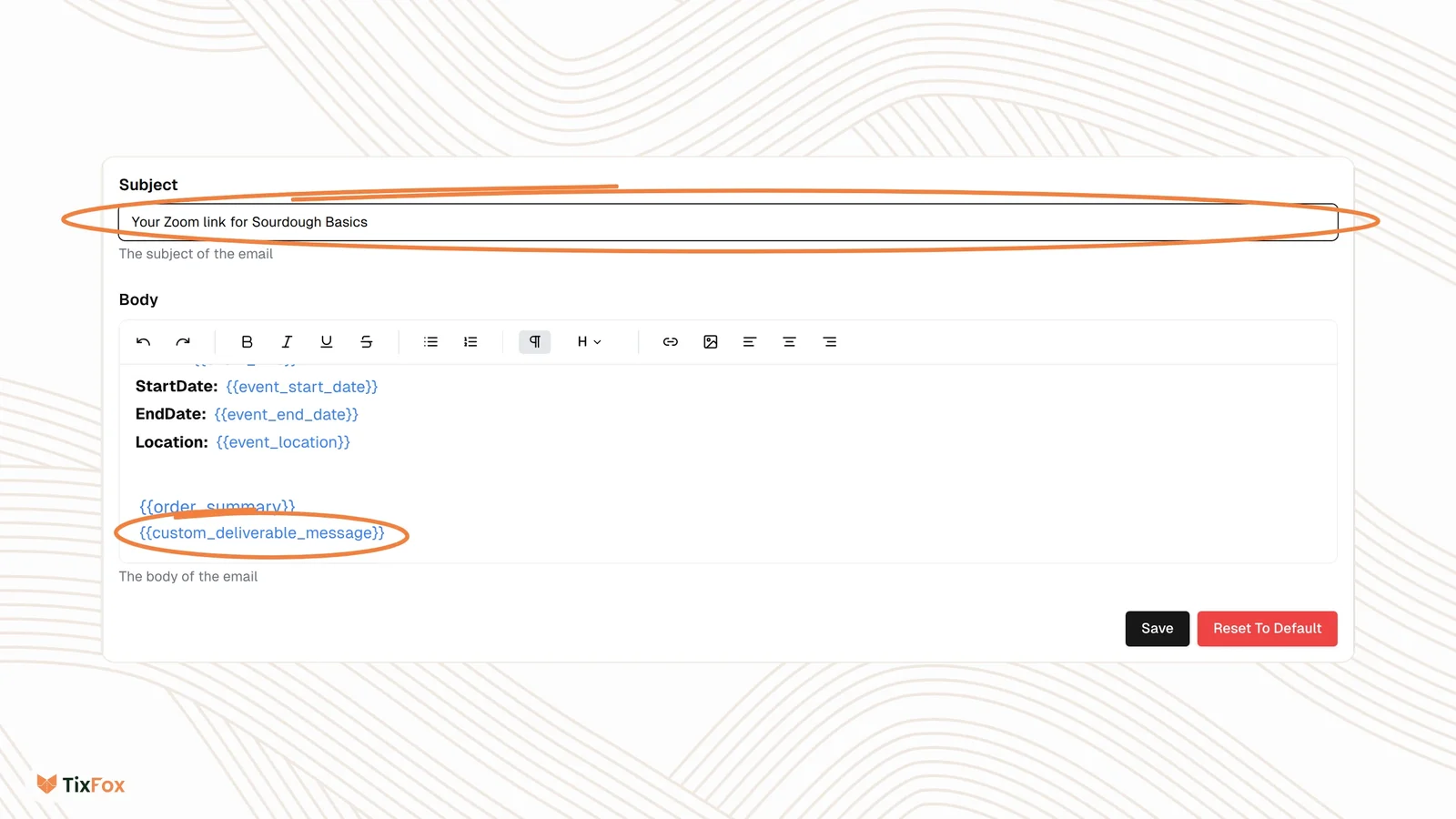
Open the event's Communication tab. This is the email every buyer gets the moment they pay.
Change the Subject to something people will search their inbox for later, like "Your Zoom link for Sourdough Basics". Then look at the Body: the default email already includes {{custom_deliverable_message}}, the spot where your Zoom message from step 3 appears. Keep that placeholder. If you've edited the body before and lost it, Reset To Default brings it back.
Prefer one message for every ticket type? You can type the Zoom link straight into the email body instead. It's set per event, so it covers all your tickets at once. The deliverable message is better when different tickets need different details.
Send yourself a test before you announce the class. Add a $0 ticket called "Test" with the same deliverable message, and turn on Hide Ticket so it doesn't show on your page. Then go to Orders, click Create Order, and order one for yourself. Free tickets don't use credits. Open the order, click Resend Confirmation, and read the email exactly as a buyer will. When it looks right, leave the test ticket hidden. Your test order sits in Orders under your own name, so it's easy to tell apart (how to add an order from your dashboard).
Step 5: Share the class
Publish the event and share the link wherever your students already are: your newsletter, Instagram bio, a Facebook group, your website. TixFox also gives you a QR code for flyers and an embed for your own website (how to share your event link, QR code or embed).
Share the event link, never the Zoom link. If someone asks for "the link", send them the event page. They get the Zoom link the moment they buy.
Step 6: On class day, let people in by name
Here's what buyers receive, and when. You only do the orange steps.
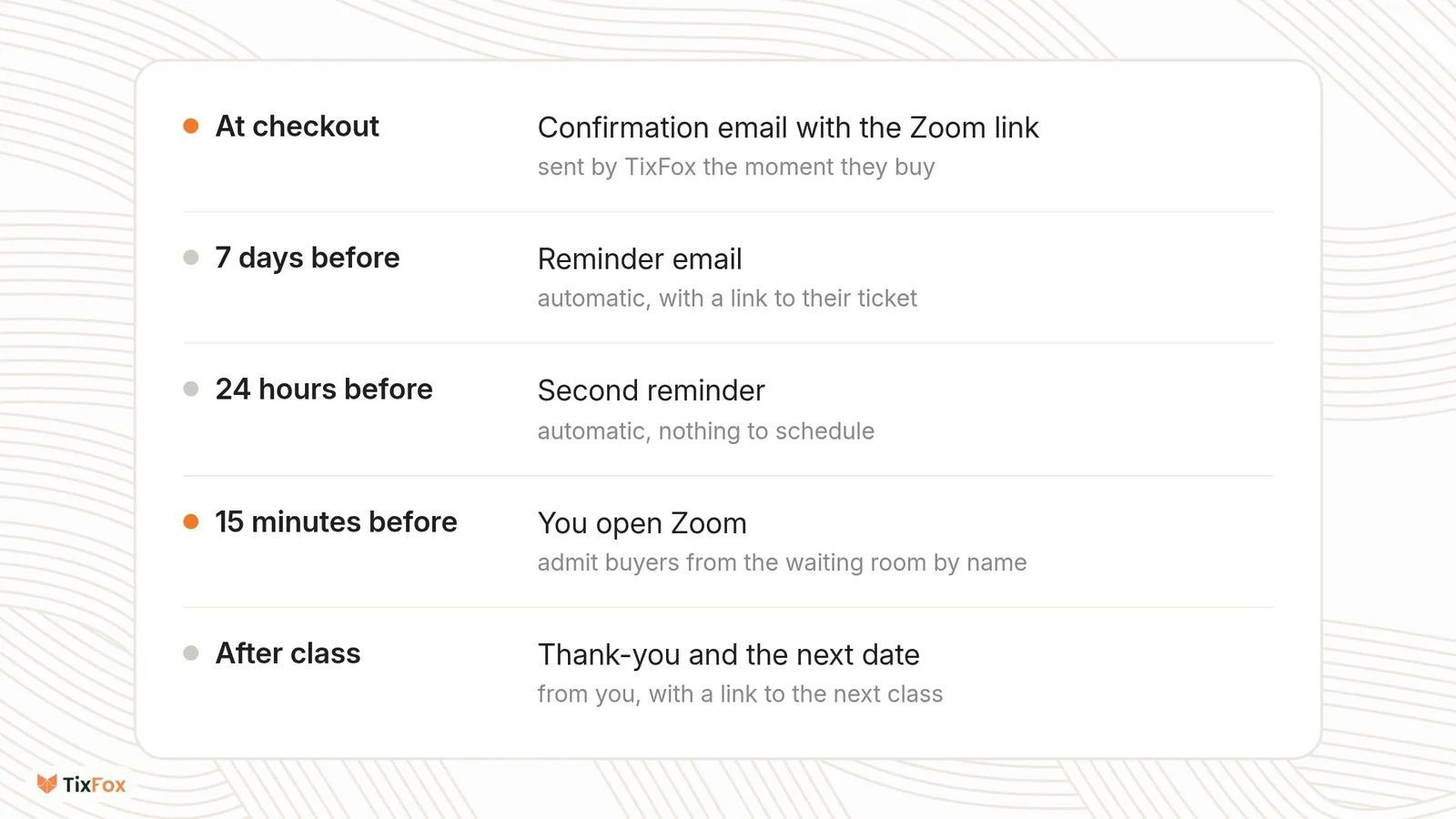
TixFox sends two reminders on its own, one 7 days before and one 24 hours before, with the class details and a link to the buyer's ticket. There's nothing to write or schedule (how the reminders work). Reminders are also one of the simplest ways to cut no-shows, which matters even for online classes (more ways to reduce no-shows).
Open Zoom about 15 minutes early. As people arrive in the waiting room, open Participants and click Admit next to each name, or Admit all once you've checked the list. Keep your attendee list open in another tab (the event's Issued Tickets tab, or export it to CSV) so a name you don't recognize is easy to check. Buyers often join under a family member's name or "iPad", so a quick "who's this?" in the chat usually sorts it out.
When someone can't find their link
It happens every class. Someone bought three weeks ago and the email is buried.
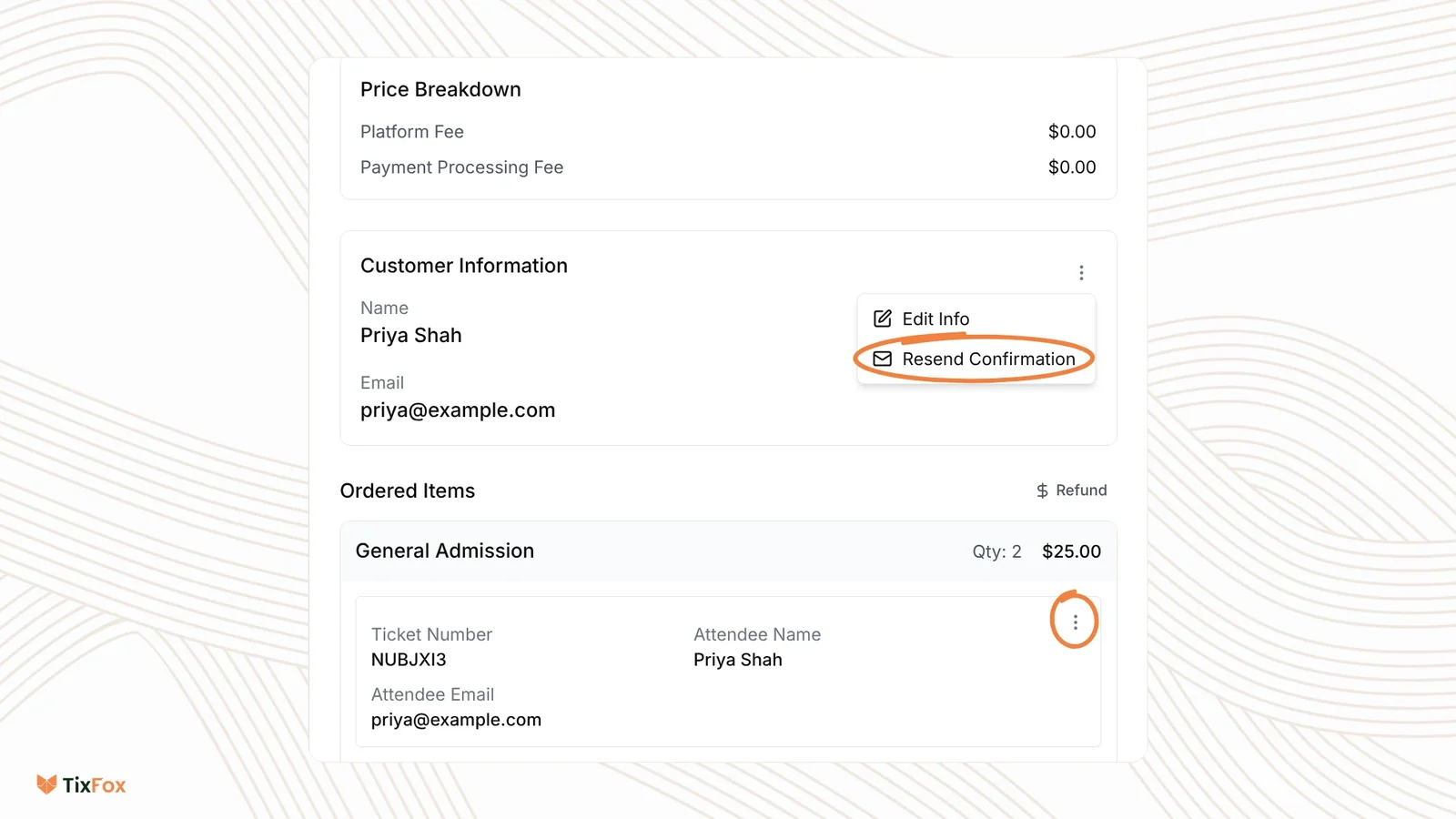
Go to Orders, find them, open the order, click the three dots next to Customer Information and choose Resend Confirmation. The email, Zoom link included, goes out again in seconds. If they typed their email wrong at checkout, fix it first with Edit Info, then resend (how to resend tickets or change attendee details).
Refunds, and what to do about shared links
If a student can't make it, refund them from the order (how to refund a ticket order), and write your policy into the event description so nobody's surprised (our guide to a fair refund policy).
A refunded buyer still has the email, and any link can be forwarded. That's why the waiting room is your door: you only admit names on your list. For a weekly class, making a fresh Zoom meeting every few months, and updating the deliverable message, keeps old links from piling up.
Weekly or monthly classes
For a class that repeats, create one TixFox event and tick Recurring event, then generate your dates from the Occurrences tab. Buyers pick a date from a calendar, and your ticket quantity counts for each date, so 20 seats means 20 seats every week (how to create a recurring event).
Pair it with a recurring Zoom meeting. Every session in Zoom's series shares one meeting ID, so the one link in your deliverable message works for every date.
What it costs to charge for a Zoom class
Zoom classes run on thin numbers. Here's a $25 class with 30 seats, fees passed to the buyer.
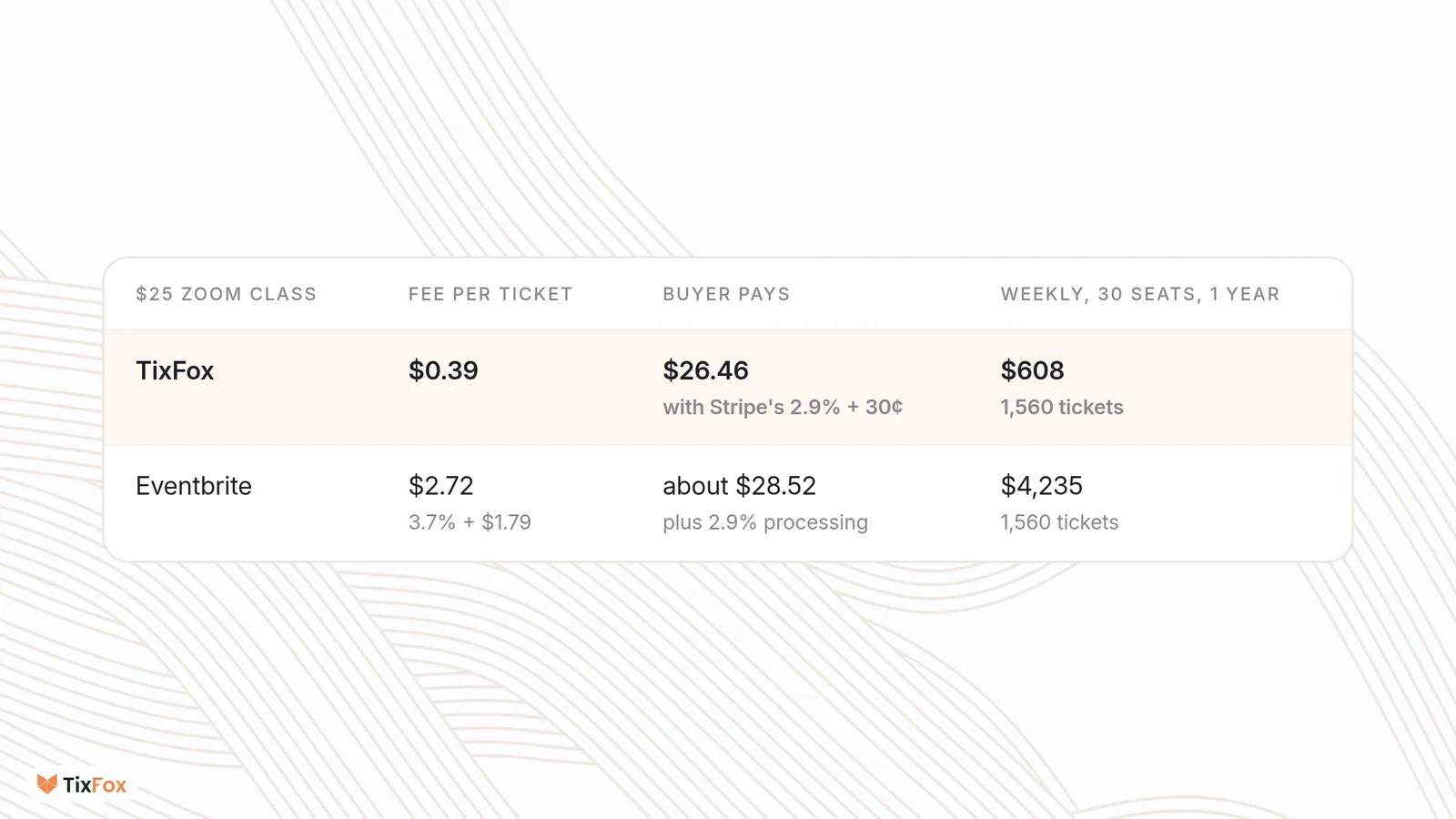
On TixFox, the buyer pays $26.46 for a $25 class: the 39¢ TixFox fee plus Stripe's 2.9% + 30¢. On Eventbrite in the US, the service fee is 3.7% + $1.79, or $2.72 on $25, and 2.9% payment processing is added to the order, so the buyer pays about $28.52.
Over a year of a weekly class with 30 seats, that's 1,560 tickets: $608 in TixFox fees against $4,235 in Eventbrite service fees, before processing. Not sure what to charge in the first place? Here's how to price event tickets.
Frequently asked questions
How do I charge for a Zoom meeting or class?
Schedule the meeting in Zoom, then sell tickets for it on a ticketing platform. Create an online event, set your price, and send the Zoom link only to buyers, in their confirmation email. Turn on Zoom's waiting room so you can admit people by name.
How do I send the Zoom link only to people who paid?
Keep it off the public event page and put it in the message buyers get after checkout. On TixFox, paste it into the ticket's Custom Deliverable Message under Advanced Settings. It appears in the confirmation email, and you can resend that email from the order at any time.
Do I need a paid Zoom account to charge for a class?
Not to charge, but maybe for the class itself. Zoom's free Basic plan allows meetings of up to 40 minutes with up to 100 participants. Anything longer needs a paid plan, which allows up to 30 hours.
How do I stop people from sharing my Zoom link?
Turn on the waiting room and admit only names on your attendee list, use a scheduled meeting instead of your Personal Meeting ID, and ask buyers in the email not to share the link. Any link can be forwarded, so the waiting room is what actually keeps the class to ticket holders.
Can I use the same steps for a Zoom webinar, Google Meet or Teams?
Yes. The deliverable message is plain text and links, so a Zoom webinar link, a Google Meet link or a Microsoft Teams link works the same way. Only the meeting settings in step 1 change.
Can I charge for a weekly Zoom class with one link?
Yes. Make the TixFox event recurring and schedule a recurring meeting in Zoom. Zoom gives every session in the series the same meeting ID, so one link in the deliverable message covers every date.
Teach the class, let the tickets handle the door
Your job is the class. Put the price, the seats, the link and the reminders on one event page, and the Zoom room fills with people who paid, without a single DM.
Create your Zoom class on TixFox. It's free to set up, and tickets cost 39¢ each.
Sources
- Zoom: Free video conferencing (Basic plan, meetings up to 40 minutes for up to 100 participants; paid plans up to 30 hours), checked October 20, 2026.
- Zoom Support: Enabling and customizing the waiting room, Using waiting room (Admit and Admit all), Starting a meeting without the host present (the waiting room overrides join before host).
- Zoom Support: Embedding passcode in shareable links and Scheduling a recurring meeting (each occurrence uses the same meeting ID and settings).
- Eventbrite Help Center: Eventbrite fees (US: 3.7% + $1.79 service fee per ticket, 2.9% payment processing of the order), checked October 20, 2026. Stripe: US pricing, 2.9% + 30¢ per successful domestic card payment.
- TixFox dashboard, demo account, October 20, 2026: Create Event (Location: Venue, Online, To Be Announced), Create Ticket Type (Max Tickets Per Order, Pricing Summary, Handle Fees, Hide Ticket, Custom Deliverable Message), Communication (Order Confirmation Email with {{custom_deliverable_message}}, Reset To Default), Orders (Create Order, Resend Confirmation, Edit Info). Fees from tixfox.co/pricing.
Written by the TixFox team. We build ticketing for organizers of every size, and we set up every TixFox step in this guide ourselves.
Keep more of every ticket sale.
- 39¢ per ticket, $0 on free events
- No monthly fee, no contract
- Get paid as each sale comes in